
Offline General Contractor
Run a project when the General Contractor isn't on SuperConstruct — the subcontractor manages everything in the platform while the GC reviews and approves SOVs, pay applications, and change orders by email.
What Is an Offline General Contractor?
An offline general contractor isn't on SuperConstruct. The subcontractor manages the entire project within SuperConstruct, while the GC receives project items by email and provides their decisions by email. No SuperConstruct account is required for the GC — they're brought into the workflow only when their decision or signature is needed.
Every action the subcontractor records on the GC's behalf is clearly logged, so there's always a clean audit trail.
This is the mirror of Offline Subcontractors: there, a GC manages a subcontractor who isn't on the platform; here, a subcontractor manages a GC who isn't on the platform.
Adding an Offline GC
As a subcontractor:
- Log in to SuperConstruct and open your Company
- Select the Project and go to the Users module
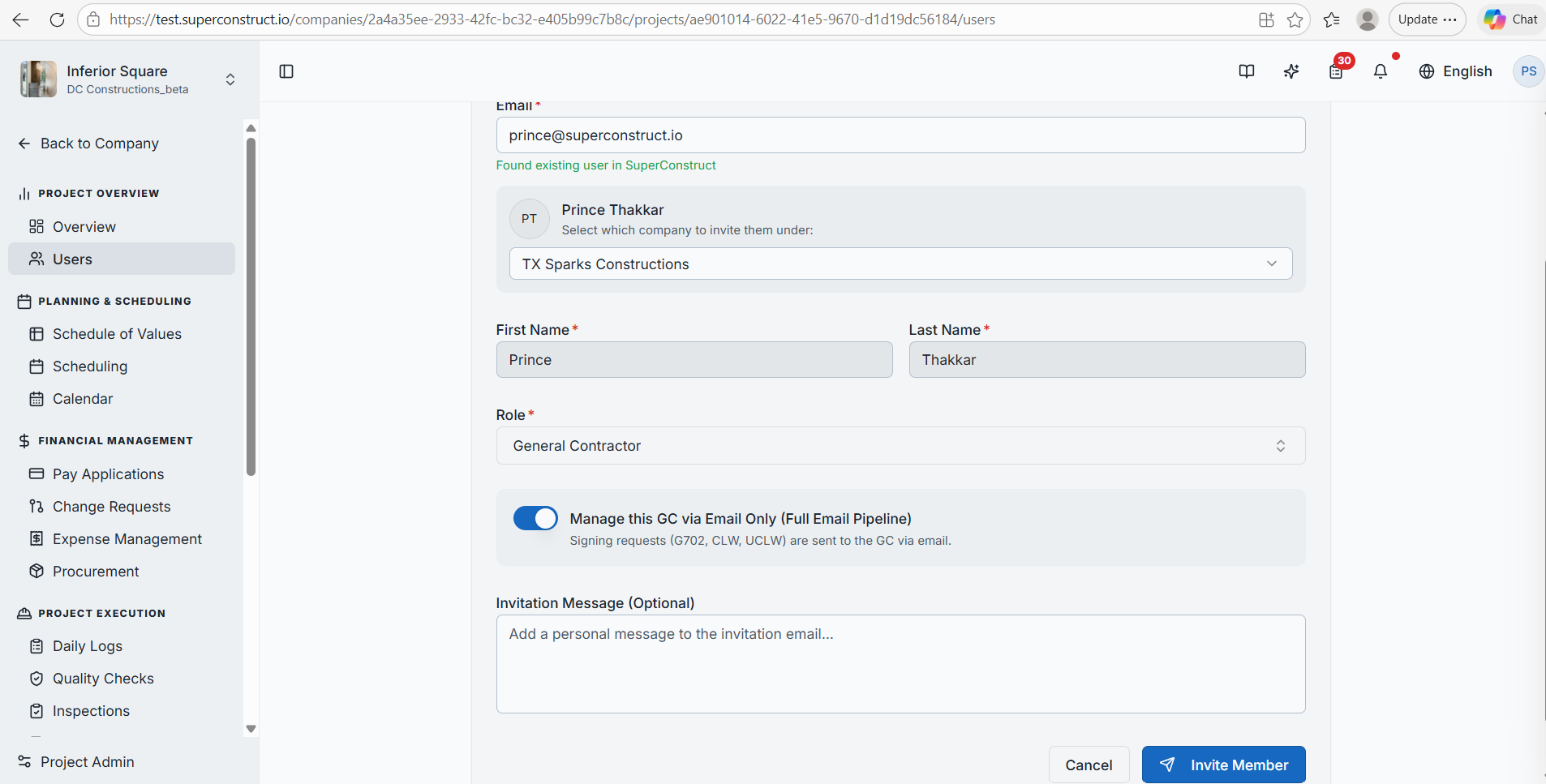
- Click Add Member and enter the email, first name, and last name
- Under the Role drop-down, select General Contractor
- Enable Manage this GC via Email Only (Full Email Pipeline) — this tells SuperConstruct the GC won't access the platform directly and will communicate through email. All signing requests (G702, CLW, UCLW) are sent to the GC by email
- Click Invite Member
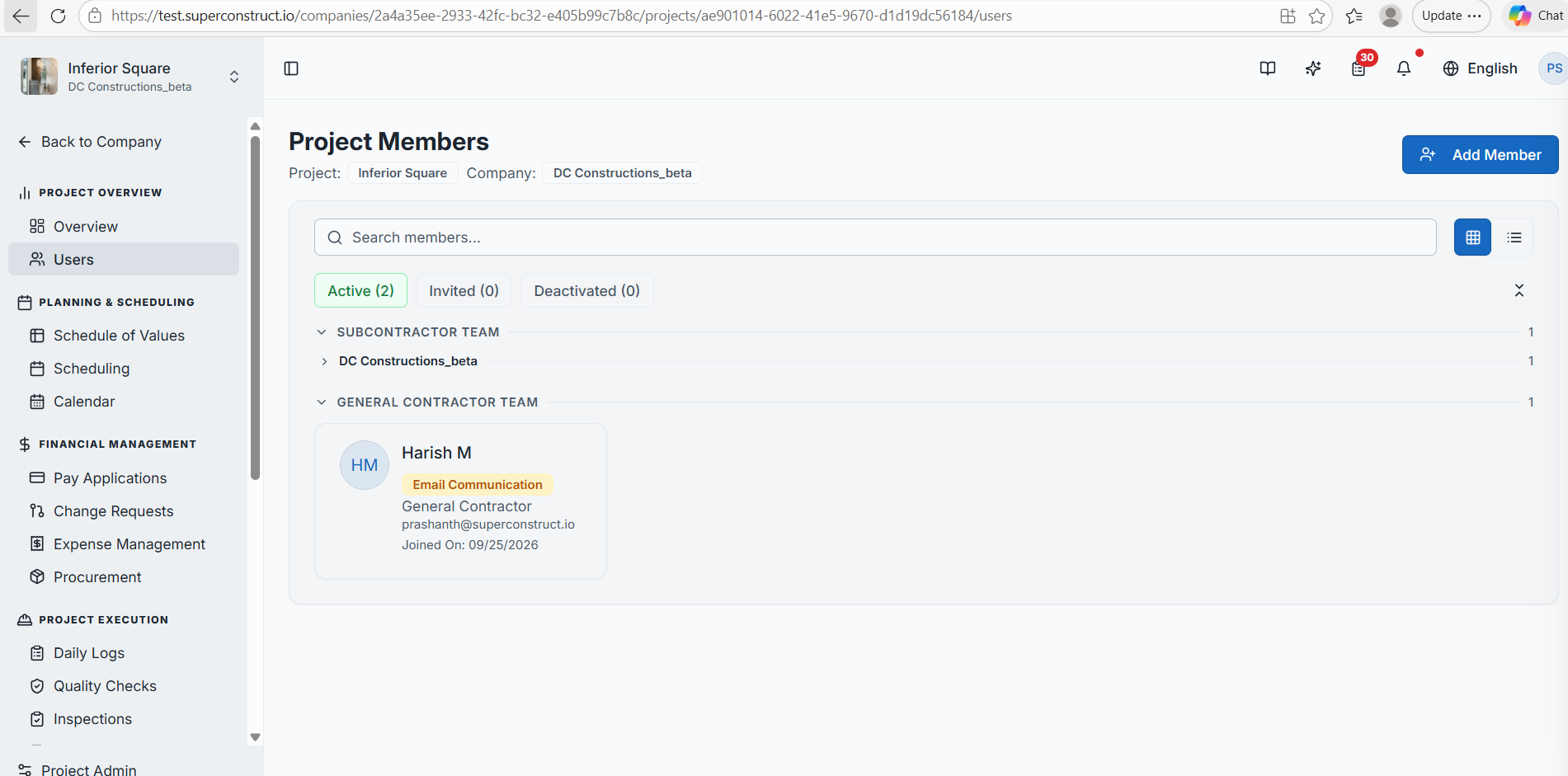
Once added, the GC appears under the General Contractor team with an email communication indicator. No SuperConstruct account is required — they'll receive project communications by email whenever their decision is needed.
Schedule of Values Workflow
Build your SOV as you normally would:
- Click Create New SOV
- Select divisions and line items, enter the mandatory fields, and optionally set dates and choose a quality check, inspection, or submittal
- When the SOV is ready, select Submit for Approval
- In the Select Approver field, choose the General Contractor
Once submitted, the GC receives an email containing the SOV details and the PDF for review. The GC can review the SOV without logging into SuperConstruct and respond with their decision by email.
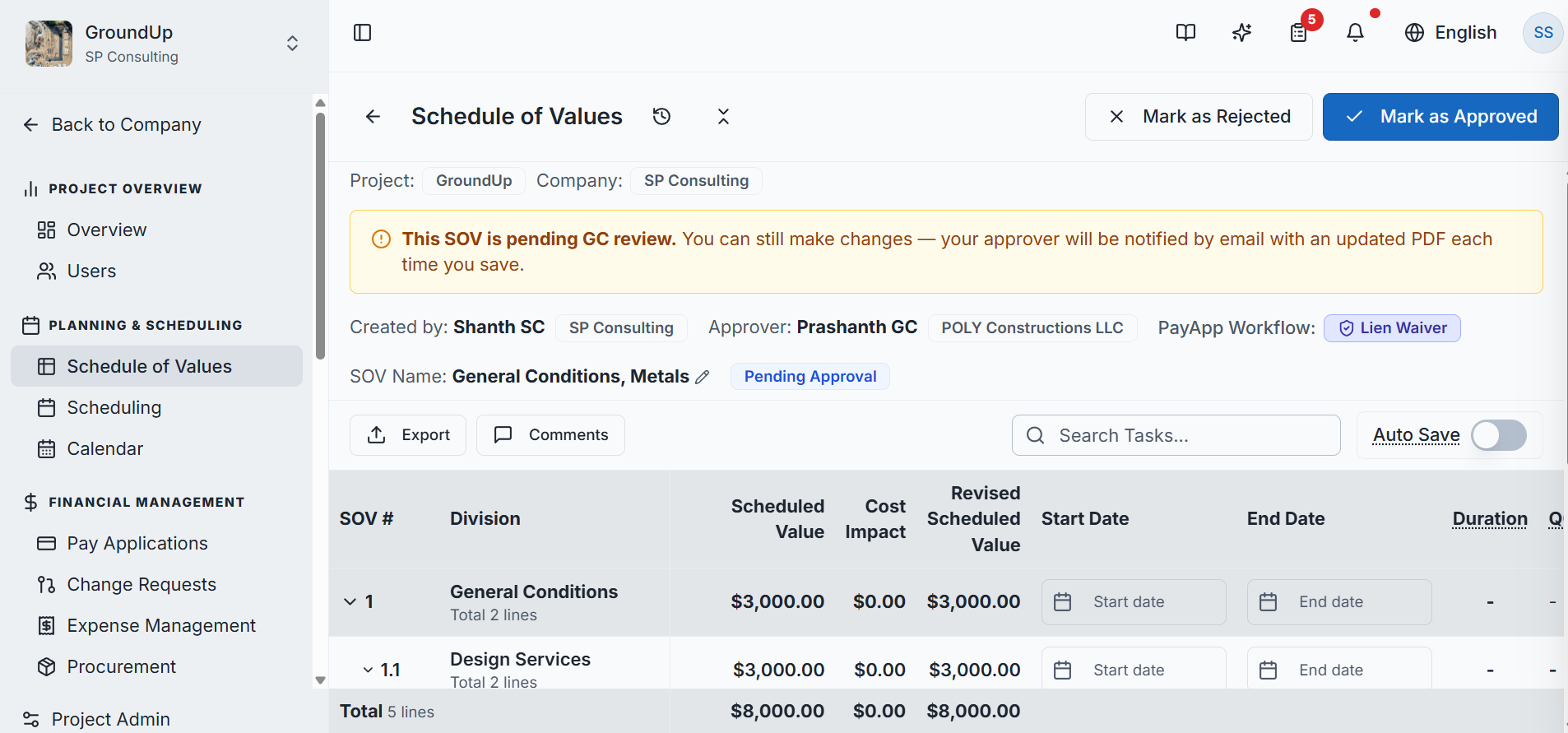
While the SOV is pending GC review, you can still make changes — the approver is re-notified by email with an updated PDF each time you save.
Recording the GC's Decision
When the GC responds by email, return to the SOV in SuperConstruct and record their decision:
- Select Mark as Approved or Mark as Rejected based on the response the subcontractor received
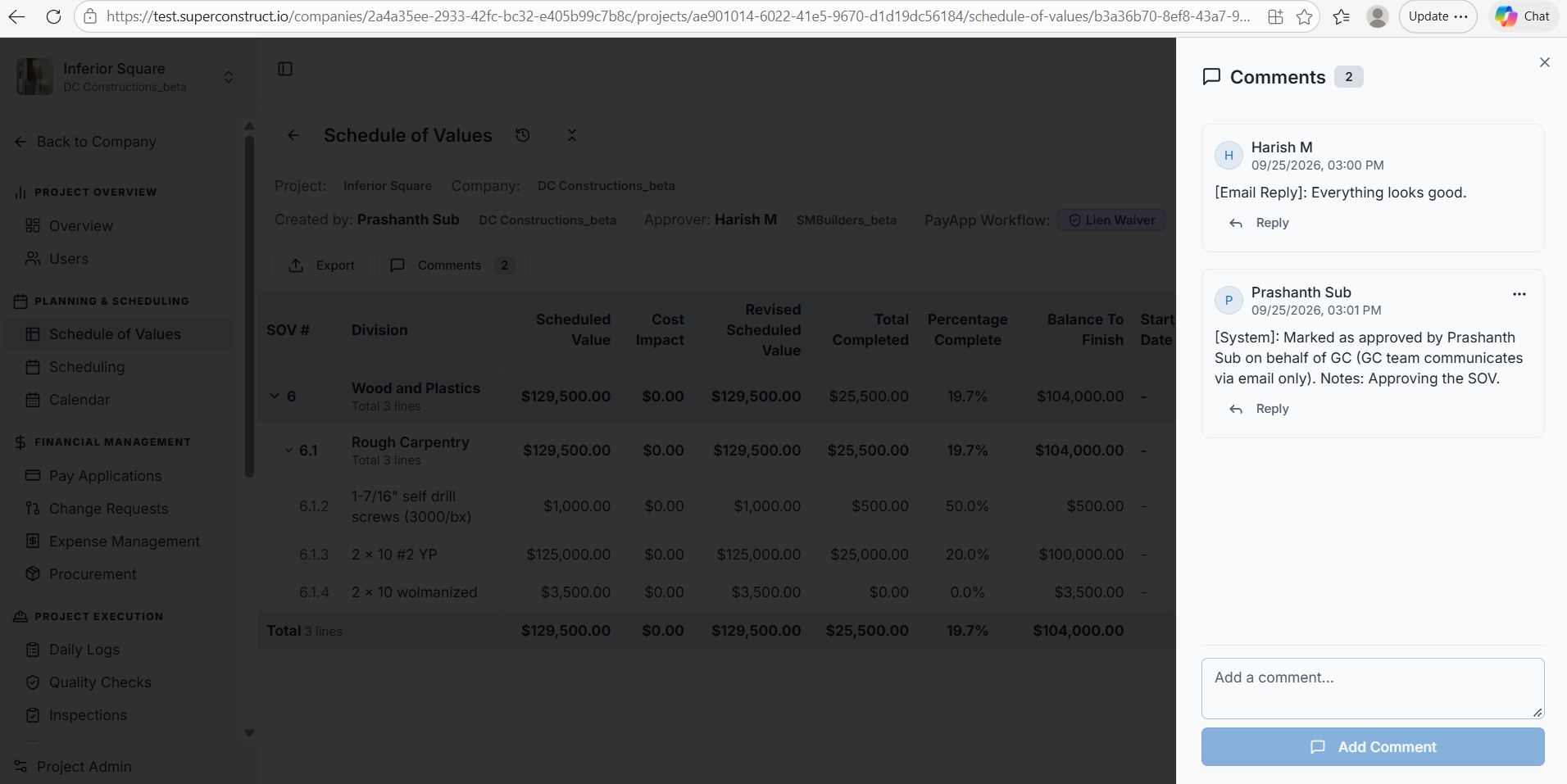
- The decision is also captured in the comment section
SuperConstruct clearly records that the action was taken on behalf of the GC — identifying who entered the decision, that they acted on behalf of the GC, and that the GC communicates by email only. This provides a clear audit trail, instead of making it appear that the GC logged into SuperConstruct and approved the item themselves.
Pay Application Workflow
As with the SOV, the subcontractor manages the pay application directly in SuperConstruct while the GC reviews and responds through email. When creating the pay application, first select the paying company.
1. Payment Terms
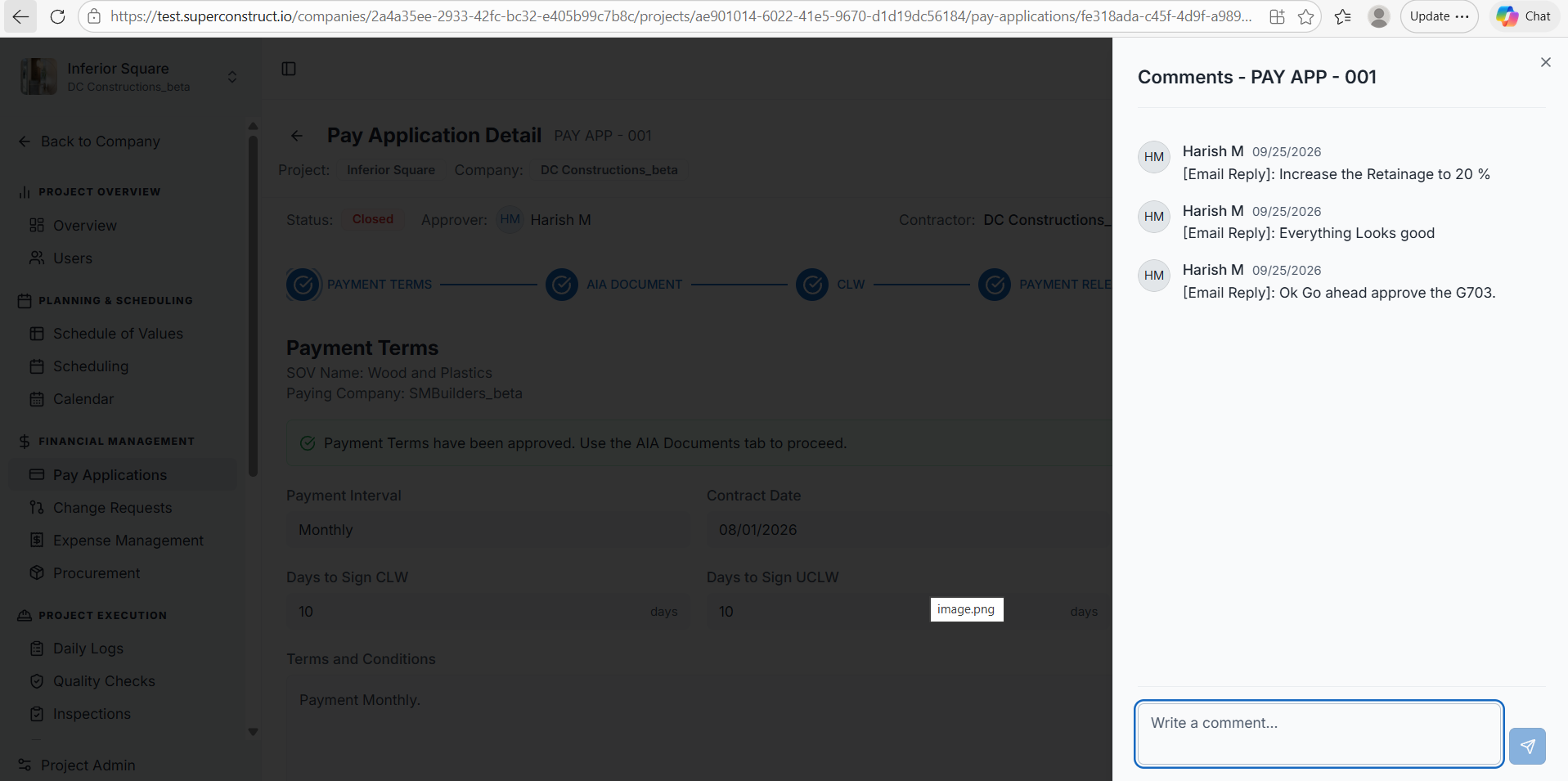
The first step shows the SOV associated with the pay application, the paying company, and the General Contractor selected as the approver. Because this GC is configured as email only, the approval is handled through email rather than a SuperConstruct login.
- Submit the payment terms — the GC receives an email with the payment terms for review
- The GC reviews and responds by email; the subcontractor records the approval in SuperConstruct
- The payment terms are marked Approved, and the workflow continues
2. G703
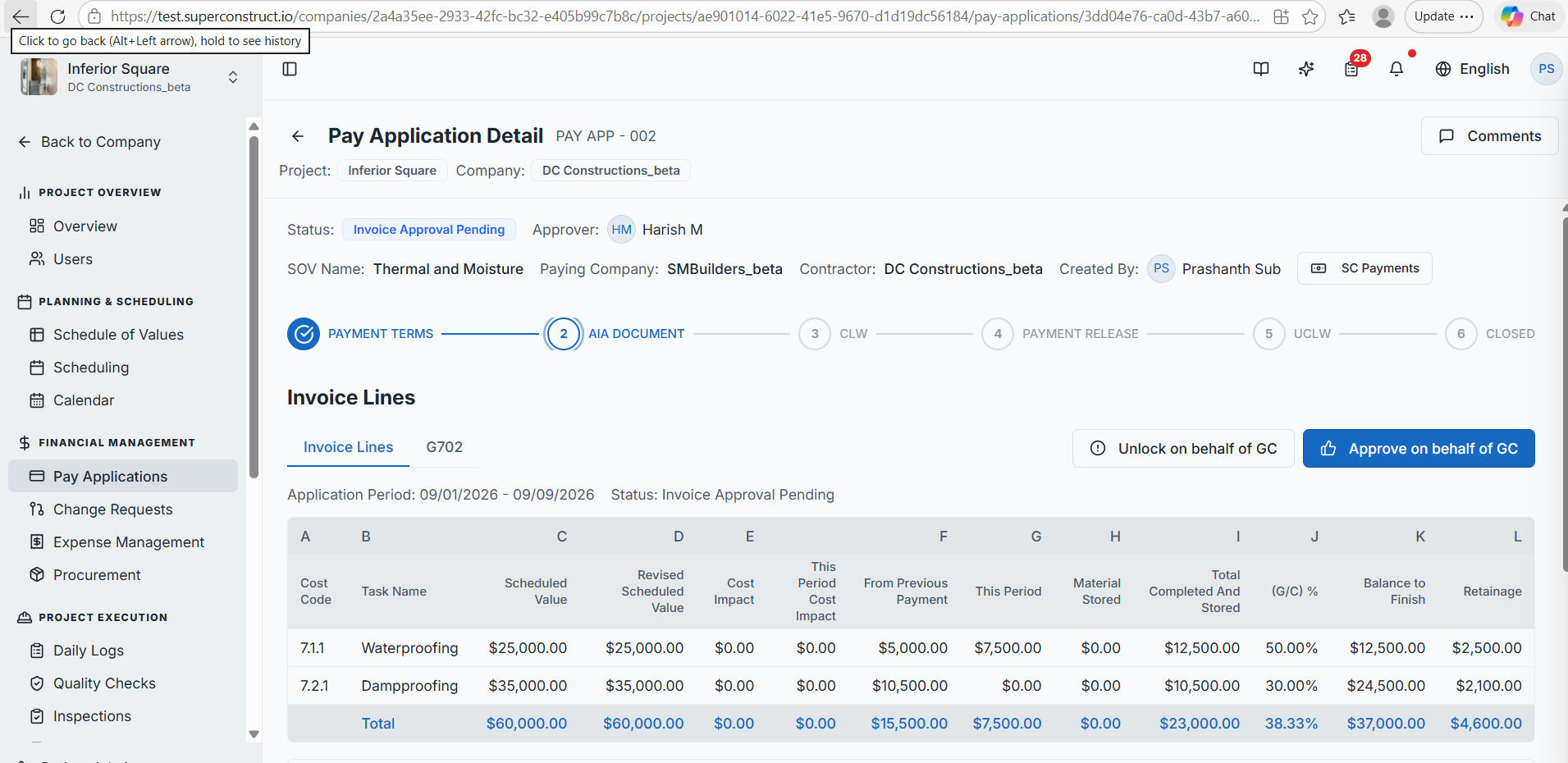
Enter the application period and contractor invoice number, then save the invoice. Select Submit Invoice for Approval, choose the appropriate approver, and (if needed) add comments for the GC before submitting.
The offline GC receives the invoice information by email, reviews the pay application, and provides approval by email. On the pay application, the subcontractor records that response using Approve on behalf of GC (or Unlock on behalf of GC to send it back for changes) — a confirmation is displayed before proceeding. A stage indicator tracks the pay application through Payment Terms → AIA Document → CLW → Payment Release → UCLW → Closed.
3. G702 — Application and Certification for Payment
Once the invoice is approved, the G702 document is presented for review and signature. Complete the required signature step.
4. Conditional Lien Waiver (CLW)
The conditional lien waiver is presented for review and signature. Complete the electronic signature and consent — the signed document becomes part of the pay application record.
5. Payment Release
The application shows that the payment is pending and ready for release. Because this is an offline GC, the subcontractor performs the payment release on behalf of the GC:
- Enter the payment details — transfer date, payment amount, transaction reference, and mode of transfer
- Verify the information and release the payment on behalf of the General Contractor
6. Unconditional Lien Waiver (UCLW)
After the payment is released, the unconditional lien waiver is presented for signature. Once the required documents are completed, the pay application workflow is finalized.
Change Request & Change Order Workflow
The subcontractor creates and manages the change request in SuperConstruct, while the GC reviews and responds by email.
- Enter the change request details and submit
- The GC receives the change request information and a supporting PDF by email, reviews the requested change, and responds by email
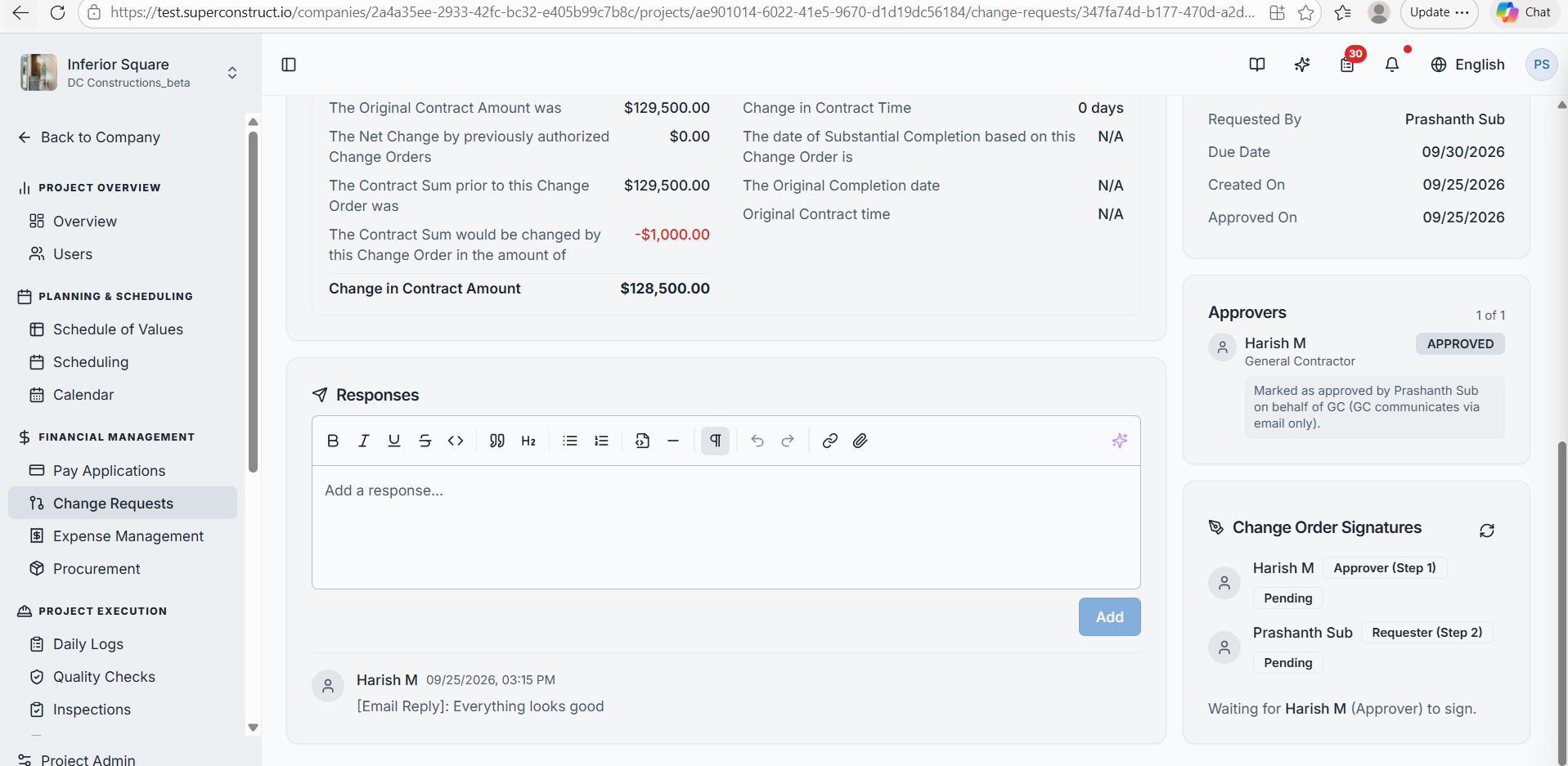
- In the response section of the change request, record the GC's decision — Mark as Approved or Mark as Rejected
The system records that the action was performed on behalf of the General Contractor, because the GC communicates by email only.
The Change Order
After the change request is approved, SuperConstruct generates the associated Change Order with the updated contract information, which moves into the signature workflow:
- The offline GC first receives an email requesting their signature on the change order. They open it from the email, review the document, and complete their electronic signature
- The workflow then moves to the subcontractor's signature — sign the change order directly in SuperConstruct (select the signing option, review the change order, accept the electronic signature agreement, and complete the signature)
Once both signatures are completed, the change order is fully executed — SuperConstruct records the completed signatures and the change order is finalized.
Video Tutorial
Managing an Offline General Contractor — Pay Apps & Change Orders via Email
Role Access: Designed for subcontractors managing a project whose General Contractor is not on SuperConstruct. The offline GC participates entirely by email — receiving SOVs, pay applications, and change orders, and responding with decisions and signatures — while the subcontractor records each action on their behalf.