
Offline Subcontractors
Manage subcontractors who aren't on the platform — the GC handles their SOVs, pay applications, and change requests on their behalf, with signatures collected by email.
What Is an Offline Subcontractor?
An offline subcontractor — also called a GC-managed subcontractor — is a subcontractor who won't join SuperConstruct directly, but whose records still need to be maintained. This feature lets the General Contractor manage everything on their behalf: their Schedule of Values, pay applications, and change requests stay fully tracked and correctly signed, even though the subcontractor has no platform login.
The key difference from a regular (online) subcontractor:
- The offline subcontractor receives no invitation and no emails at all, except signature-related emails during pay applications and change requests.
- The GC creates and submits everything on their behalf; approvals route through the GC team, not the subcontractor.
Adding an Offline Subcontractor
From the GC's point of view:
- Log in, open your Company, and select the Project
- Go to the Users module and click Add Member
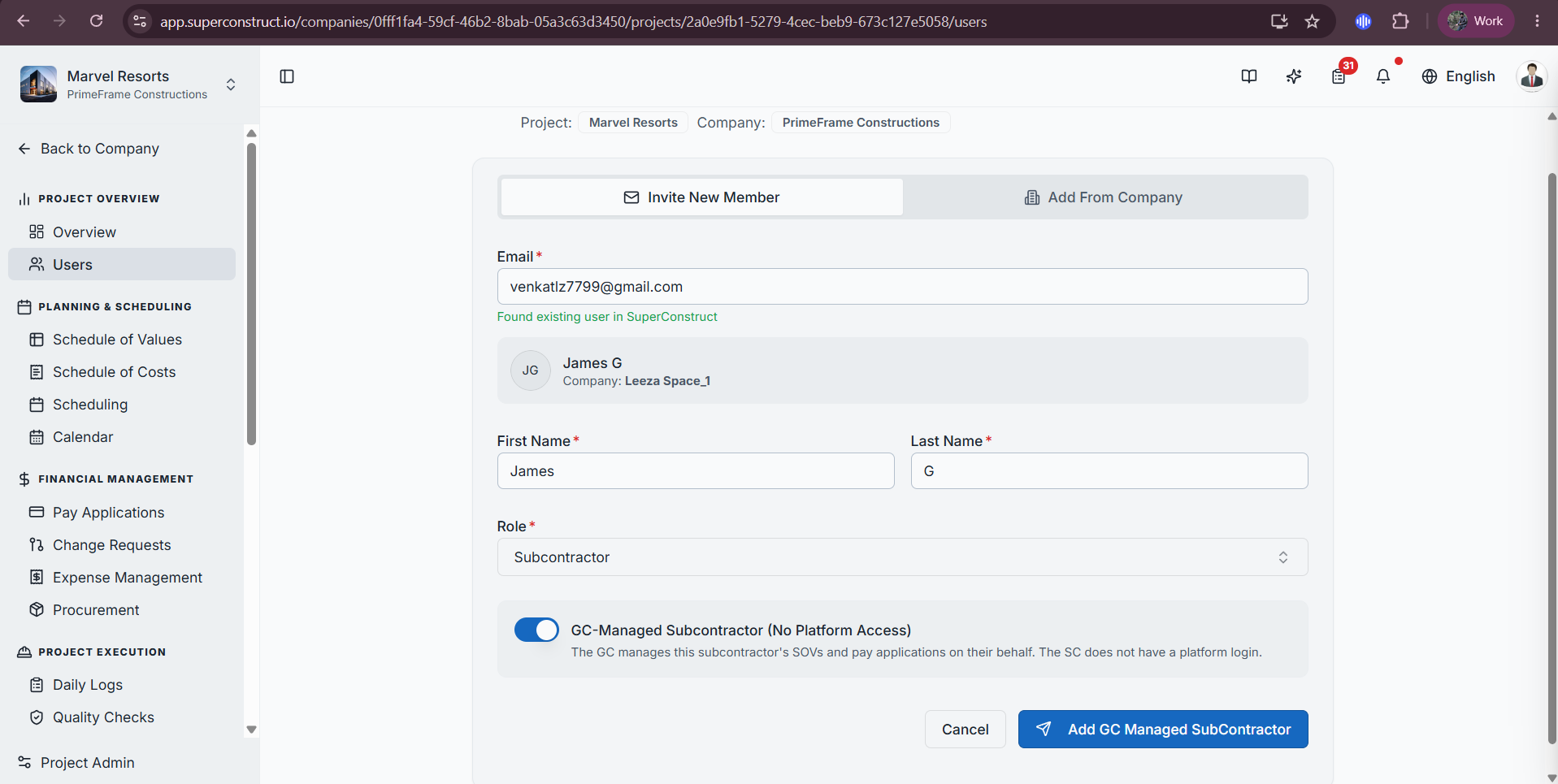
- Enter the subcontractor's email, first name, and last name
- Open the Select Role drop-down and choose Subcontractor
- A toggle now appears — GC Manage Subcontractor · No platform access — with a note explaining that the GC manages the subcontractor's applications on their behalf
The toggle is off by default. Left off, the subcontractor gets an invitation email to join as an active (online) subcontractor. To add an offline subcontractor, enable the toggle — no invitation email is sent, and going forward this subcontractor receives no emails except signature-related ones during pay applications and change requests.
- Click Add GC Manage Subcontractor — the subcontractor is added to the project
Verifying the Offline Subcontractor
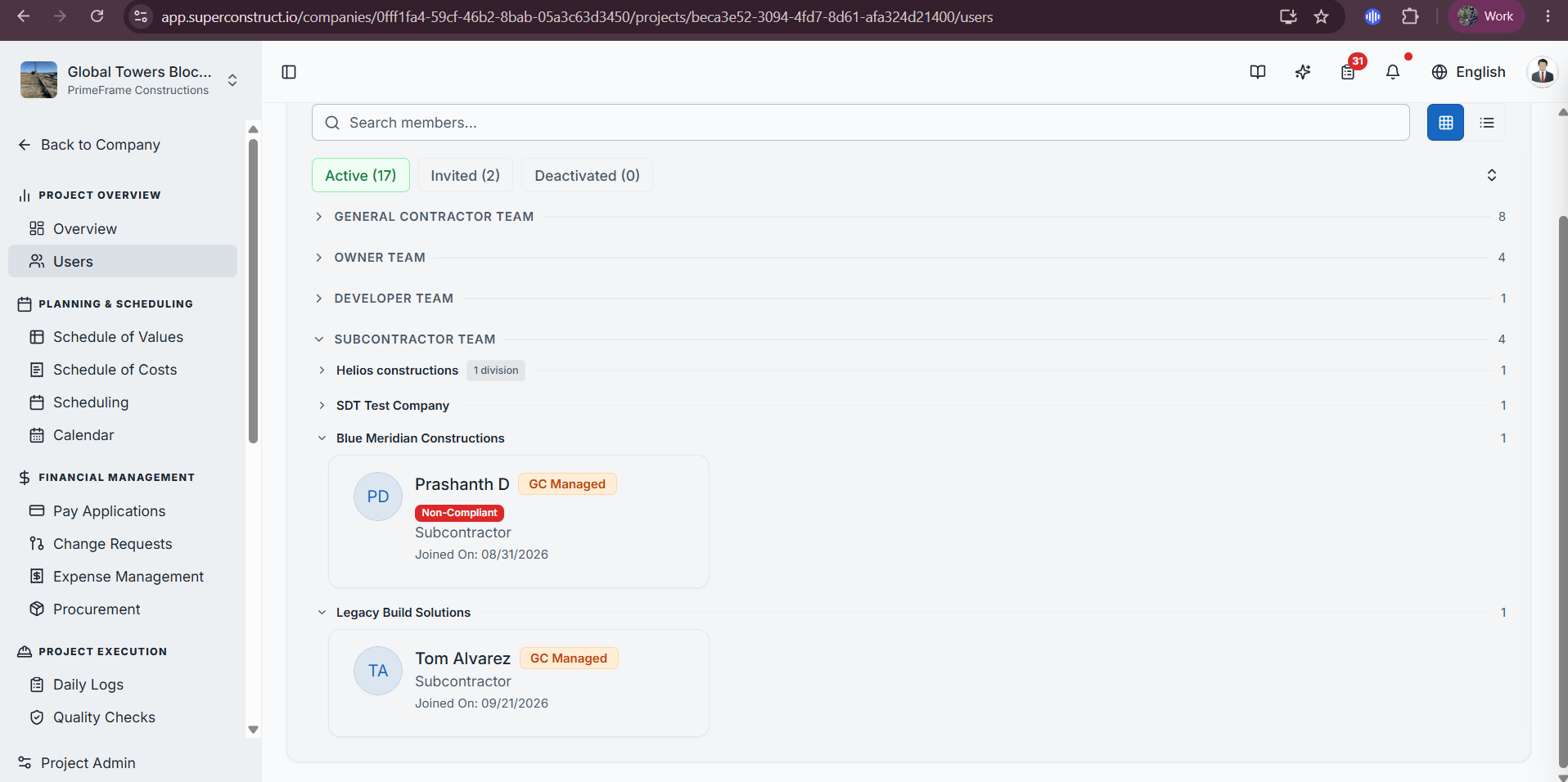
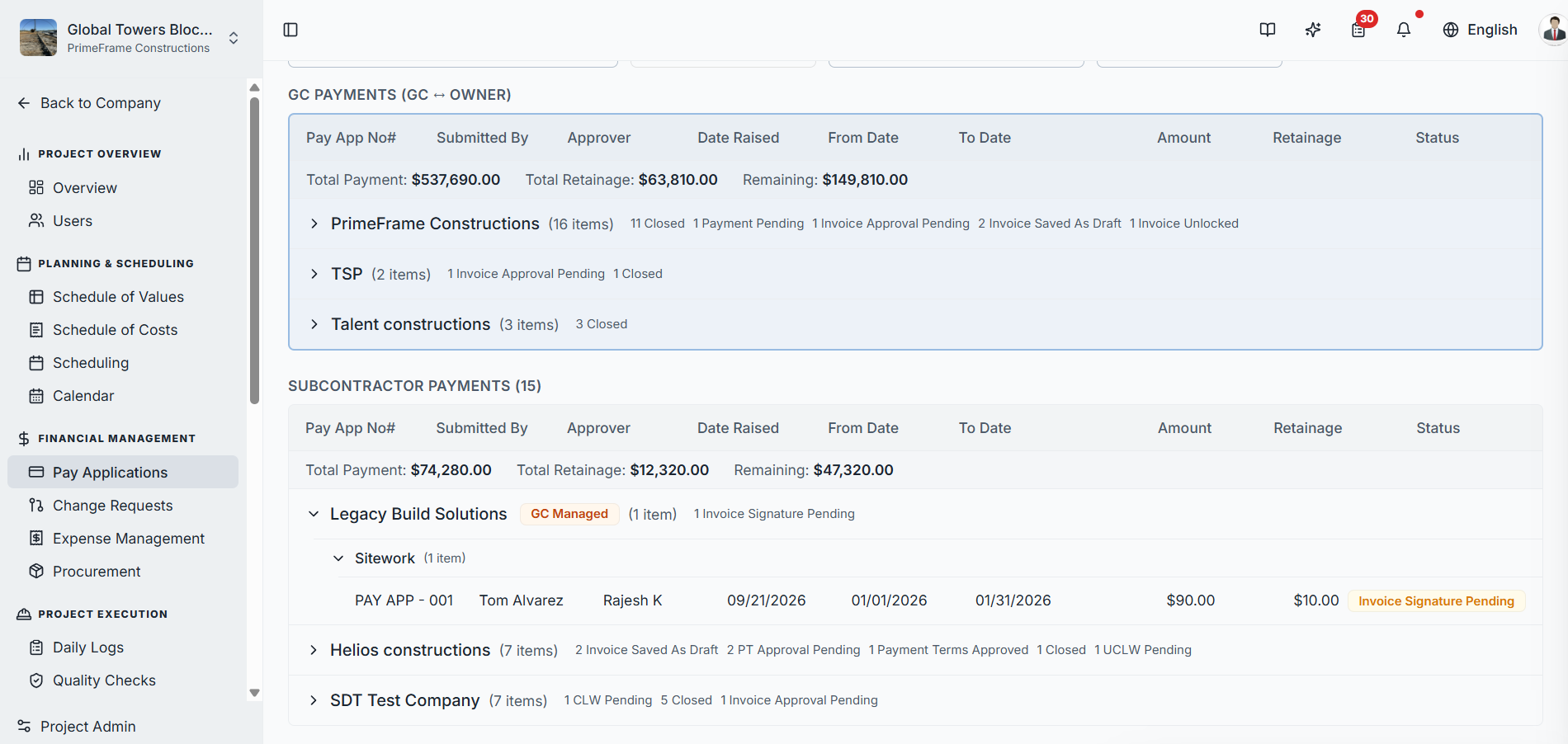
Expand the subcontractor team and open their company. Their card shows a GC Manage label — this is what distinguishes an offline subcontractor from a regular active one (whose card shows no label).
Creating an SOV on Their Behalf
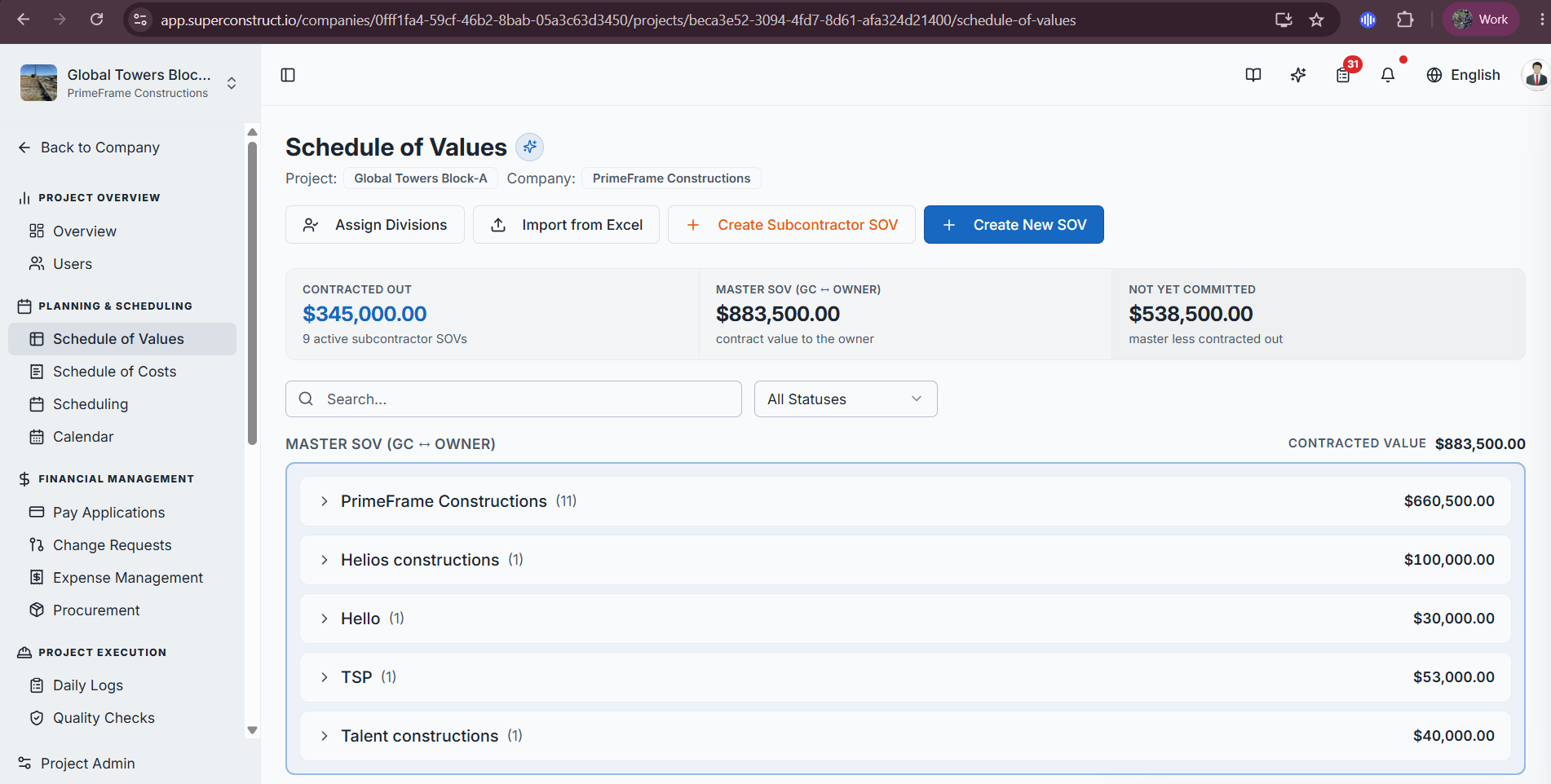
In the Schedule of Values module, because at least one offline subcontractor exists, a new Create Subcontractor SOV button appears alongside Create New SOV.
- Click Create Subcontractor SOV
- With one offline subcontractor, the form opens directly
- With more than one, a pop-up lists all offline subcontractor companies to choose from
- The SOV page shows a highlighted note confirming you're creating this on behalf of that subcontractor
- From here it works like a normal SOV — add divisions and line items, enter the amount (mandatory), and optionally set dates and choose a quality check, inspection, or submittal
- Save as Draft or Submit. Submitting opens a drawer with the SOV name autofilled — select an approver from your GC team, choose the pay app workflow, and submit
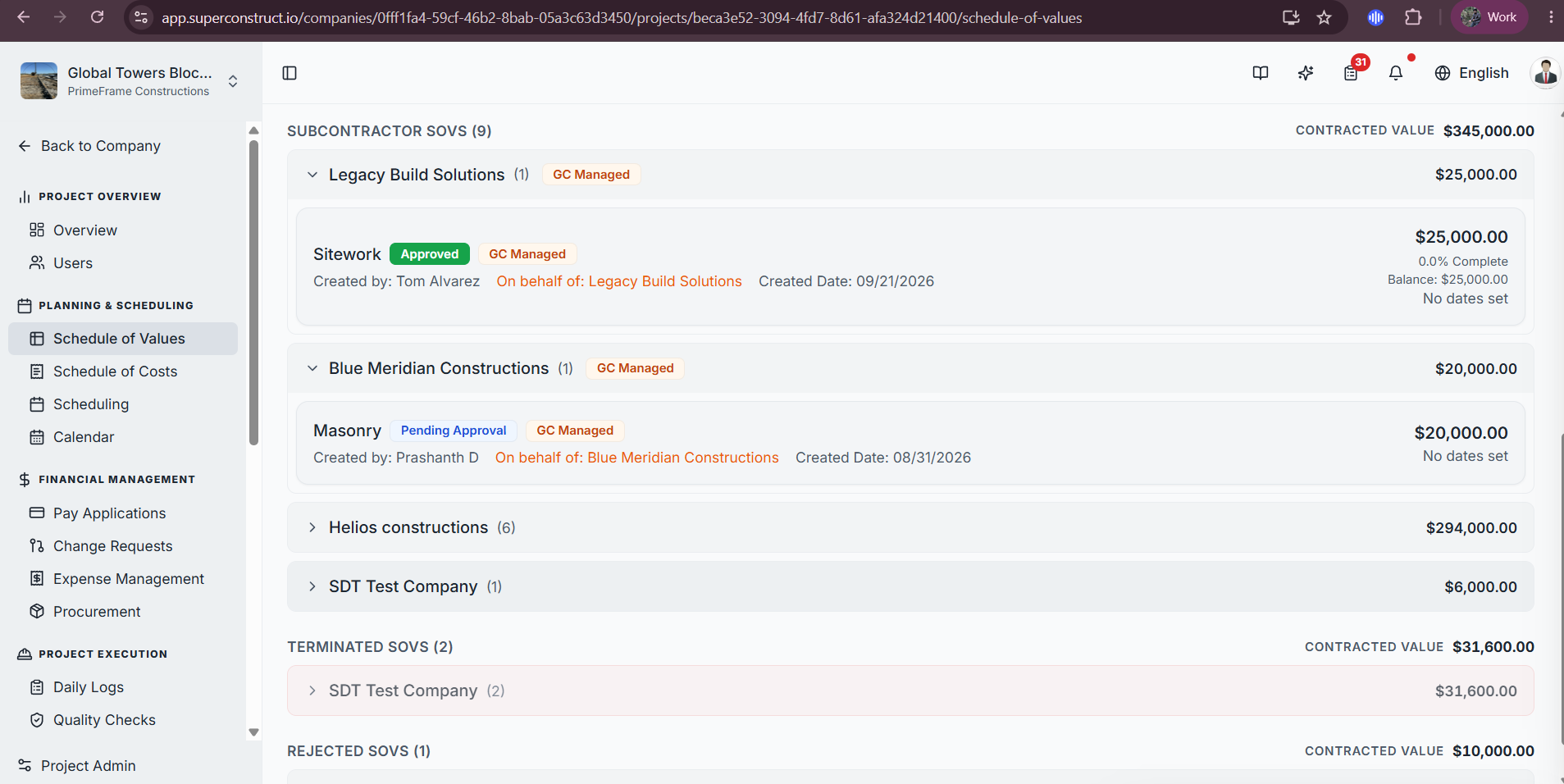
The SOV appears under Subcontractor SOV with the GC Managed label. The approver gets an email, in-app alert, and pending task, and can approve or reject it. The offline subcontractor never receives an email about it.
Creating a Pay Application on Their Behalf
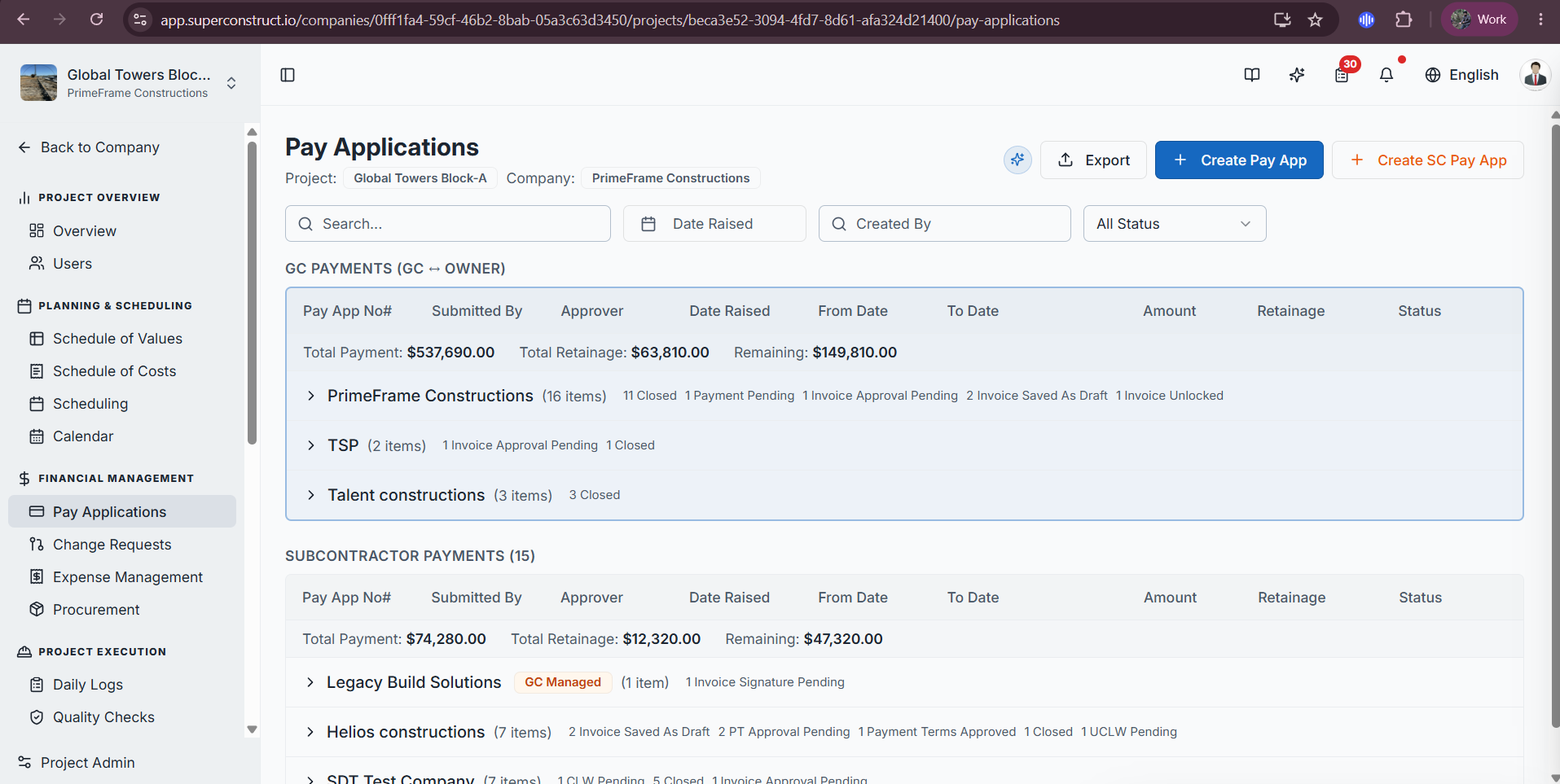
In the Pay Application module, click the Create Subcontractor Pay App button (styled differently from the standard button) and select the subcontractor's SOV.
1. Set Up Payment Terms
Payment terms define how payments and signatures are handled:
- Payment interval — weekly, bi-weekly, or monthly
- Contract date — anchors the payment cycle
- Signature timelines — the number of days allowed for the CLW (Conditional Lien Waiver) signature, and the days allowed for the UCLW (Unconditional Lien Waiver) signature after payment is released
Submit the payment terms. Because the subcontractor is offline, this routes straight to the GC for approval — as GC, review and approve the payment terms.
2. Generate the Pay Application
- Click to create the G703
- Select the application period (from/to dates)
- Enter the amount to bill against each line item, then review carefully
- Generate the G703 and submit the pay application
The pay application moves to the GC to approve, unlock, or reassign. Approve it to continue.
3. Collecting Signatures by Email
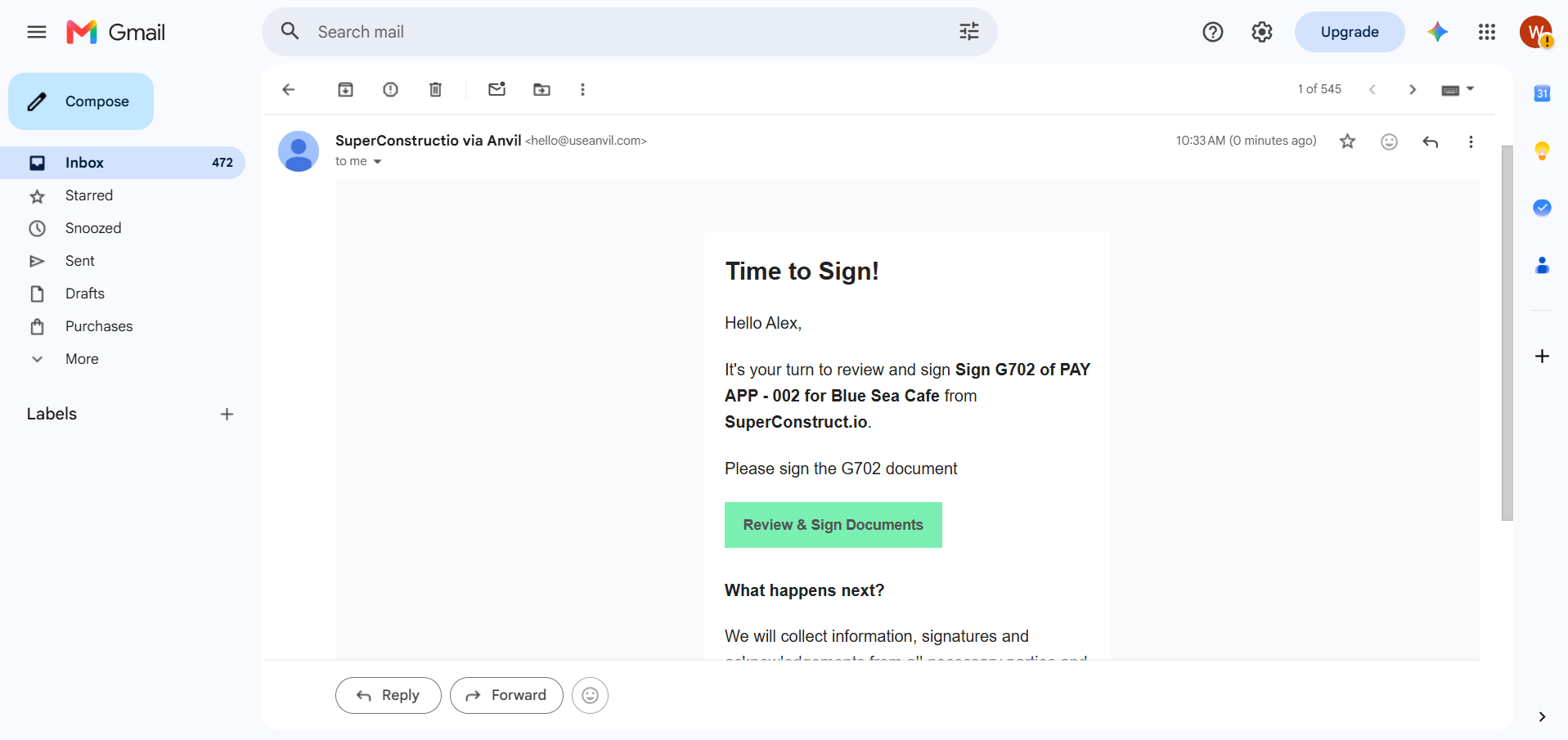
A normal online subcontractor signs inside SuperConstruct — but an offline subcontractor has no login, so they receive a signature request by email at each step:
- The subcontractor opens the email and clicks Review and Sign Documents
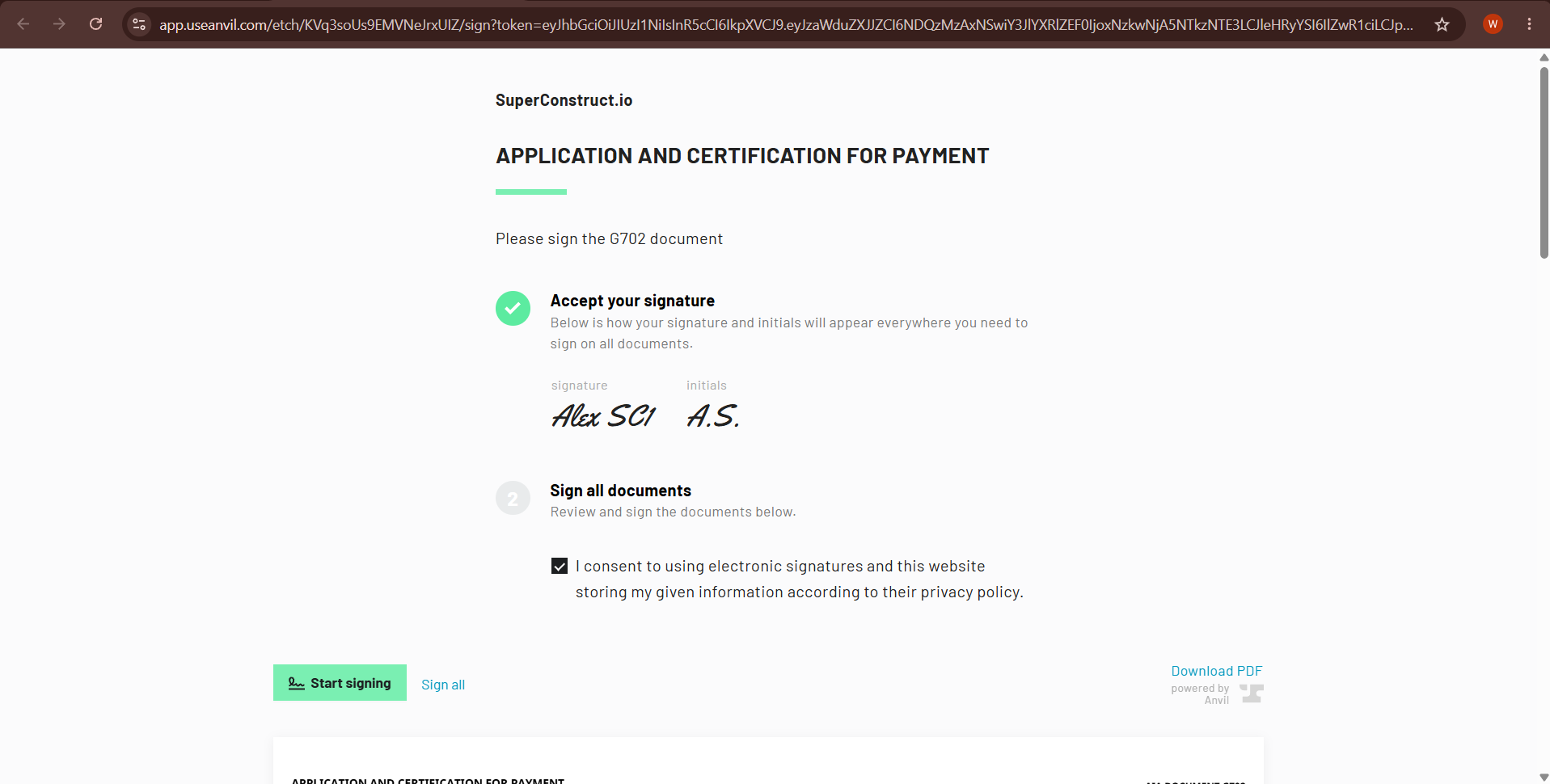
- The document loads; they add their initials, consent to the electronic signature, and sign
- Back in SuperConstruct, the pay application status updates automatically
The signatures follow this sequence:
| Step | Signature | What Happens |
|---|---|---|
| 1 | G703 | After signing, status becomes CLW Pending |
| 2 | CLW (Conditional Lien Waiver) | Another signing email; sign to proceed |
| 3 | UCLW (Unconditional Lien Waiver) | As GC, release the payment — this triggers the final signature email; after signing, status becomes Closed |
Creating a Change Request on Their Behalf
Change requests follow the same pattern:
- Click the Create Subcontractor Change Request button (highlighted)
- Select the SOV and click Create
- The GC completes and approves the change request, then signs the document
- The offline subcontractor then gets their own signing email — they open it, click Review and Sign Documents, add initials, consent, and sign
After the signature is processed, the change request shows Completed.
Summary
The offline subcontractor functionality lets GCs manage subcontractors who aren't on the platform — keeping every SOV, pay application, and change request fully tracked and correctly signed. The subcontractor only ever interacts through signature emails; everything else is handled by the GC inside SuperConstruct.
Video Tutorial
How to Manage Offline Subcontractors in SuperConstruct
Role Access: Available to General Contractors. Offline (GC-managed) subcontractors have no platform login — they participate only through emailed signature requests.