
Vendors
Manage your subcontractors, suppliers, and consultants — track compliance, performance, and project assignments.
What Are Vendors?
Vendors are the external companies and individuals your organization works with on construction projects. They include:
- Subcontractors — trade specialists (electrical, plumbing, concrete, etc.)
- Suppliers — material and equipment providers
- Consultants — specialized advisors (legal, environmental, etc.)
- General Contractors — when your company is in an owner/developer role
Why Vendor Management Matters
Centralized vendor management helps you:
- Track compliance — monitor insurance certificates, licenses, and certifications before they expire
- Evaluate performance — score vendors across quality, timeliness, communication, safety, and cost
- Manage financials — track bonding capacity, payment terms, and banking details
- Streamline onboarding — quickly add vendors to new projects with pre-verified information
Accessing Vendors
Select "Vendors" from the left navigation sidebar (one of the three main options after login).
Vendor List
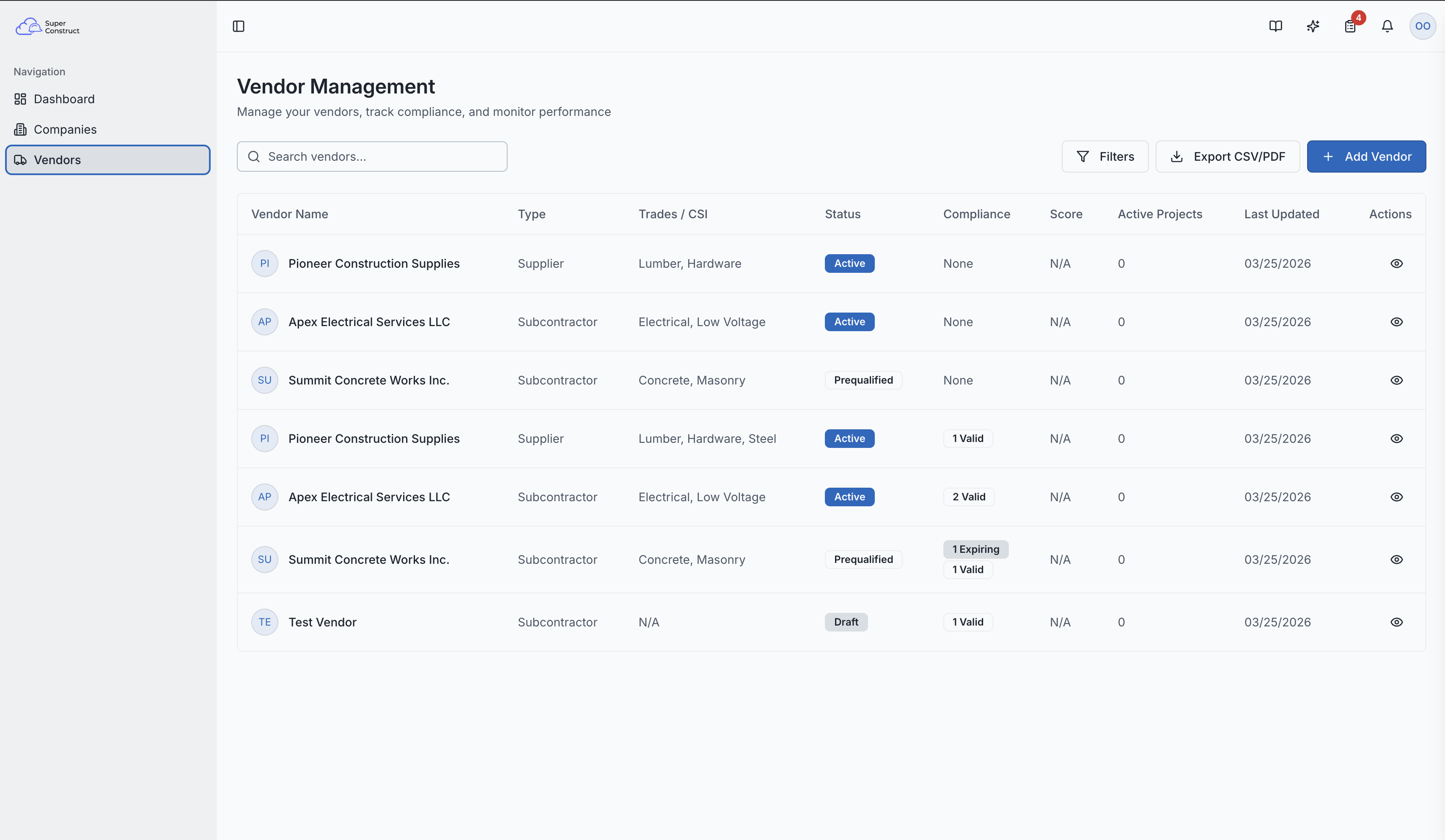
The vendor list page provides:
- Search — find vendors by name
- Filters — filter by Status (Draft, Invited, Prequalified, Active, On Hold, Inactive) and Vendor Type (Subcontractor, Supplier, Consultant, General Contractor)
- Compliance Summary — visual badges showing valid, expiring (within 30 days), and expired compliance documents
- Performance Score — overall rating for each vendor
- Active Projects — number of current project assignments
Creating a Vendor
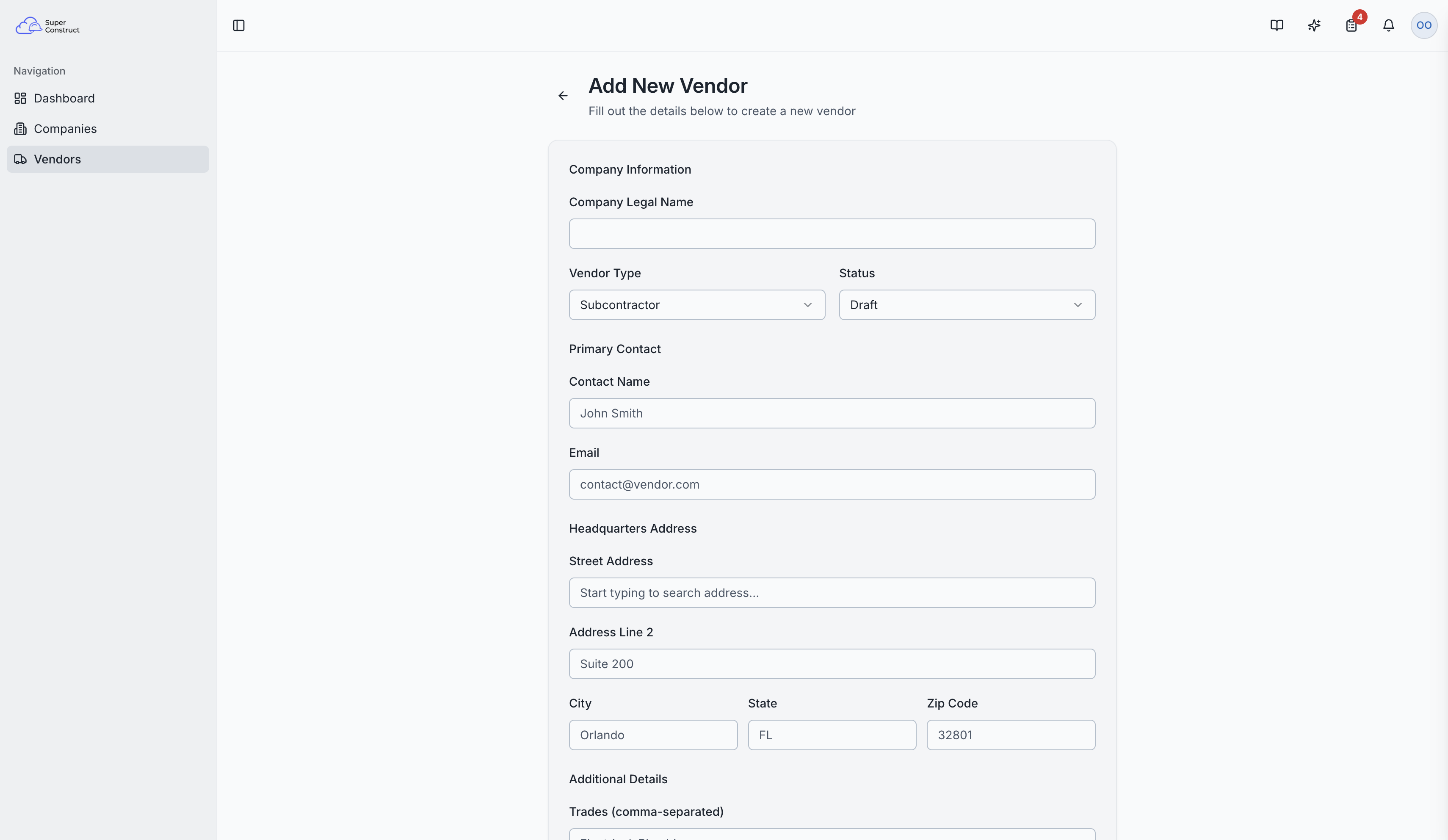
Click "Add Vendor" to create a new vendor record:
- Company Match Detection — as you type the company name, the system checks for existing matches. If found, you can auto-populate known details
- Legal Name and Vendor Type
- Status — initial status (typically Draft)
- Primary Contact — name and email
- Headquarters Address — with Google Places autocomplete for easy entry
- Additional Details — Trades, CSI Codes (construction specification codes), and Regions
Vendor Detail Tabs
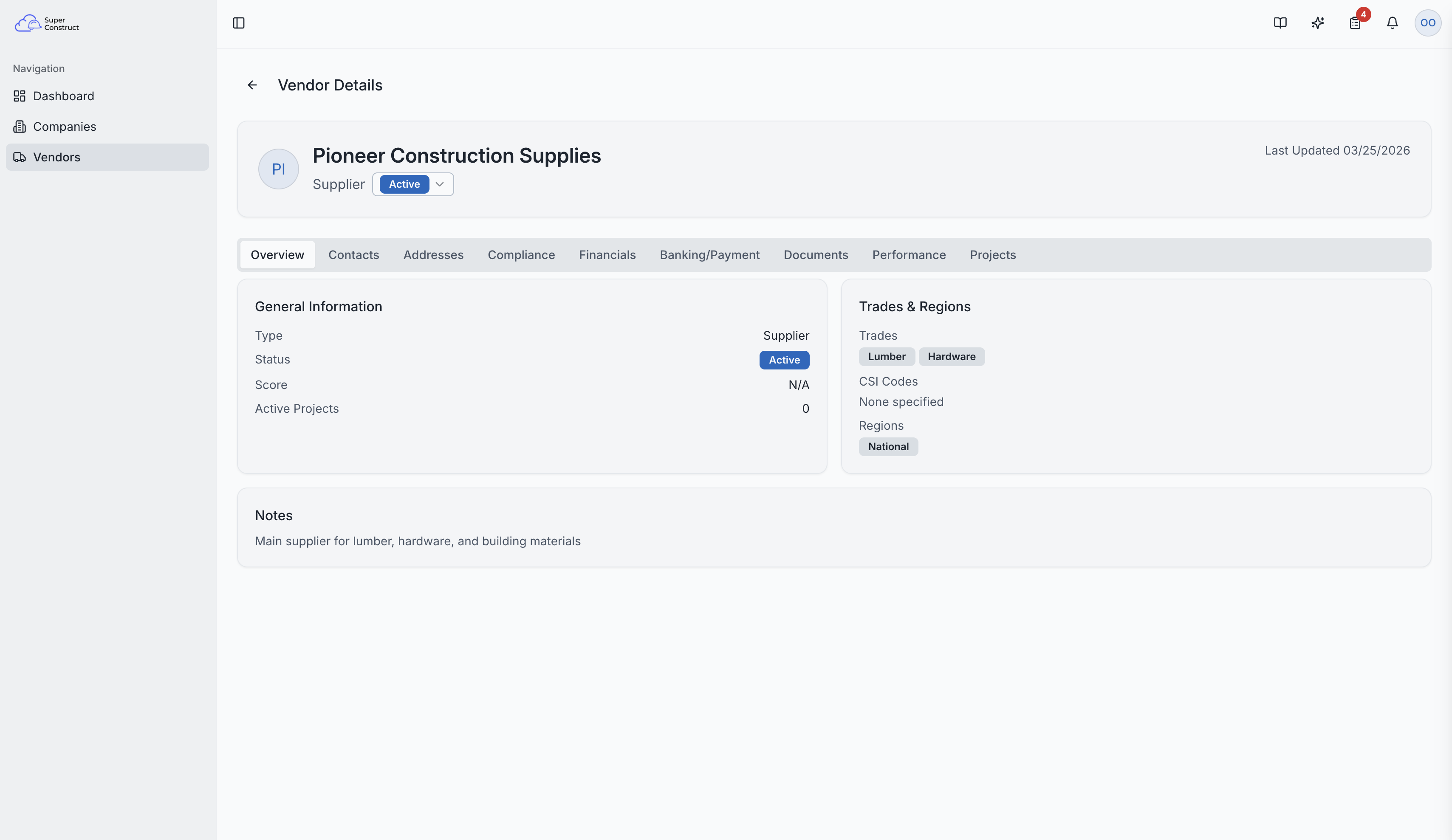
Clicking a vendor opens their detail page with nine specialized tabs:
Overview
General information including performance score, active project count, trades, CSI codes, regions served, notes, and tags.
Contacts
Manage a list of vendor personnel. Features an email lookup — if a contact is already a registered SuperConstruct user, their name auto-fills.
Addresses
Track multiple address types:
- Headquarters, Mailing, Remittance, Other
Compliance
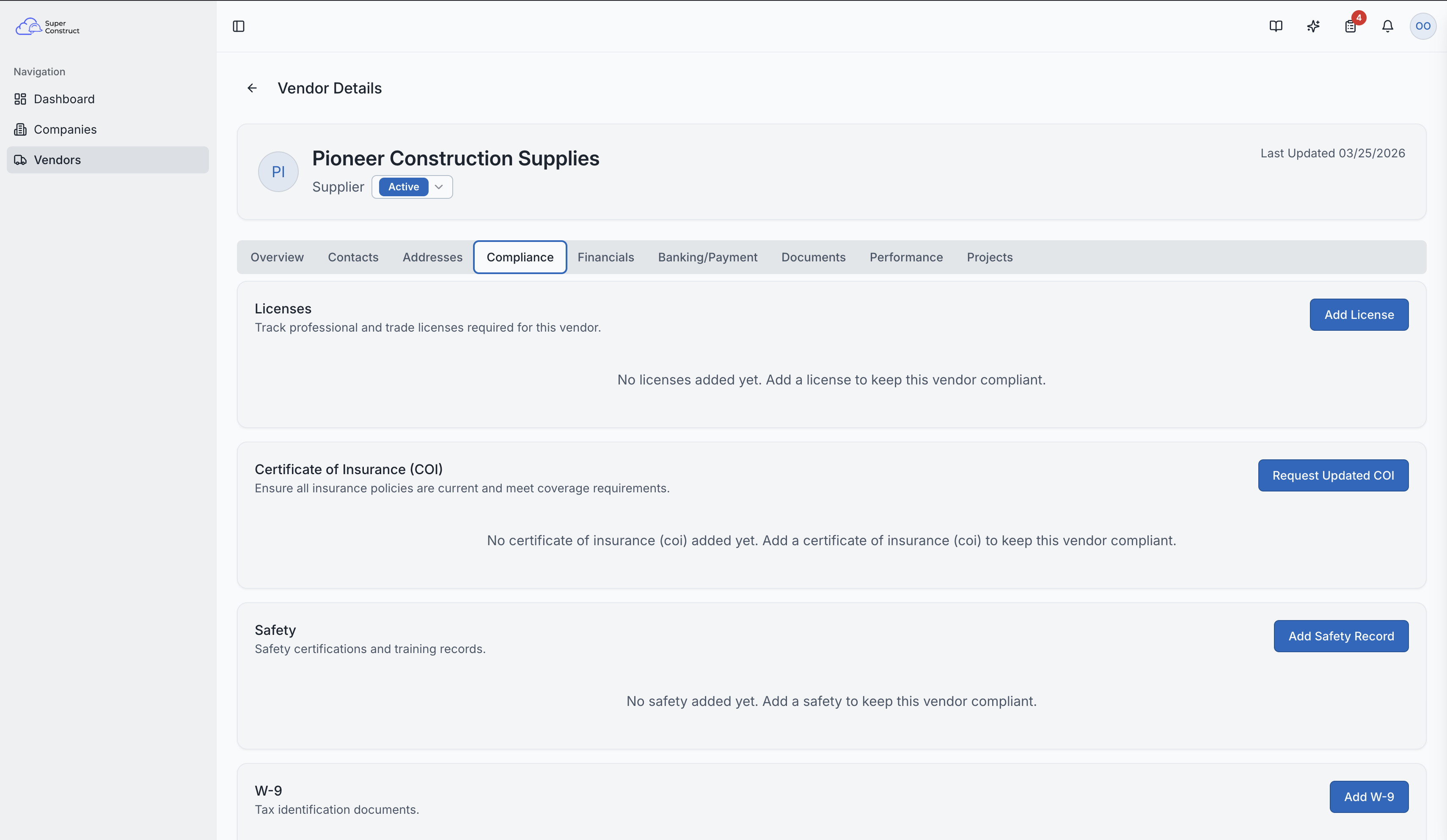
This is a critical tab for risk management. Track:
- Certificate of Insurance (COI) — with policy numbers, coverage amounts, and expiration dates
- Licenses — trade licenses, business licenses
- W-9 Forms — tax identification
- Safety Records — OSHA certifications, safety training
Each record includes:
- Expiry tracking — automatic status calculation: Valid (green), Expiring within 30 days (yellow), Expired (red)
- File uploads — attach scanned PDFs or images stored securely in the cloud
Financials
- Bonding Capacity — single and aggregate limits
- Project Limits — maximum project value the vendor can handle
- Revenue Ranges — annual revenue information
- Credit Rating — financial stability indicator
- Surety/Bonding Agent — contact information
Banking/Payments
- Bank Details — account and routing numbers
- Payment Method — ACH, Wire Transfer, Check, or Credit Card
- Payment Terms — Net 30, Net 45, Net 60, etc.
- Verification Status — whether banking details have been verified
Documents
General document storage for vendor-related files:
- Contracts, NDAs, Safety Manuals
- File upload support with secure cloud storage
- Download and view links
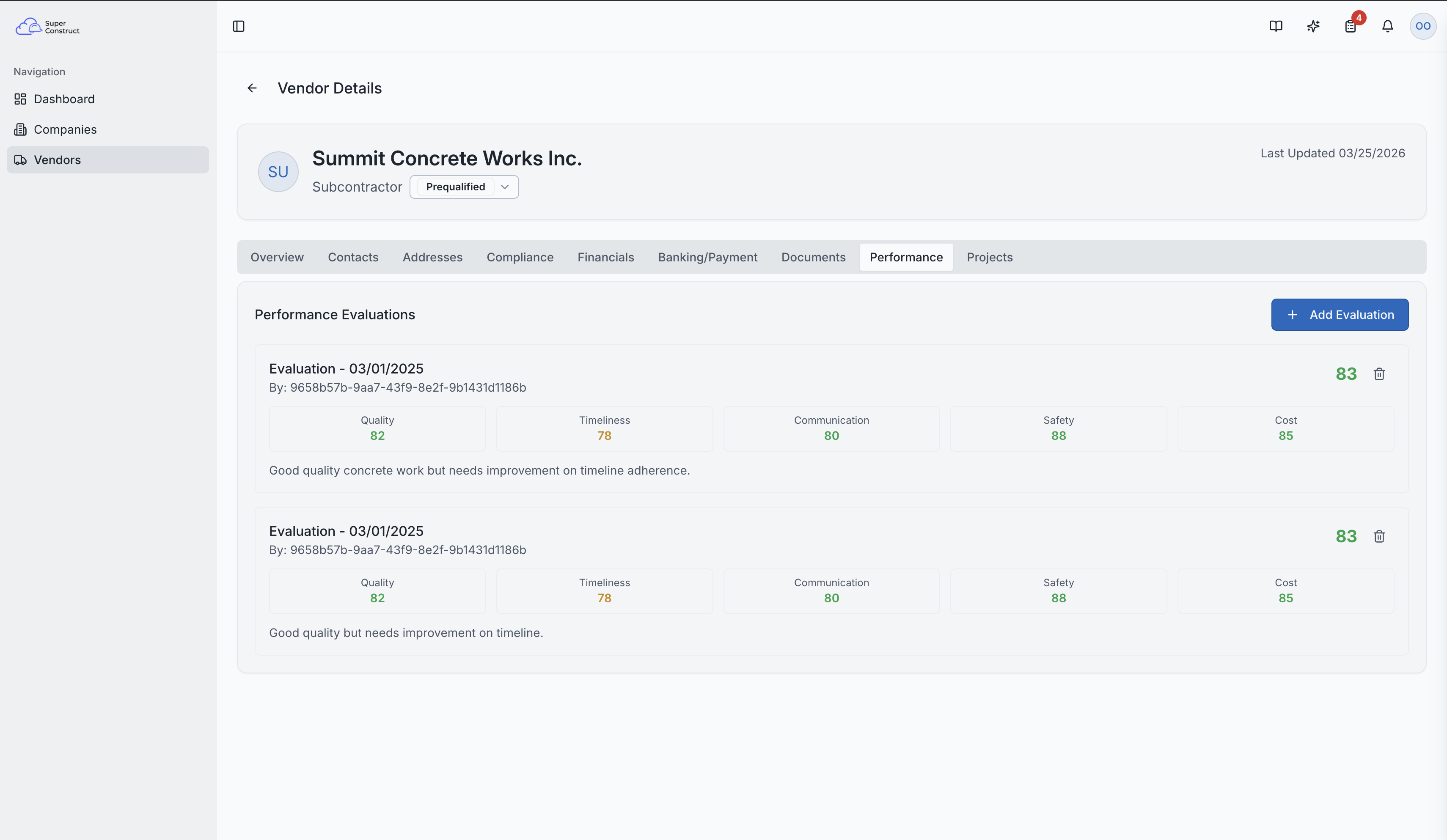
Performance
A structured evaluation system:
- Score vendors (0–100) across five categories: Quality, Timeliness, Communication, Safety, and Cost
- Overall Score calculated automatically
- Color coding — Green (good), Yellow (needs attention), Red (poor)
- Historical performance log
Projects
Link vendors to specific projects with:
- Assigned role on the project
- Contract value
- Retention percentage
- Pay Application eligibility flag
Role Access:
- Company members with appropriate access can view and manage vendors
- Vendor data is company-scoped — you only see vendors created by your company
Video Tutorial
How to Manage Vendors in SuperConstruct