
To-Do
Project task management with List, Kanban, and Chart views — assign, track, and organize work items.
What Is the To-Do Module?
The To-Do module is a flexible task management system built for construction project teams. It lets you organize work items into lists, assign them to team members, track progress through customizable statuses, and visualize your workload across three different views.
Why To-Dos Matter
- Work Accountability — every task is assigned to a specific person with a due date
- Progress Tracking — custom statuses let you define exactly what "done" means for your project
- Team Coordination — see who is working on what and what's falling behind
- Audit Trail — every change is logged in an activity history
Todo Lists — Organizing Your Tasks
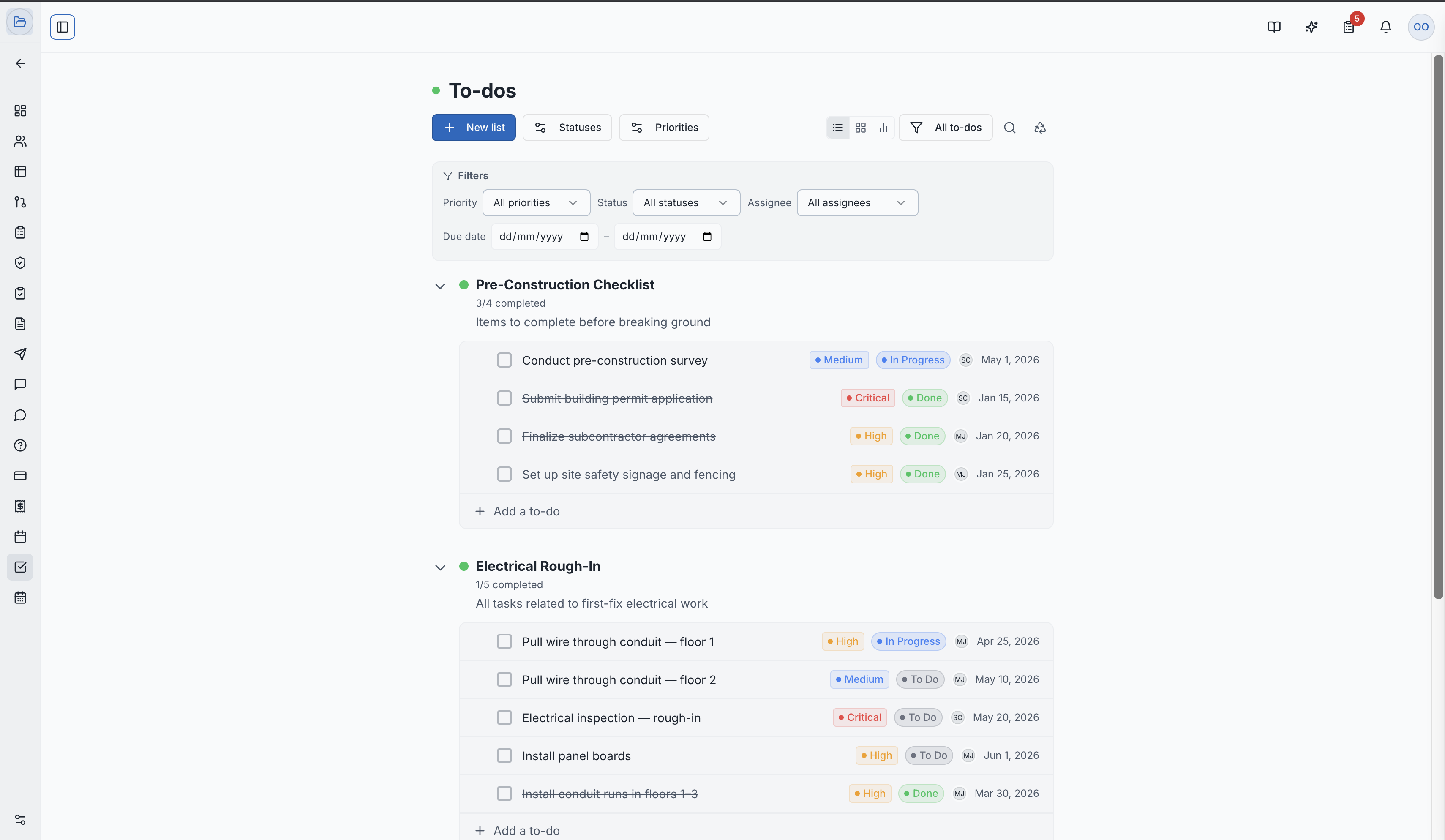
Tasks live inside Todo Lists, which are folders or categories you define. For example:
- "Pre-Construction Checklist"
- "Electrical Rough-In"
- "Punch List Items"
Create as many lists as you need to keep your tasks organized by phase, trade, or category.
Creating a Task
- Navigate to To-Do in the project sidebar
- Select or create a Todo List
- Click "Add Task" within that list
- Fill in the task details:
- Title — what needs to be done
- Description — detailed instructions (supports rich text formatting)
- Priority — urgency level (see below)
- Status — current state (see below)
- Due Date — when it must be completed
- Assignees — one or more project members responsible for this task
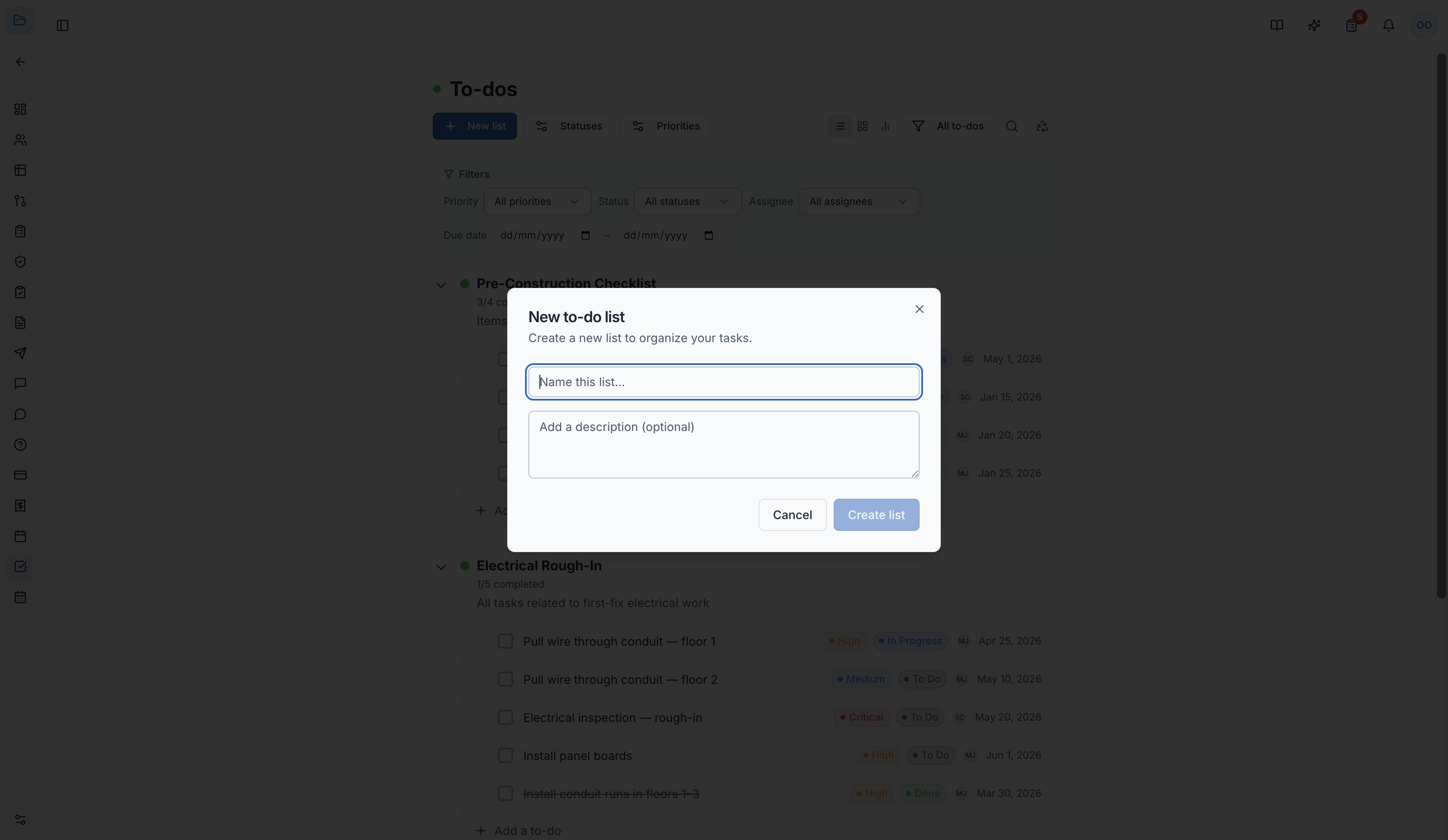
Priorities and Statuses
Projects can define their own custom priorities and statuses with unique colors. By default, common options include:
Priorities:
| Priority | Meaning |
|---|---|
| Low | Can be done when time permits |
| Medium | Should be completed on schedule |
| High | Needs attention soon |
| Critical | Must be addressed immediately |
Statuses: Your project admin can create custom statuses (e.g., "Pending Inspection", "Blocked", "In Review") tailored to your workflow.
Three Views
Switch between views using the tabs at the top of the To-Do page:
List View
The default view. Tasks are grouped by their Todo List. Expand a list to see all its tasks with their status, priority, assignees, and due date at a glance.
Kanban Board
A visual drag-and-drop board with a column for each status. Drag tasks between columns to update their status. Great for daily standups and sprint-style planning.
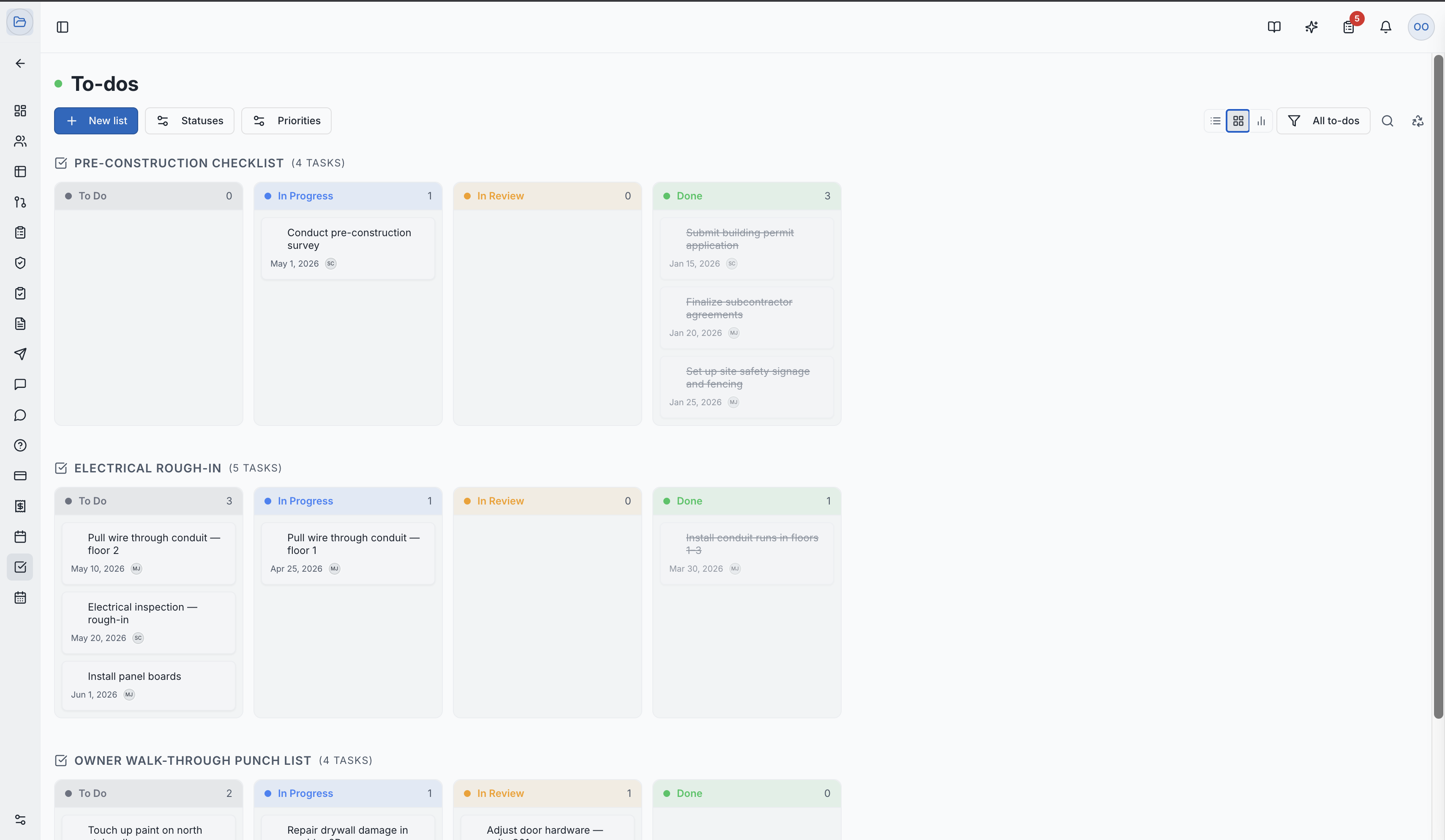
Chart View
An analytics dashboard showing:
- Status Distribution — pie chart of tasks by status
- Priority Breakdown — how many tasks are at each priority level
- Overdue Tasks — tasks past their due date by priority
- Task Timeline — scatter plot of when tasks are due
Useful for identifying bottlenecks and tracking overall project health.
Work Notes
Add progress updates and comments directly on a task:
- Open a task's detail view
- Click "Add Work Note"
- Write your note (supports rich text)
- Optionally attach files to the note
Work notes create a conversation thread on the task, keeping all relevant context in one place.
Attachments
Upload files directly to tasks — photos, documents, drawings, or any file related to the work. Attachments are stored securely in the cloud and accessible to all team members with access to the task.
Recycle Bin
Deleted tasks are not permanently removed immediately. They're moved to the Recycle Bin where they can be restored if needed. Access the Recycle Bin from the To-Do menu to view and restore recently deleted tasks.
Activity History
Every task maintains a complete activity log:
- Task created
- Status changes (who changed it and when)
- Assignee updates
- Due date changes
- Work notes added
Role Access:
| Role | Access Level |
|---|---|
| General Contractor | Full access — view all tasks, create, assign, and manage |
| GC Project Manager | Full management access |
| Owner / Developer | Full access to all tasks |
| Subcontractor | Can see tasks they created or are assigned to; cannot see tasks from other companies |
| GC Member | VIEW only |
Video Tutorials
How to Manage Tasks in SuperConstruct — To-Do Module (List, Kanban & Tracking)
How to Use Filters & Views in SuperConstruct To-Do Module