
Timecard & Attendance
Track daily time and attendance — workers punch in and out, GCs set timekeeping rules, corrections go through requests, and managers get a live team-attendance view.
What Is the Timecard Module?
The Timecard module is SuperConstruct's time and attendance system for a project. It replaces manual timesheets and chasing crews for their hours — workers punch in and out from their phone, and every punch is recorded automatically with the time and (when available) the location.
The module has four main areas:
| Area | Purpose |
|---|---|
| Attendance | Where a worker tracks their own daily time — punch in/out, breaks, and daily activity |
| Timecard Settings | Where the GC defines the team's timekeeping rules for the project |
| Requests | Where time corrections and working-hour changes are handled |
| Team Attendance | A centralized overview of the whole team's attendance |
Attendance
The Attendance section is the worker's personal view of their time.
Today
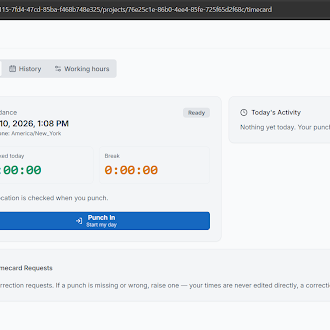
The Today tab shows the current workday at a glance — work time, break time, and today's activity. A worker clicks Punch In to start their day; their punches and activity are then recorded on the timecard automatically. The project's time zone is shown so it's clear which clock the day is measured against.
Location is checked when you punch — if location is available it's recorded alongside the punch (see Job Site & Geofence below).
History & Working Hours
- History — review previous attendance records
- Working Hours — information about working-hour schedules and any changes
Fixing a Punch
If a punch is missing or incorrect, the worker does not edit the recorded time directly. Instead they raise a Timecard Request — recorded times are never changed silently, so there's always a clean, auditable record.
Timecard Settings
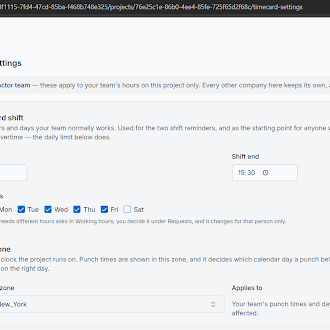
As a General Contractor, Timecard Settings let you define how your team's time is managed on the project. These settings apply to your team's hours on this project only — every other company keeps its own.
Standard Shift
Defines the normal working hours and working days. For example, a project might be configured from 7:00 AM to 3:30 PM, Monday through Friday. This is used for shift reminders and as the starting point for scheduling.
Time Zone
Determines the clock the project runs on and which calendar day a punch belongs to. Punch times are shown in this zone.
Job Site & Geofence
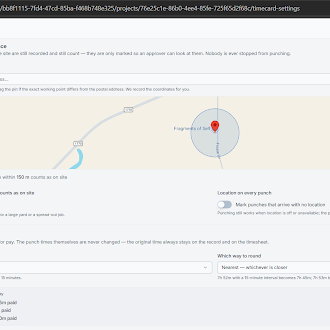
Configure the project location and define how far from the site a punch can be while still being considered on site (for example, within 150 ft). You can also enable location validation, so punches that arrive without location information are flagged for review.
Flagged punches are still recorded and still count — they're only marked so an approver can review them. Nobody is ever stopped from punching.
Rounding
Determines how work time is converted into paid time. For example, with 15-minute rounding, 7 hours 52 minutes worked becomes 7 hours 45 minutes paid. The original punch time is never changed — rounding only affects the paid figure.
Overtime
Defines the daily limit before overtime begins. With an 8-hour daily limit, a worker who works 9 hours 30 minutes has 8 hours of normal time and 1 hour 30 minutes of overtime.
After making changes, click Save Settings.
Requests
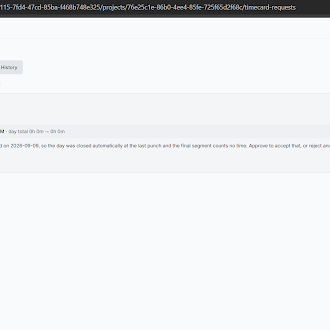
The Requests section has three areas:
| Tab | Purpose |
|---|---|
| Corrections | Used when a worker needs to correct a missing or incorrect punch |
| Working Hours | Requests for different working hours or a schedule change |
| History | Review your team's previous requests and their outcomes |
Because recorded times are never edited directly, corrections flow through here — an approver reviews each request and accepts or rejects it.
Team Attendance
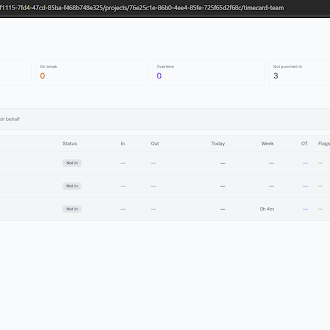
Team Attendance gives managers and owners a centralized view of the team's attendance for a selected date.
- Summary — shows who is currently working, on break, in overtime, not punched in, and any attendance flags requiring attention
- Search — find team members by name, email, or role
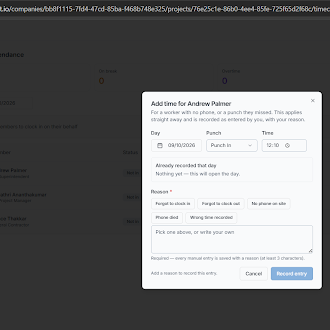
- Team punches — select team members and manage punches on their behalf, including Punch In, Break Start, Break End, and Punch Out. Missed punches can be added manually, and every manual entry is saved with a reason
- Export — attendance data can be exported as CSV or PDF for reporting and sharing
Video Tutorial
SuperConstruct Timecard & Attendance System
Role Access: Every project member can punch in/out and view their own Attendance and Requests. General Contractors configure Timecard Settings and use Team Attendance to monitor the crew, manage punches on a worker's behalf, and approve or reject requests.