
Sign Up & Sign In
How to create your account, sign in, accept invitations, and complete onboarding.
Creating Your Account
To get started with SuperConstruct, visit the Sign Up page and provide the following information:
- Email Address — your primary login credential
- First Name and Last Name
- Country Code and Mobile Number (10 digits)
- Password — minimum 8 characters, must include at least one uppercase letter and one number
- Confirm Password
Once submitted, your account is created and you are automatically logged in. You will be directed to the Onboarding process.

Signing In
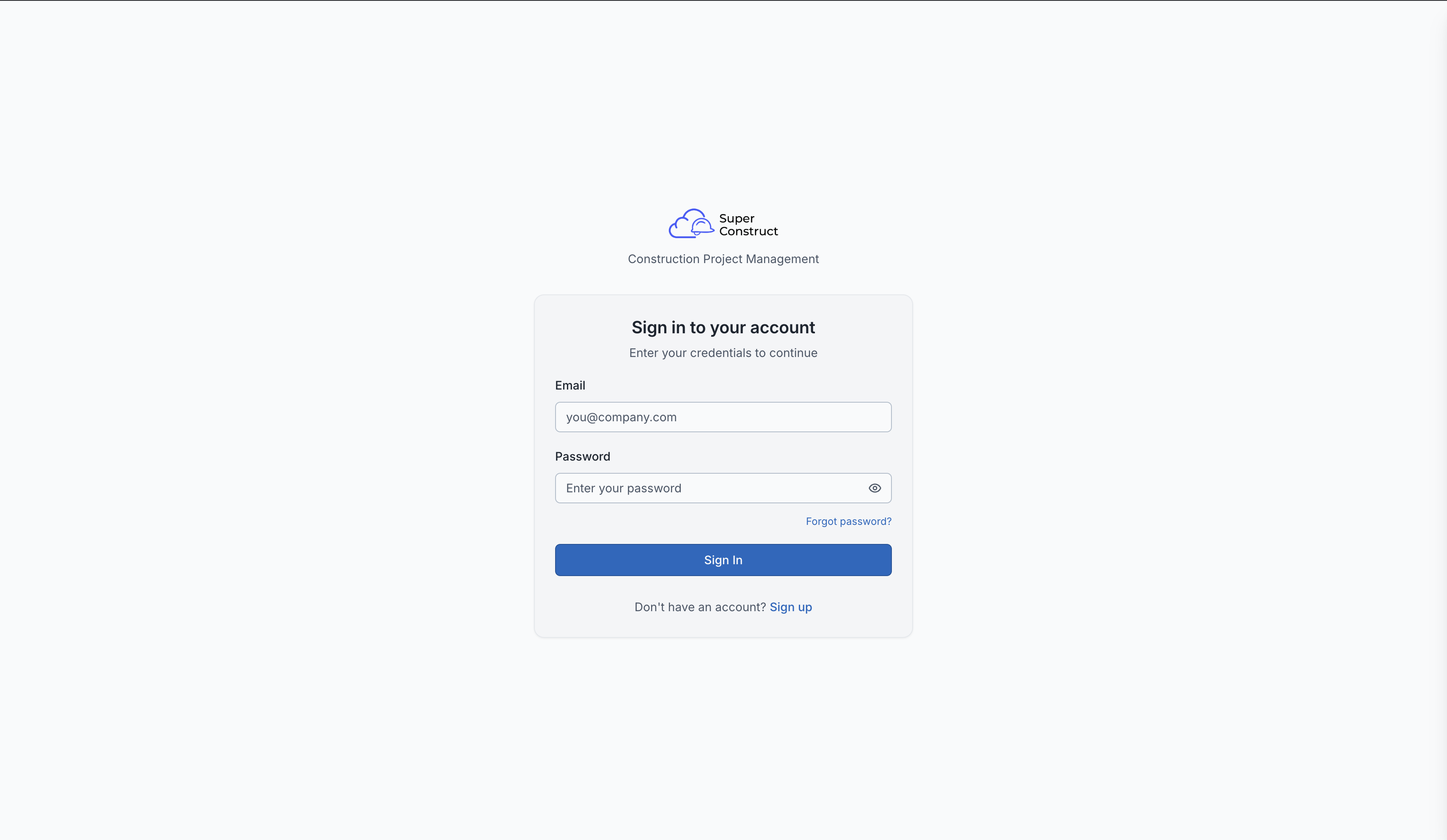
If you already have an account, simply enter your email and password on the Sign In page. Upon successful login, any pending project or company invitations for your email are automatically processed.
Invitation Flow
If you've been invited by a team member:
- You'll receive an invitation email with a unique link
- Clicking the link takes you to an invitation acceptance page
- You'll need to enter a 6-digit OTP (One-Time Password) sent to your email for verification
- Once verified, you'll set your account password
- Your email is verified automatically and your membership is activated
- You're then directed to the Onboarding flow to complete your profile
Onboarding
Onboarding is a guided setup that helps you configure your profile and company. It has two main steps:
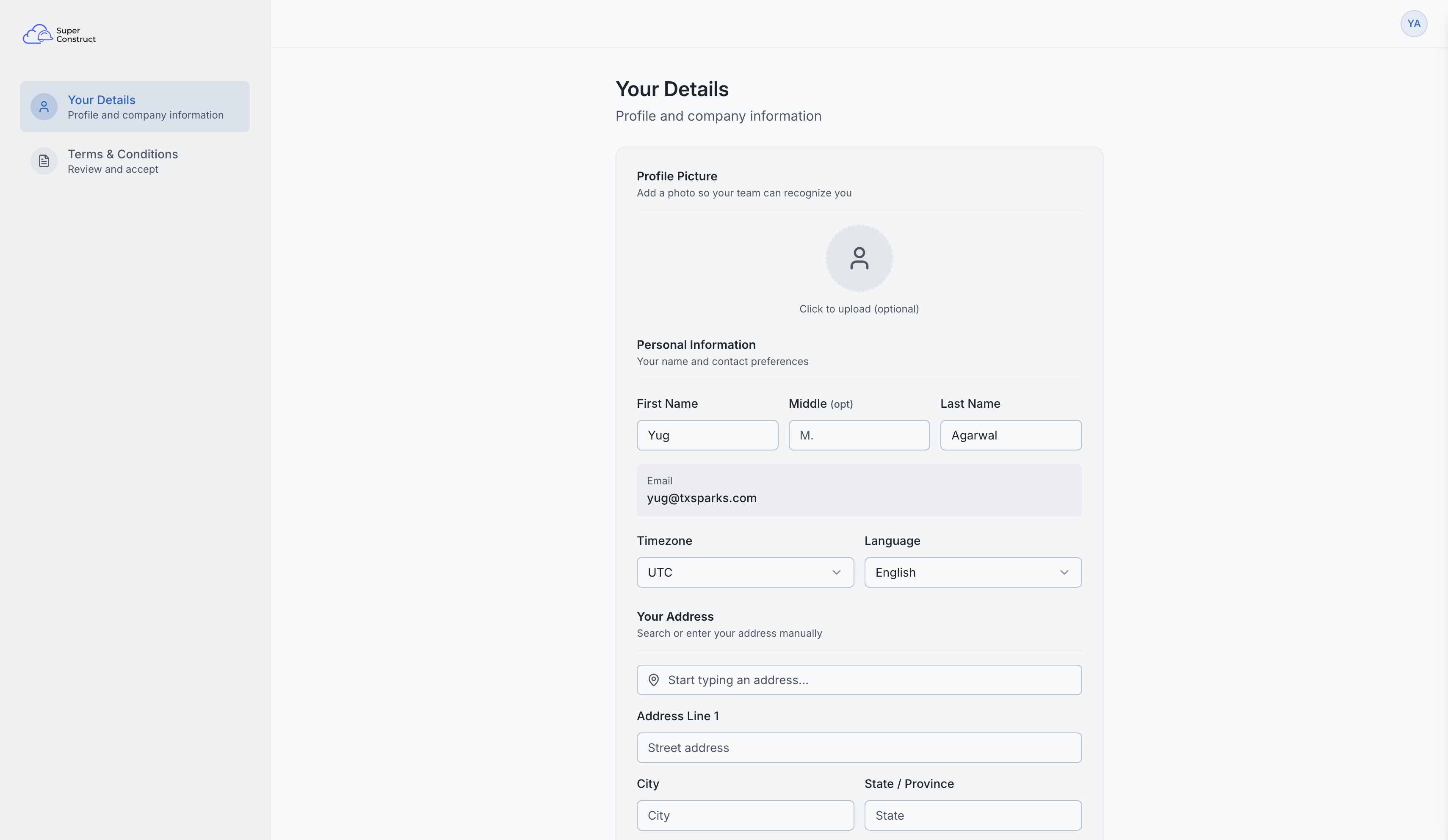
Step 1: Your Details
- Profile Picture — upload an avatar photo
- Personal Info — first name, middle name, last name
- Preferences — preferred language (English, Spanish, French, etc.) and timezone
- Phone Numbers — add multiple numbers (Mobile, Work, Home, Fax) with country codes
- Address — street, city, state, ZIP, and country (with address autocomplete)
- Company Setup (if you're an owner) — company name, type (Corporation, LLC, etc.), email, address, and logo
Step 2: Terms & Conditions
- Review and accept the platform's terms of service
Once completed, your profile is marked as onboarded and you'll be taken to the Dashboard.
Video Tutorial
How to Accept an Invitation