
Scheduling
Import your project timeline as an MSP schedule and track it in an interactive, color-coded Gantt chart with a full version history.
What Is the Scheduling Module?
The Scheduling module helps you plan, track, and monitor your project timeline — making it easier to identify delays early, stay on schedule, and keep everyone aligned throughout the project. You upload your schedule as an MSP (Microsoft Project) schedule, and SuperConstruct displays it as an interactive, color-coded Gantt chart with a complete version history.
Getting Started
- Log in to SuperConstruct and open your Company
- Select the required Project
- Navigate to the Scheduling module from the left-side navigation bar
Uploading Your Schedule
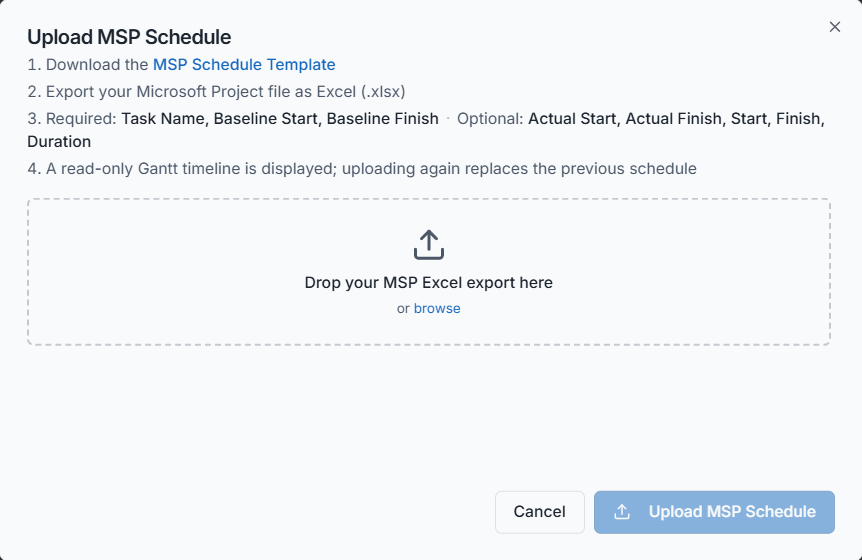
Inside the Scheduling module, click the Upload button. A pop-up appears with several options:
- Download the MSP schedule template — an Excel file with all the required columns already added
- Fill in your project schedule details in the template, then save the file
- Back in SuperConstruct, click Browse, select your updated Excel file, and upload it
Reviewing the Preview
Before the schedule is imported, SuperConstruct displays a preview of the uploaded data. Use it to:
- Review the schedule
- Verify the task hierarchy
- Check the total number of tasks
- Confirm all the information is correct
If you spot any mistakes, go back to the Excel file, make the necessary changes, and upload it again. Once everything looks good, click Upload MSP Schedule — and your project schedule is imported successfully.
The Interactive Gantt Chart
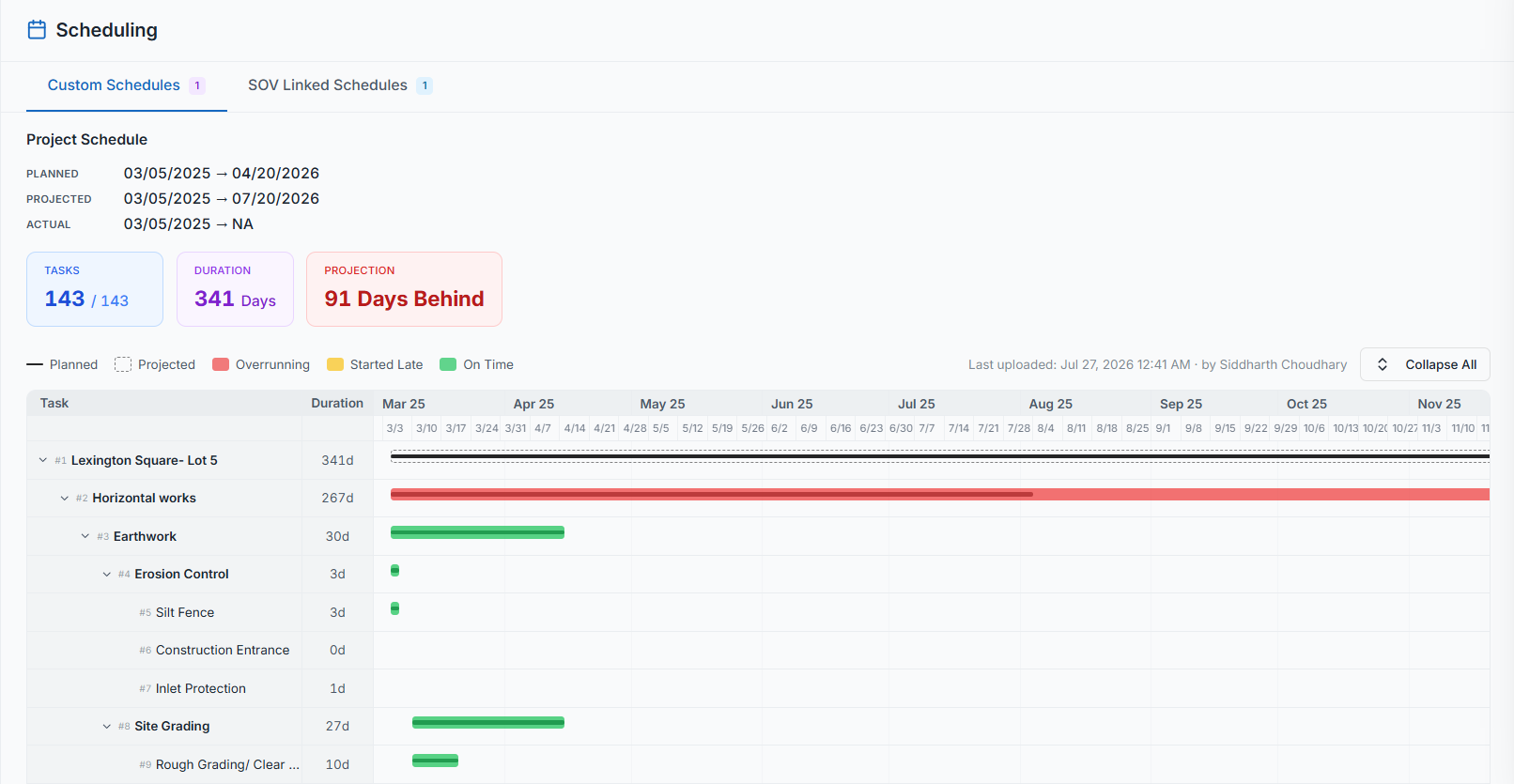
SuperConstruct presents the schedule as an interactive Gantt chart with color-coded indicators that help you understand the status of each task at a glance:
| Indicator | Meaning |
|---|---|
| Black bar (Planned) | The planned start and end dates. Hover over it to see the planned schedule for that task |
| Dotted bar (Projected) | The projected start and end dates. Hover over it to see the projected timeline |
| Red bar (Overrunning) | The task is overdue — the actual end date is later than the planned end date |
| Yellow bar (Started Late) | The task started late — the actual start date is later than the planned start date |
| Green bar (On Time) | The task is on schedule — the actual dates align with the planned dates |
| Vertical red line | Today's date, making it easy to compare the current date against your schedule |
Project Summary
Above the Gantt chart, SuperConstruct provides a quick project summary. At a glance you can view:
- The total number of tasks and the number of completed tasks
- The overall schedule duration
- Whether the project is currently ahead of schedule or delayed, along with the number of days
- The overall planned, projected, and actual project dates, whenever they are available
To make navigation easier, use Expand All and Collapse All to quickly manage the task hierarchy. The module also displays who last updated the schedule, along with the date and time of the latest update.
Updating the Schedule
As the project progresses, you'll need to update your schedule regularly. Instead of creating a new schedule from scratch, simply update the same Excel file — modifying the latest task information, such as actual dates and projected dates.
- Return to the Scheduling module and click Replace MSP Schedule
- Browse and select the updated Excel file
- SuperConstruct displays a preview before replacing the existing schedule — and, in addition to the preview, shows what has changed compared to the previous schedule, including updated tasks and modified dates
- After reviewing the changes, click Upload to replace the existing schedule with the latest version
The Gantt chart automatically refreshes to display the updated project timeline.
Version History
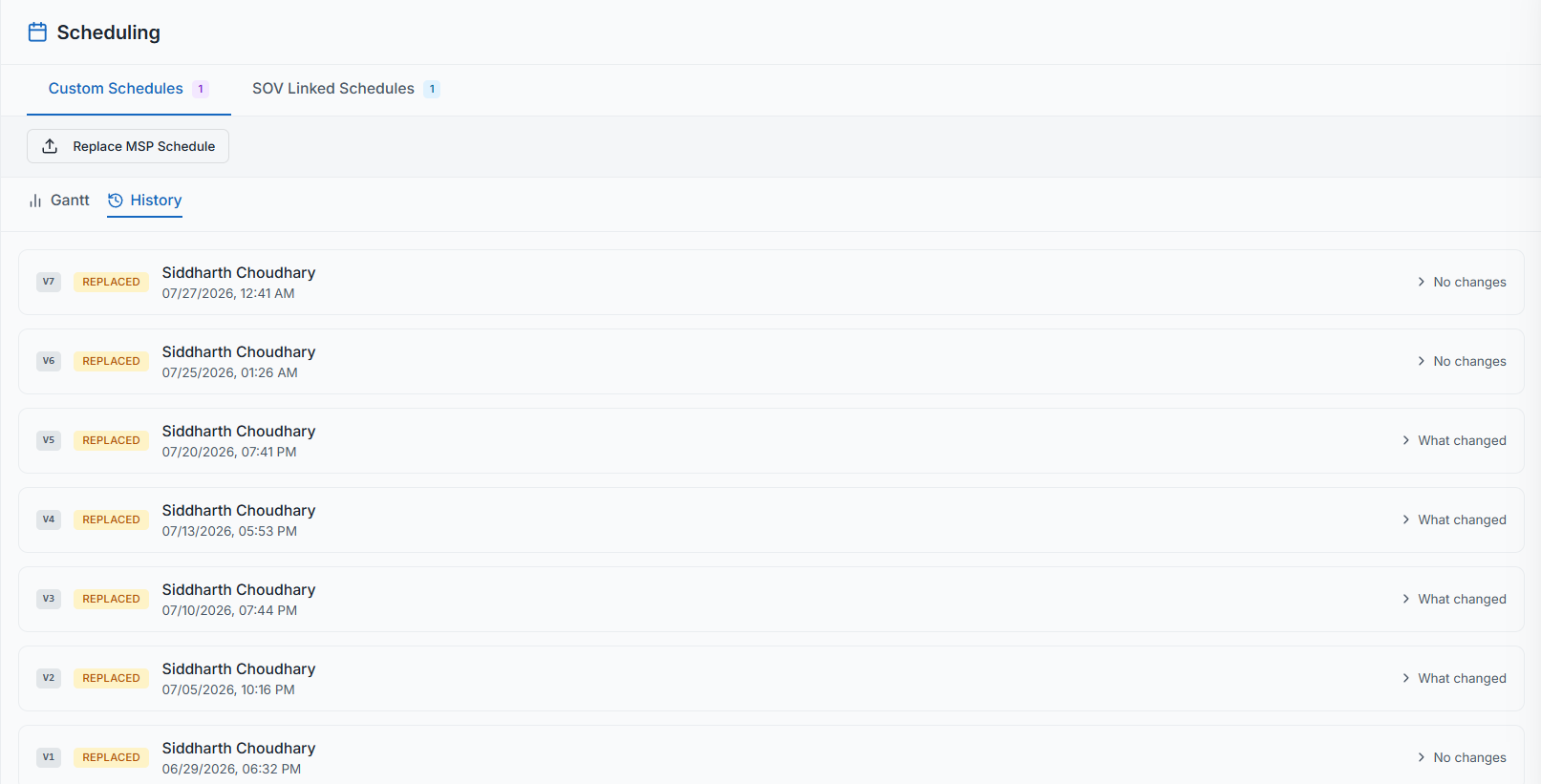
Every time you upload or replace a schedule, SuperConstruct automatically creates a new version. Your first upload is saved as Version 1, the next upload becomes Version 2, and so on.
When you open any version and click What Changed, you can view all the differences between that version and the previous one, including:
- Updated dates
- Modified tasks
- Newly added tasks
This makes it easy to track schedule changes over time and understand how the project has evolved.
Role Access: Available to project members. Uploading and replacing schedules requires MANAGE permission on the Scheduling module; other roles have view access to the Gantt chart and version history.
Video Tutorial
How to Track the Project Schedule — Gantt Chart & Progress Guide