
Schedule of Values (SOV)
Break down your contract into line items for billing and progress tracking.
What Is a Schedule of Values?
A Schedule of Values (SOV) is a detailed breakdown of the total contract value into individual line items. It serves as the foundation for monthly billing (Pay Applications) and progress tracking throughout the project.
Think of it as a comprehensive list of everything included in the contract, with a dollar amount assigned to each item.
Why SOVs Matter
- Accurate Billing — Pay Applications are built directly from SOV line items
- Progress Transparency — everyone can see exactly how much work is completed per item
- Front-Loading Prevention — structured SOVs help prevent overbilling early in the project
- Audit Trail — approved SOVs create immutable snapshots for financial records
SOV Structure
SOVs follow a three-level hierarchy:
- Divisions — major categories of work (e.g., "03 - Concrete", "26 - Electrical")
- Subdivisions — subcategories within a division (e.g., "03.10 - Concrete Forming")
- Tasks — specific line items with assigned dollar values (e.g., "Foundation Forming - $50,000")
Creating an SOV
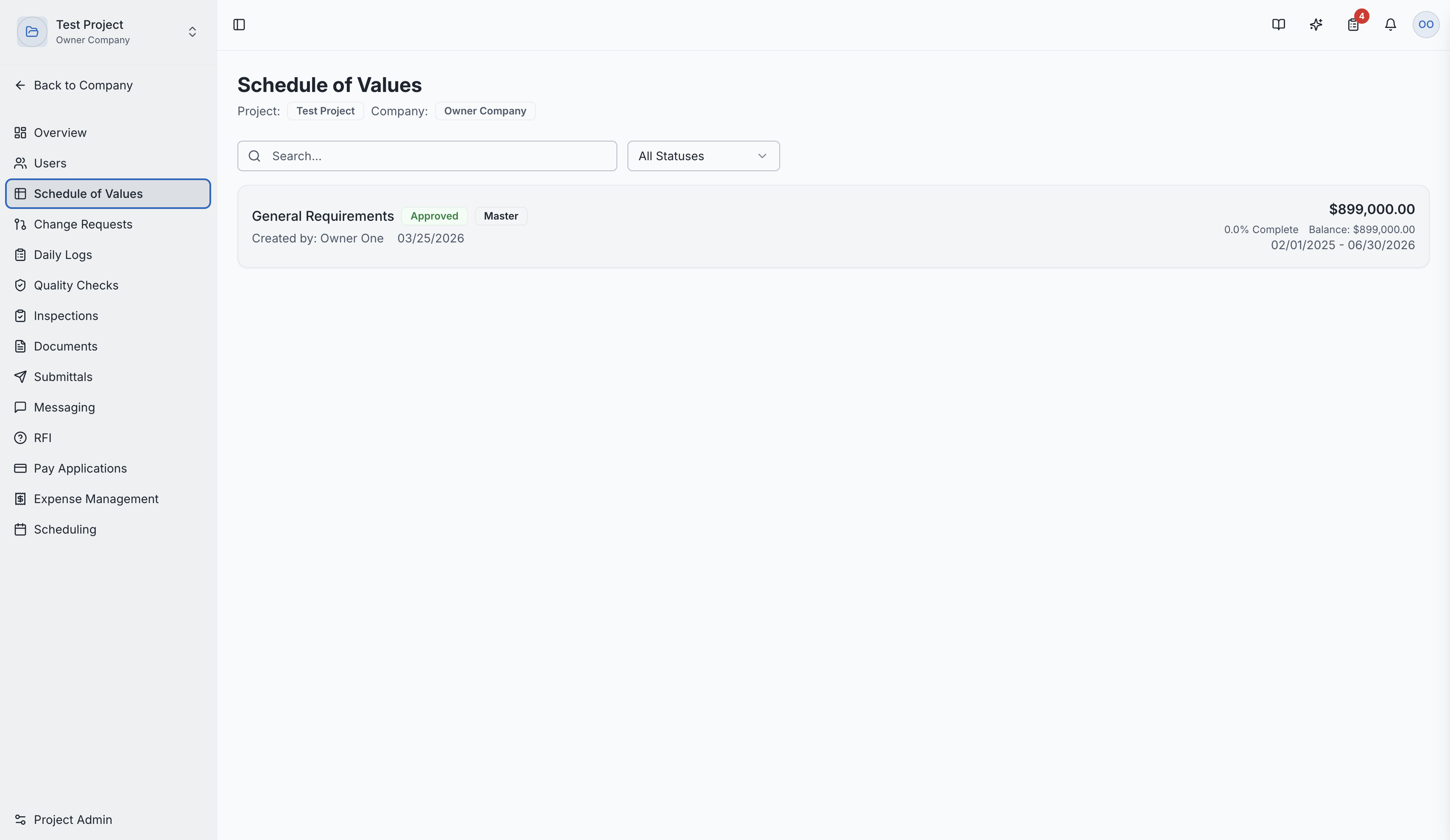
- Navigate to Schedule of Values in the project sidebar
- Click "Create SOV"
- Add Divisions — select from the master division list or create custom divisions
- Add Subdivisions — organize work within each division
- Add Tasks — assign specific line items with scheduled values (dollar amounts)
- Submit for approval when ready
SOV Workflow
| Status | Description |
|---|---|
| Draft | Being built — can be edited freely |
| Approval Pending | Submitted for review by the owner/developer |
| Approved | Locked — creates an immutable snapshot used for billing |
| Rejected | Returned with feedback for revision |
| Resubmitted | Revised and sent back for another review |
Progress Tracking
Once an SOV is approved:
- Progress is derived from approved Pay Applications (G703 continuation sheet lines)
- Each line item shows percentage complete and balance to finish
- The overall SOV shows total scheduled value, completed work, stored materials, and retainage
Versioning
When an SOV is approved, SuperConstruct creates an immutable snapshot. This means:
- The original approved values are preserved for comparison
- Changes must go through the Change Request process
- A complete audit trail is maintained
SOV Detail Page
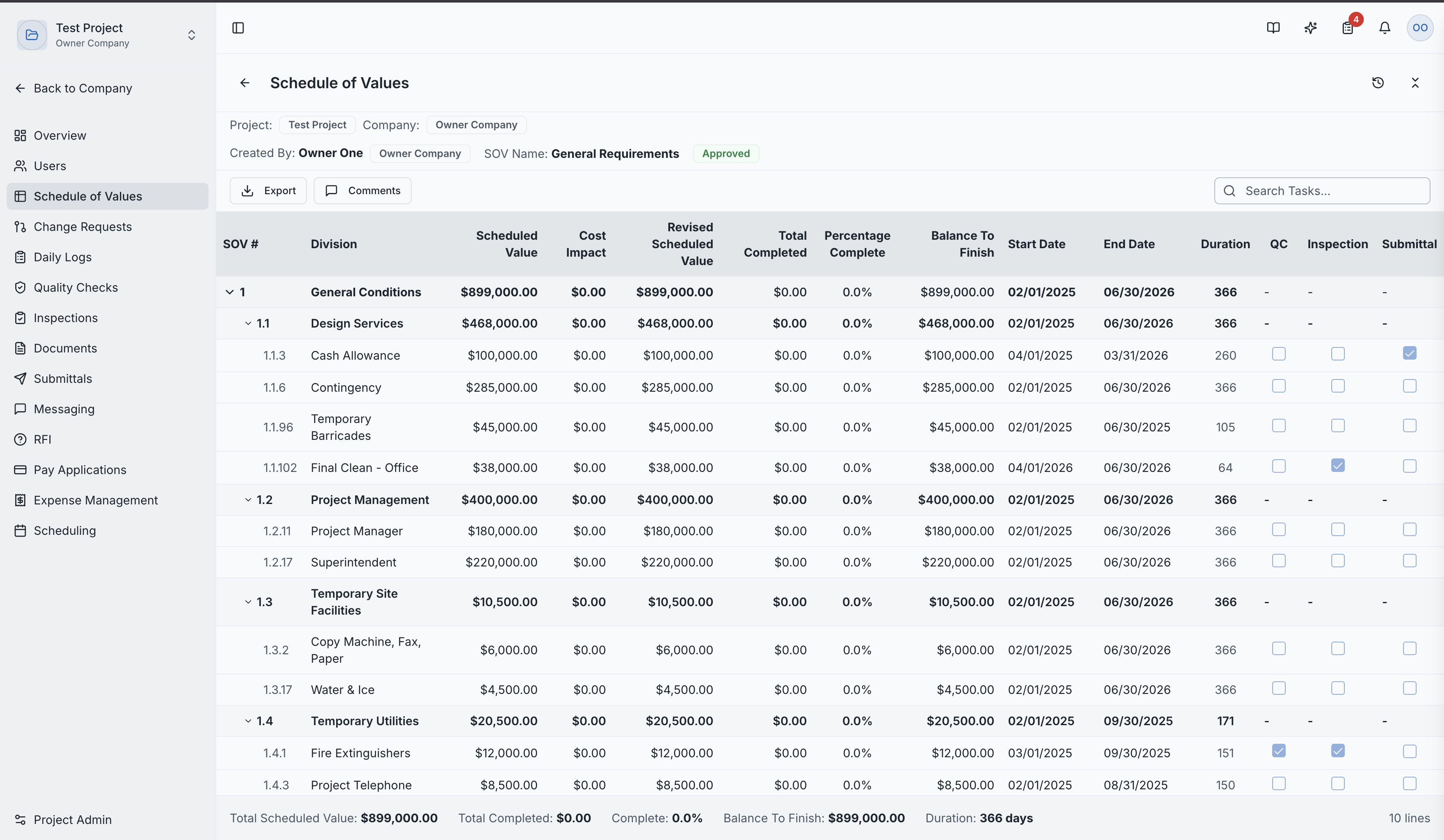
Clicking any SOV shows the full breakdown:
- All divisions, subdivisions, and tasks
- Scheduled values for each line item
- Progress percentages (if pay applications have been submitted)
- Balance to finish calculations
Importing an SOV from Excel
If you already have your Schedule of Values in a spreadsheet, you can import it directly instead of entering everything manually.
Step 1 — Download the Template
Click "Import SOV" and then "Download Template" to get the official Excel template (.xlsx). Open it in Excel or Google Sheets and fill in your data.
Template Columns
| Column | Required | Description |
|---|---|---|
| Division | Yes | The major work category (e.g., "03 - Concrete") |
| Subdivision | No | A subcategory within the division |
| Task | Yes | The specific line item name |
| Start Date | No | Planned start date (MM/DD/YYYY) |
| End Date | No | Planned end date (MM/DD/YYYY) |
| UOM | No | Unit of measure (e.g., SF, LF, EA) |
| Unit Price | No | Price per unit |
| Quantity | No | Number of units |
If you provide both Unit Price and Quantity, the scheduled value is calculated automatically (Unit Price × Quantity). Leave both blank to enter a lump-sum value later.
Step 2 — Upload and Preview
- Click "Upload File" and select your completed template
- The system parses the file and shows a preview table with all imported rows
- Rows with missing required fields (Division or Task) are highlighted in red
- Review the preview to confirm everything looks correct before proceeding
Step 3 — Create the SOV
Click "Create SOV" to confirm the import. The system will:
- Auto-create any Divisions, Subdivisions, and Tasks that don't already exist in the project
- Create the SOV in Draft status so you can review and adjust before submitting for approval
- Notify relevant project members about the new SOV
Maximum file size: 10 MB. Supported formats: .xlsx and .xls.
Role Access:
| Role | Access Level |
|---|---|
| General Contractor | Full VIEW and MANAGE — create, edit, submit, and import SOVs |
| GC Project Manager | Full management access |
| GC Superintendent | Full management access |
| Subcontractor | VIEW and MANAGE their assigned SOV |
| Owner / Developer | VIEW — can approve or reject SOVs |
| GC Member | VIEW only |
| Architect | Typically no SOV access |
Video Tutorials
How to Create an SOV
How to Reject an SOV
How to Resubmit and Approve an SOV