
Documentation & Communication
Requests for Information (RFI)
Formally request clarification on drawings, specs, or project requirements.
What Are RFIs?
Requests for Information (RFIs) are formal requests for clarification on drawings, specifications, or project requirements. They're typically sent from the field team (GC or subcontractor) to the architect or engineer when something in the construction documents is unclear, conflicting, or incomplete.
Why RFIs Matter
- Prevent Costly Mistakes — clarify ambiguities before work proceeds based on assumptions
- Official Record — create a documented trail of design clarifications
- Cost & Schedule Impact — track when RFI responses affect the budget or timeline
- Accountability — record who asked what, who answered, and when
The RFI list page
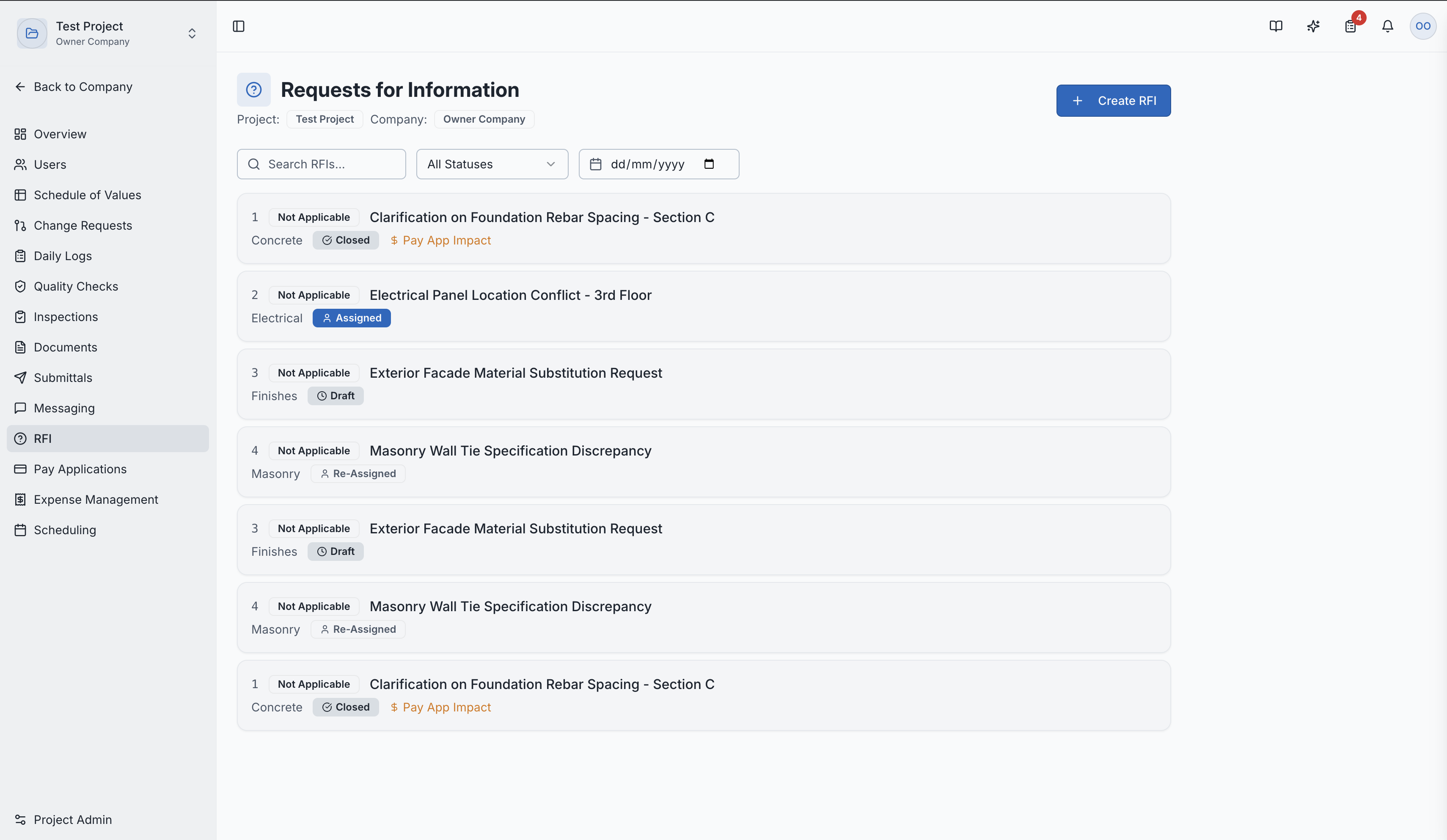
Creating an RFI
- Navigate to RFI in the project sidebar
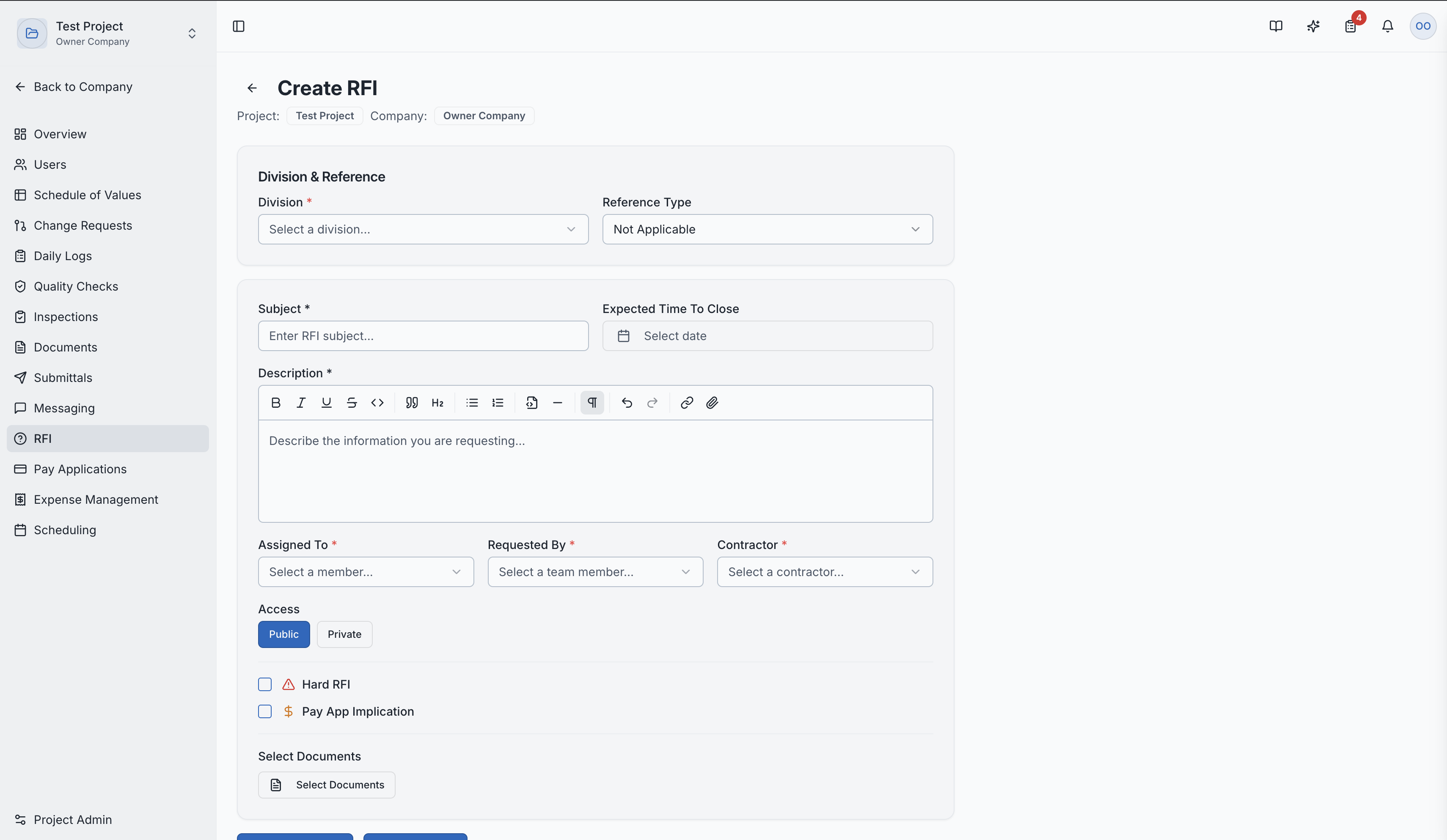
- Click "New RFI"
- Fill in the details:
- Subject — clear, descriptive title
- Detailed Question — exactly what needs clarification, referencing specific drawings or specs
- Assigned To — who should answer (typically the architect or engineer)
- Due Date — when the response is needed
- Impact Flags — indicate if this RFI may have schedule or cost implications
- Linked Documents — attach relevant drawings, photos, or specs
- Linked SOV Divisions — connect to specific scope areas
Creating a new RFI
RFI Workflow
| Status | Description |
|---|---|
| Draft | Being prepared |
| Open | Submitted and awaiting response |
| Responded | The assigned party has provided an answer |
| Closed | Response accepted, RFI is resolved |
Response Threading
RFIs maintain a chronological response history:
- Initial question
- Clarifying questions
- Formal response from the architect/engineer
- Internal comments (visible only to your team)
- Additional follow-up if needed
Impact Analysis
When creating or responding to an RFI, you can flag whether it has:
- Schedule Impact — the response or required changes will affect the timeline
- Cost Impact — additional costs are involved
These flags help track which RFIs may lead to Change Requests.
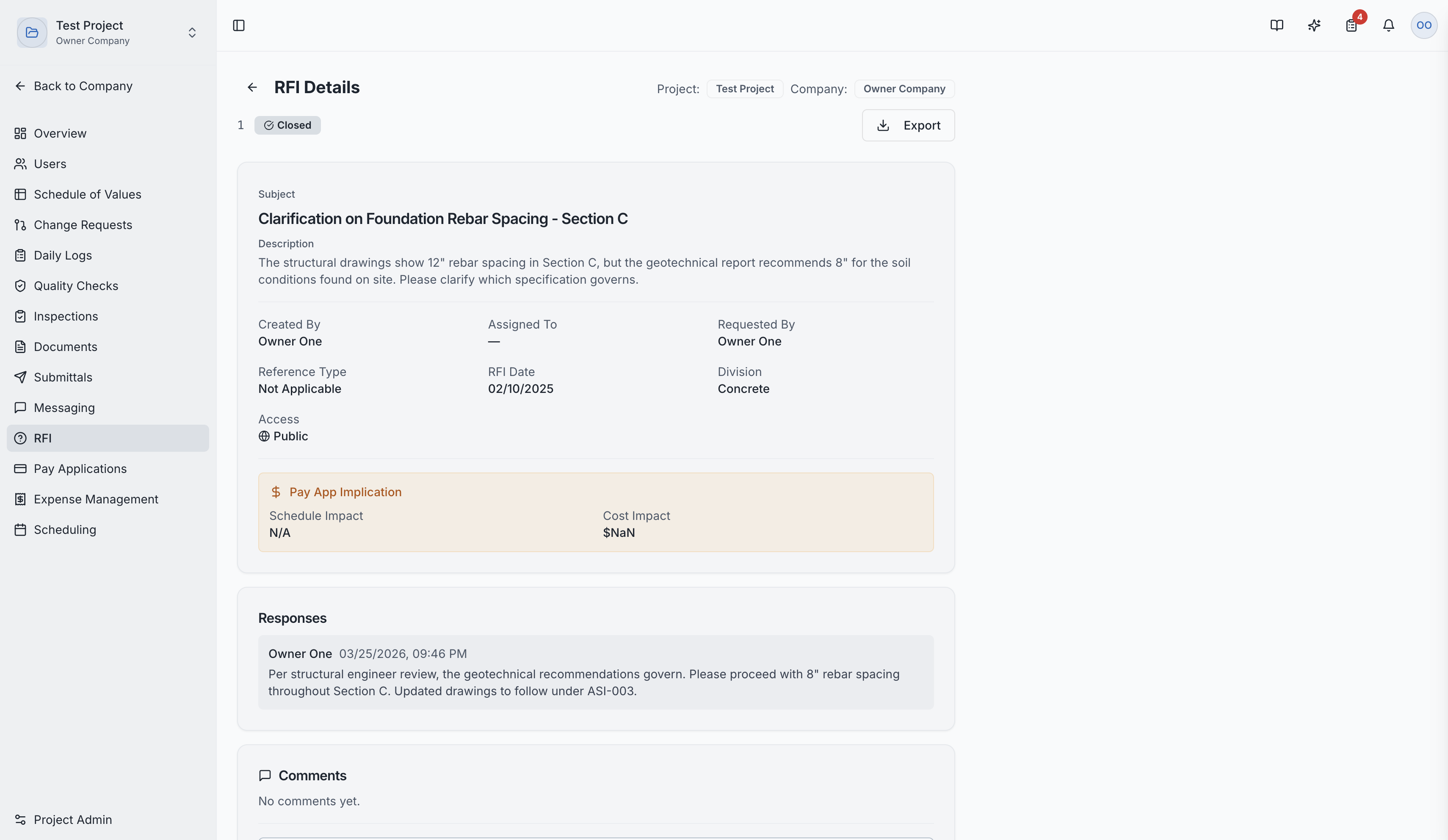
RFI Detail Page
Clicking an RFI shows:
- Complete question with all context
- Response thread with timestamps
- Impact flags (schedule and/or cost)
- Linked documents and SOV divisions
- Complete history and audit trail
RFI detail showing question, responses, and impact flags
Role Access:
| Role | Access Level |
|---|---|
| General Contractor | Create, manage, and assign RFIs |
| GC Project Manager | Primary creator — full management access |
| GC Superintendent | Primary creator — full management access |
| Architect | Primary responder — answer and close RFIs |
| Subcontractor | Can submit RFIs through the GC |
| Owner / Developer | View RFI status |
| GC Member | VIEW only |
Video Tutorial
Requests for Information (RFI) — Module Walkthrough