
Project Management
Projects
Create and manage construction projects within your company.
What Are Projects?
Projects are the central unit of work in SuperConstruct. Each project represents a construction job — whether it's a commercial building, residential development, public infrastructure, or renovation. All modules (SOV, Pay Applications, Daily Logs, etc.) exist within the context of a project.
Accessing Projects
After selecting a company from the Companies page, you'll see the list of projects for that company. You can filter projects by status tabs.
Project Statuses
- Draft — project is being set up, not yet active
- Active — project is in progress, certain fields become locked for audit integrity
- Completed — project work is finished
Creating a Project
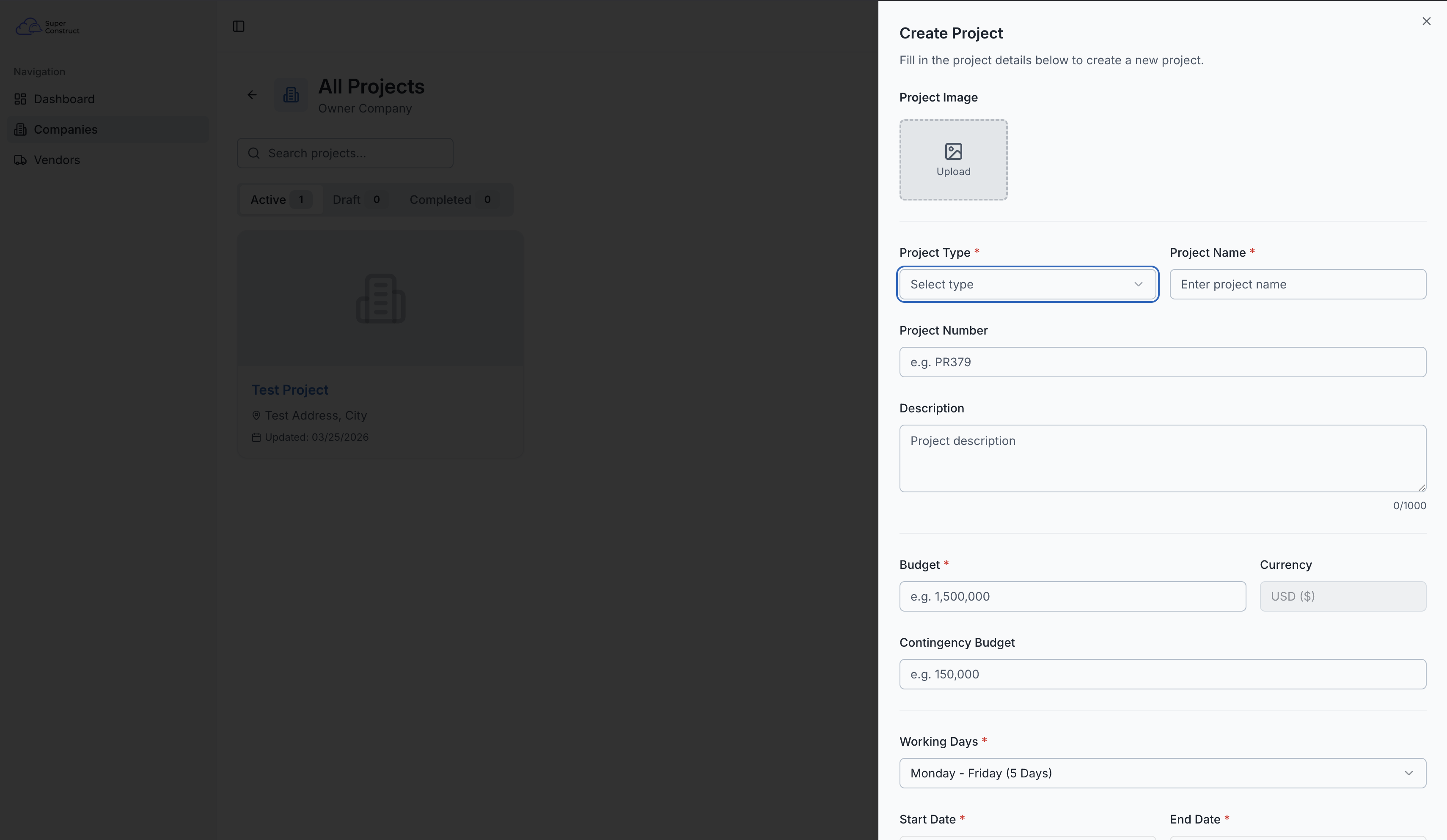
Click "New Project" to start the creation process. The form has several sections:
Project Details
- Project Name — the official name of the project
- Project Type — searchable dropdown (commercial, residential, infrastructure, etc.)
- Project Number — unique identifier
- Description — detailed project description
Financials
- Budget — total project budget
- Contingency Budget — reserved funds for unexpected costs
- Currency — defaults to your company's preferred currency (USD/INR)
Schedule
- Start Date and End Date
- Working Days — select 5-day (Mon–Fri) or 6-day (Mon–Sat) work weeks
Location
- Address — with Google Places autocomplete
- Auto-fills city, state, and ZIP code from the selected address
Governance Settings
- SOV Mandatory — whether Schedule of Values is required before pay applications
- Supports UOM — enable Unit of Measure tracking
- Allow Owners to Create SOV — let owner-role users create their own SOV
Save Options
- Save as Draft — save for later, continue editing
- Publish as Active — make the project live (locks certain fields)
Once a project is Active, fields like Project Number and dates become locked to maintain audit integrity.
The project creation form with all sections
Role Access:
- Owner (ORG_OWNER) — can create projects
- Billing Manager — can create projects
- Project Manager — can create projects
- Member / Viewer — cannot create projects, but can access projects they're assigned to
Video Tutorial
How to Create a Project in SC — Complete Setup Guide