
Project Management
Project Users
Manage team members, assign roles, and control access to the project.
Managing Project Users
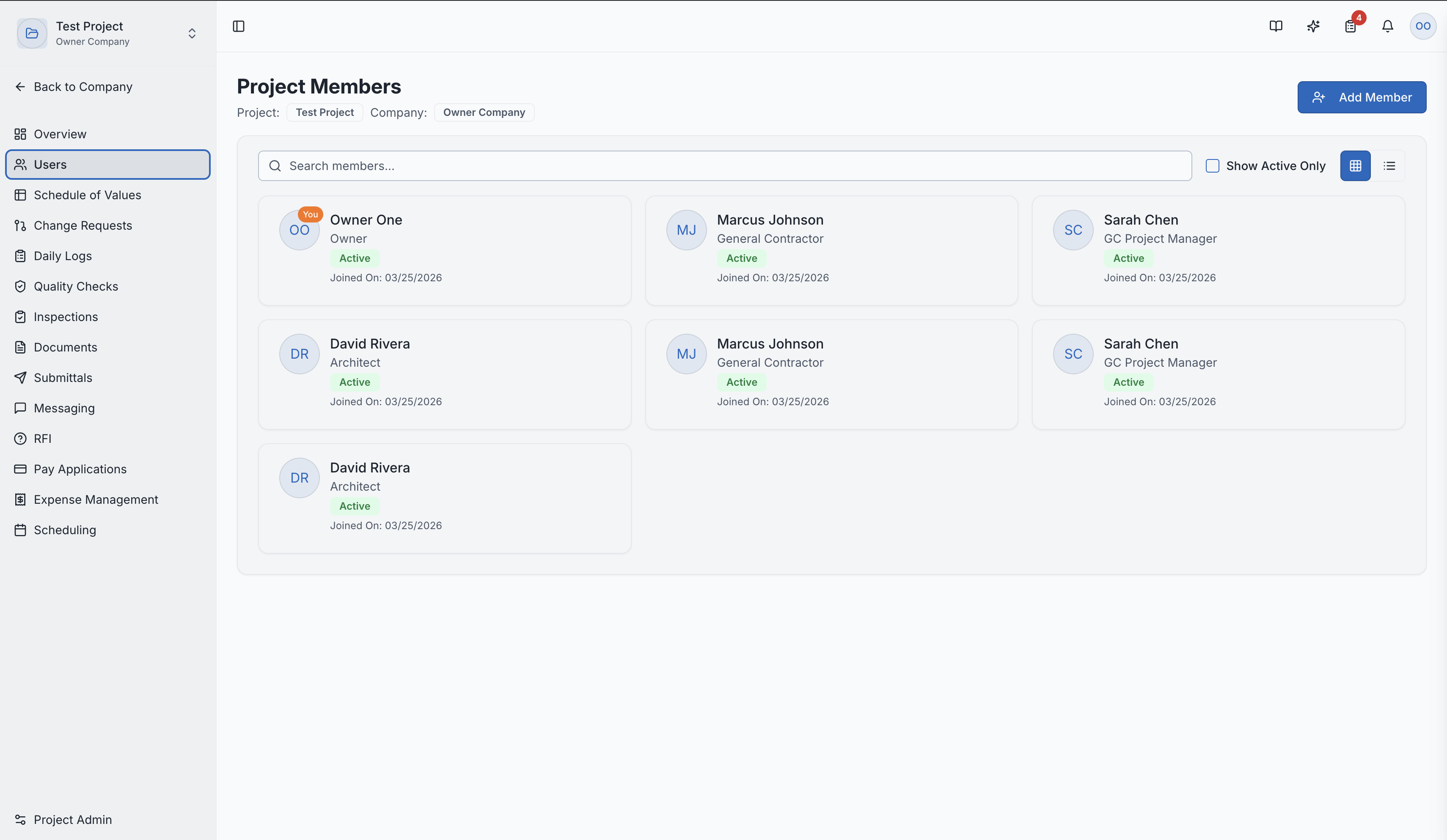
The Users page within a project lets you see and manage everyone who has access to the project.
Viewing Members
The member table shows:
- Name and Email
- Status — Active, Invited, or Blocked/Deactivated
- Assigned Role — their project-level role (General Contractor, Subcontractor, Owner, etc.)
- Last Active — when they last accessed the project
The project users list with role assignments
Adding Users
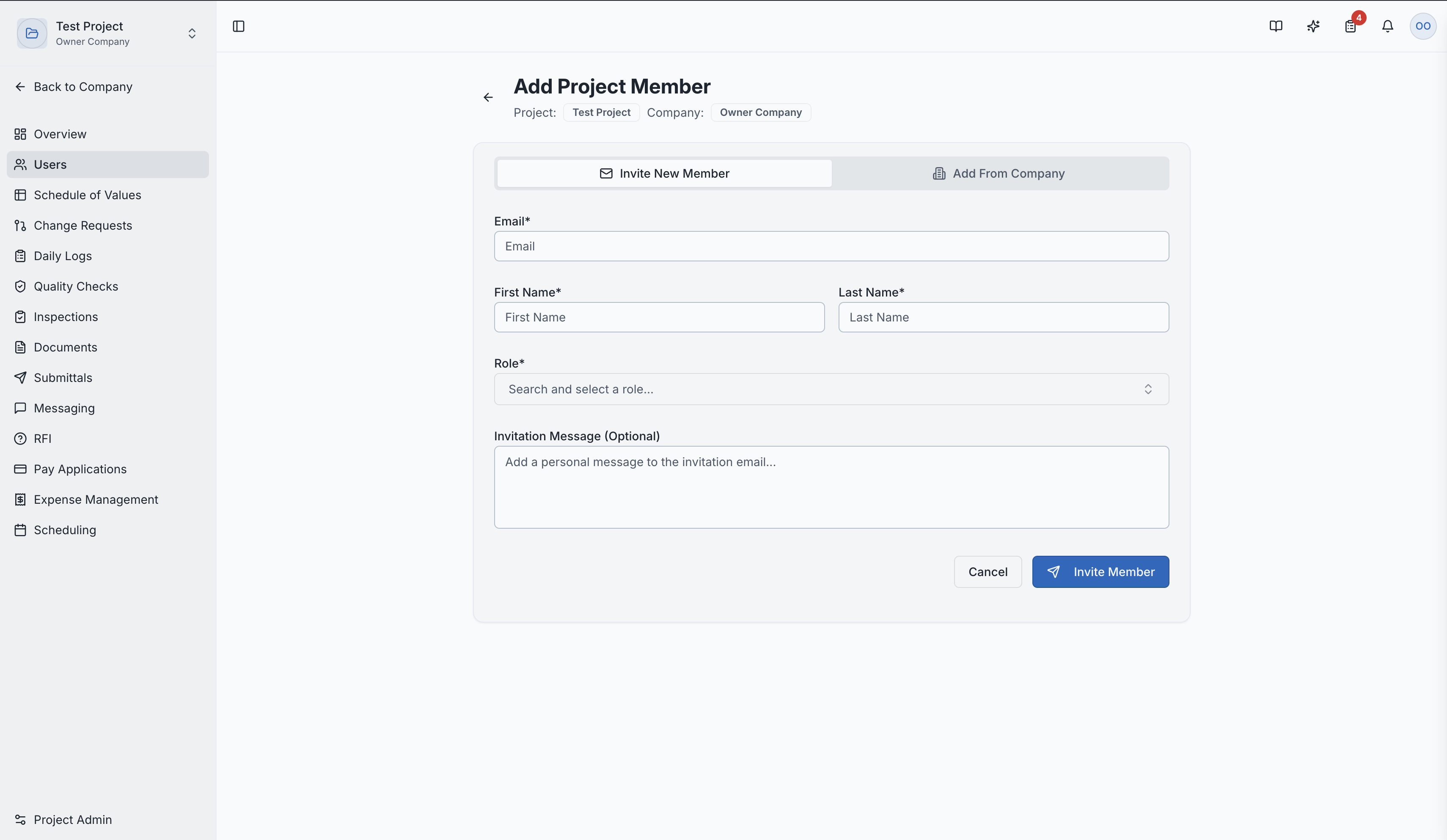
Click "Add User" to invite someone to the project:
- Enter their email address
- Assign a project role (from the available roles configured in Project Admin)
- The user receives an invitation and appears with "Invited" status until they accept
The dialog for inviting a new user to the project
Changing Roles
You can change a member's project role directly from the table using the role dropdown. This immediately updates their permissions across all modules.
Role Access:
- Users with MEMBER MANAGE permission can add and change member roles
- General Contractor and Owner roles typically have member management access
- Users without management permissions can still view the member list
Video Tutorials
How to Add Users to a Project