
Project Overview
The central hub for a project — view budget, progress, team, and recent activity.
What Is the Project Overview?
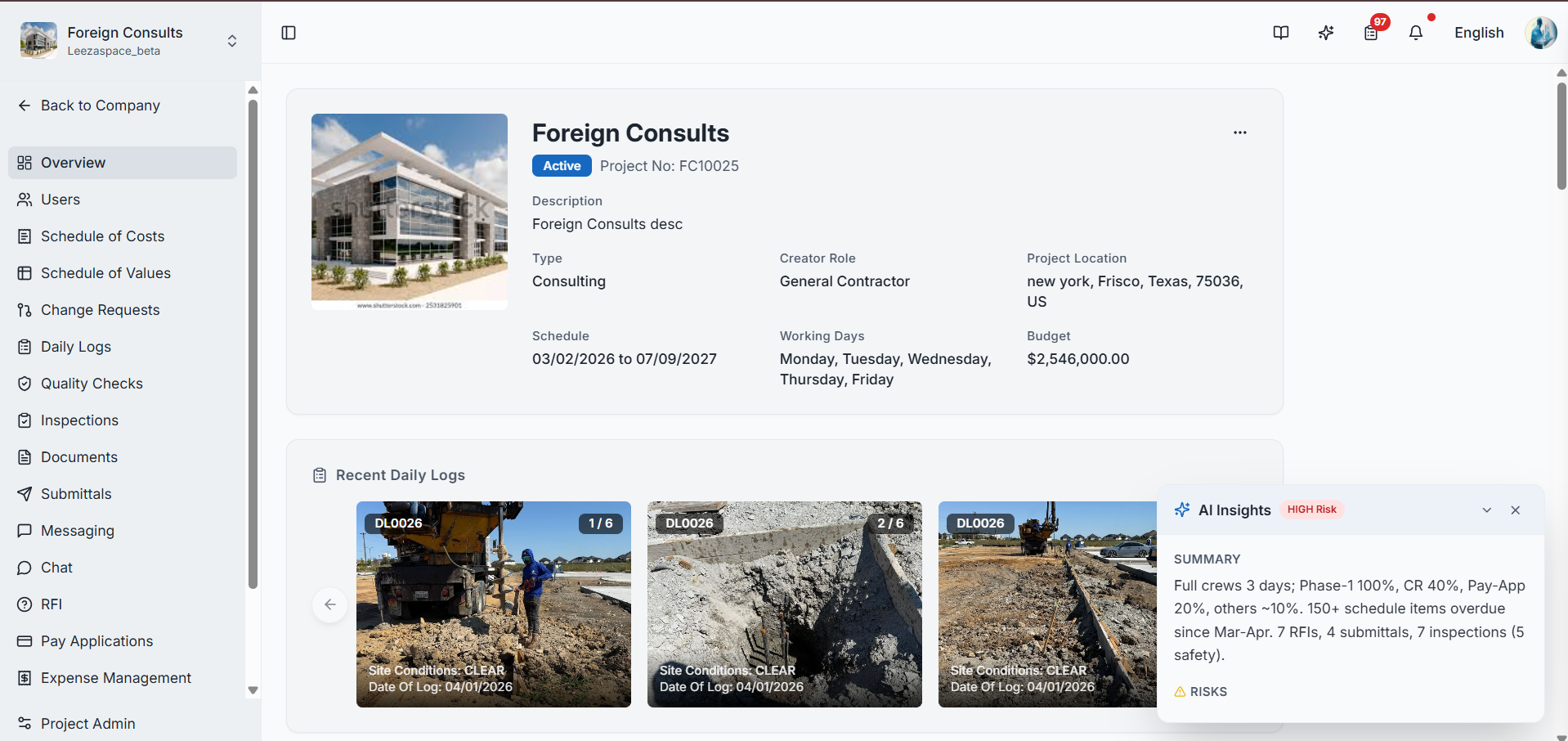
The Project Overview is the first page you see when you open a project. It provides a high-level snapshot of the project's health, finances, team, and recent activity.
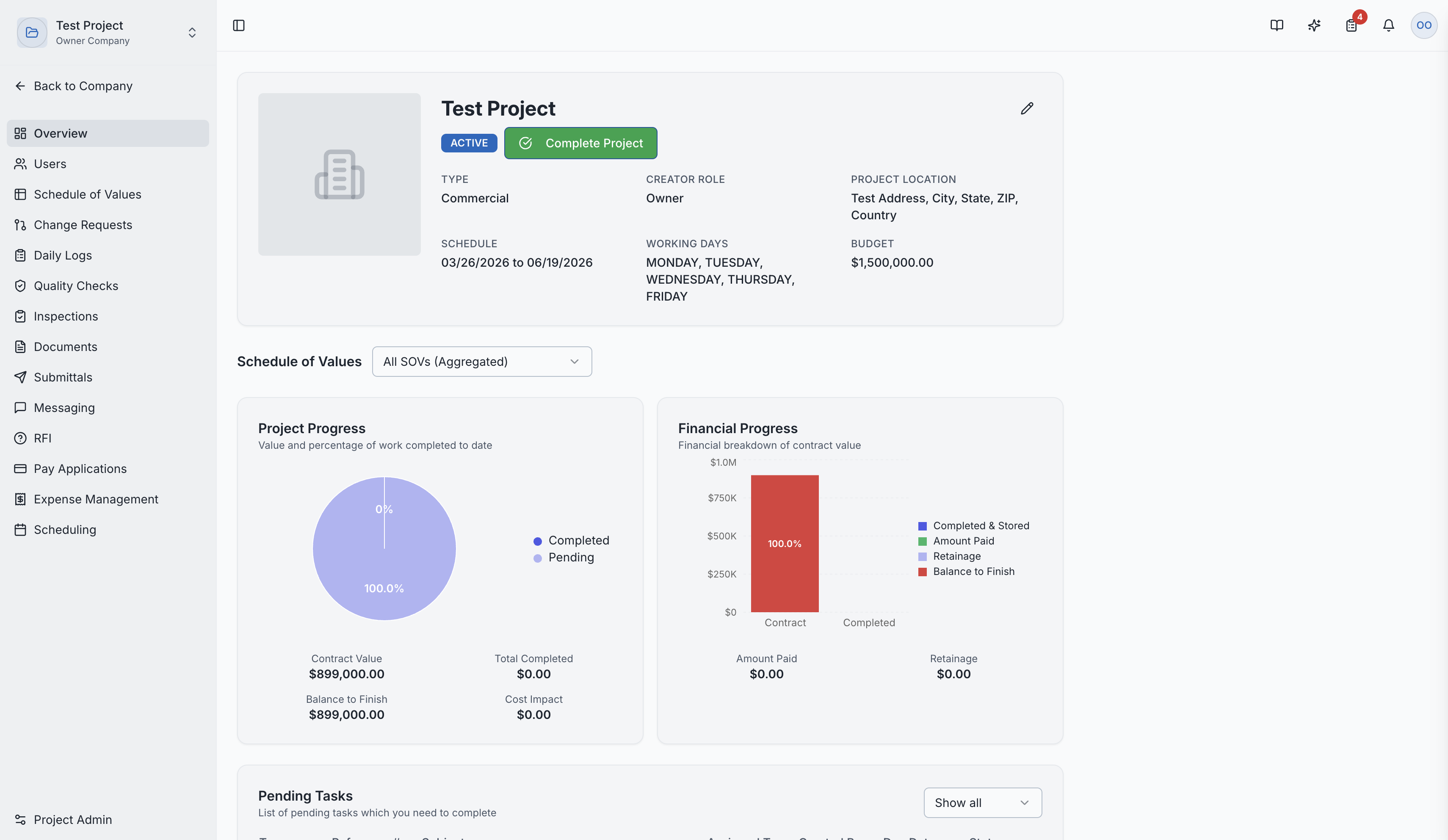
Project Information
At the top, you'll see:
- Project Name and Project Number
- Project Type and Description
- Physical Address
- Status Badge — Draft, Active, or Completed
Budget Overview
Financial summary showing:
- Total Budget — the approved project budget
- Contingency Budget — reserved funds for unexpected costs
- Currency — USD, INR, etc.
Schedule of Values Progress
A real-time view of financial progress derived from approved Pay Applications, shown in two parts:
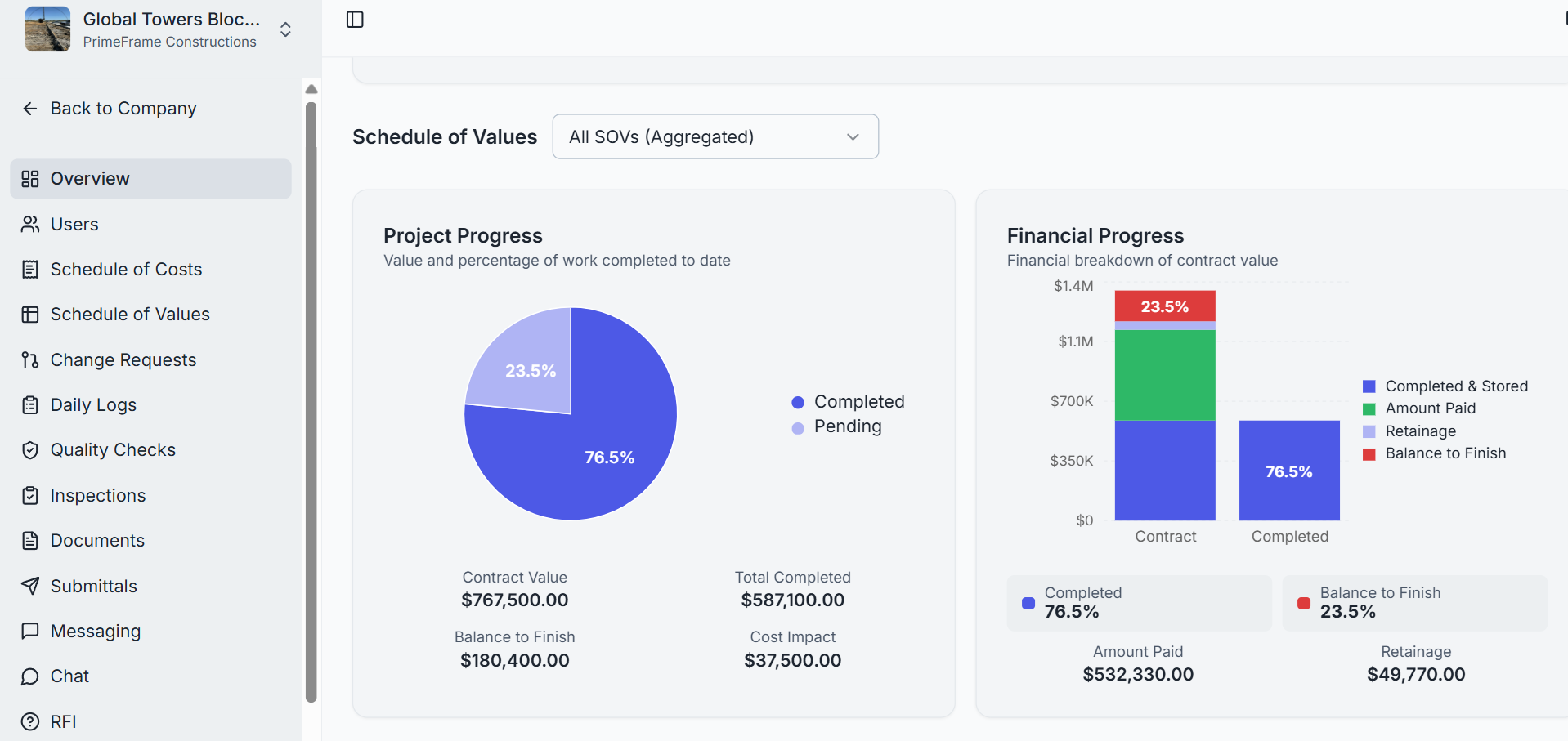
Project Progress
- Contract Value — total contract value across all SOV items
- Total Completed — value of work completed to date
- Balance to Finish — remaining work value
- Cost Impact — net cost impact from approved change orders
- Percentage Complete — overall project completion (Completed vs. Pending)
Financial Progress — a breakdown of the contract value:
- Completed & Stored — work completed plus materials stored
- Amount Paid — total disbursed to date
- Retainage — amount being withheld
- Balance to Finish — remaining value
Profit and Loss
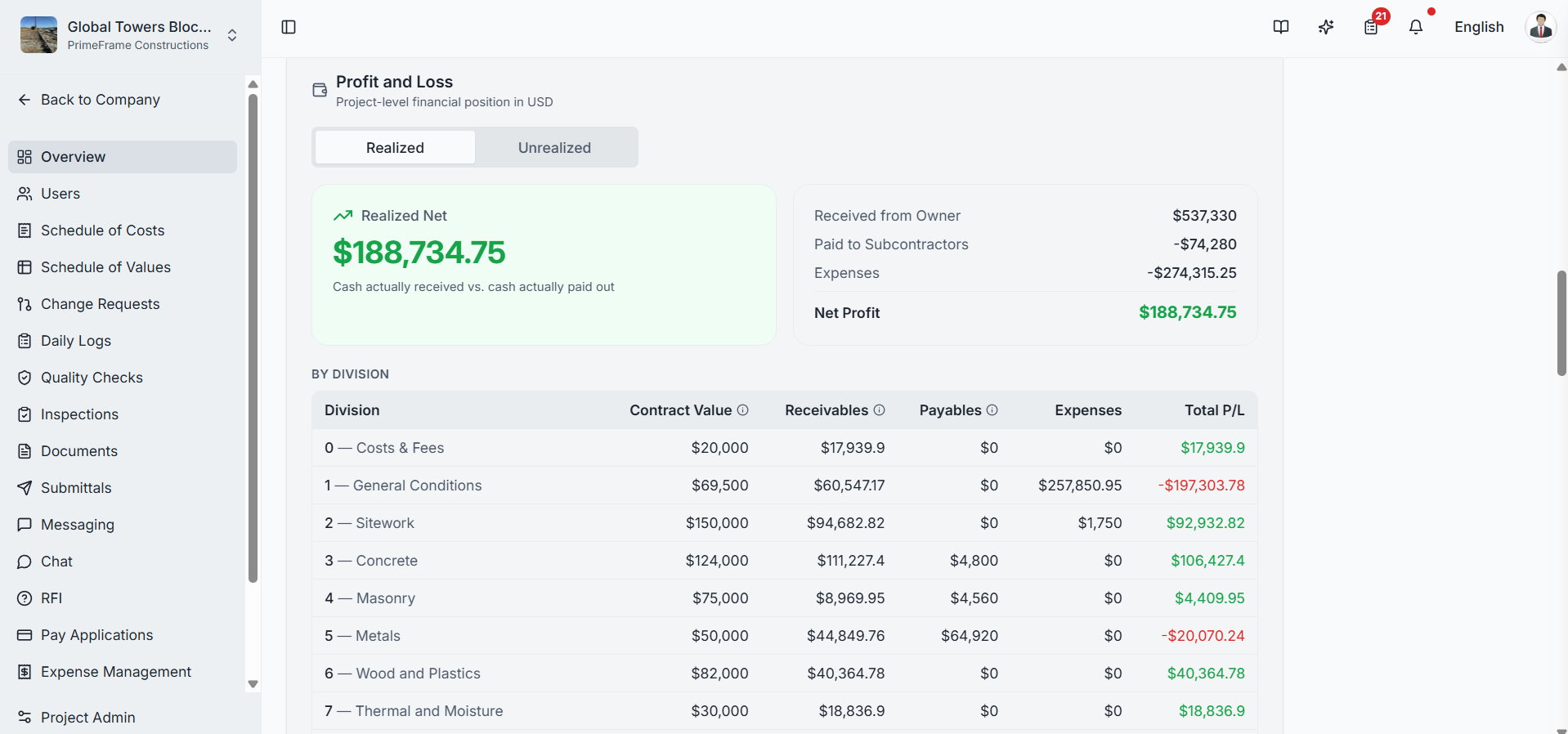
A project-level financial position statement (in USD) with two views:
- Realized — cash actually received vs. cash actually paid out
- Unrealized — projected position based on contracted and forecasted amounts
The Realized Net card summarizes:
| Line | Meaning |
|---|---|
| Received from Owner | Cash collected from the owner via Pay Applications |
| Paid to Subcontractors | Cash disbursed to subcontractors |
| Expenses | Total recorded project expenses |
| Net Profit | Received minus paid minus expenses (green for profit, red for loss) |
By Division
A detailed table breaks the P&L down per division, with columns for Contract Value, Receivables, Payables, Expenses, and Total P/L — so the team can see exactly where margin is being earned or lost.
Project Schedule
- Start Date and End Date
- Working Days — configured work week (5-day or 6-day)
Team Section
Shows the key project team members:
- General Contractor — the GC managing the project
- Owner — the project owner/developer
- Developer — if applicable
- Superintendents — site managers
- Project Managers — project leadership
Recent Photos
A carousel of images uploaded from Daily Logs — giving a visual snapshot of recent site activity.
Pending Tasks
A table of items requiring action on this project. Each row shows the task Type, Reference #, Subject, Assigned To, Created By, Due Date, and Status (e.g. a Pay Application awaiting payment). Click Show all to see the complete list. Selecting a row navigates straight to that item.
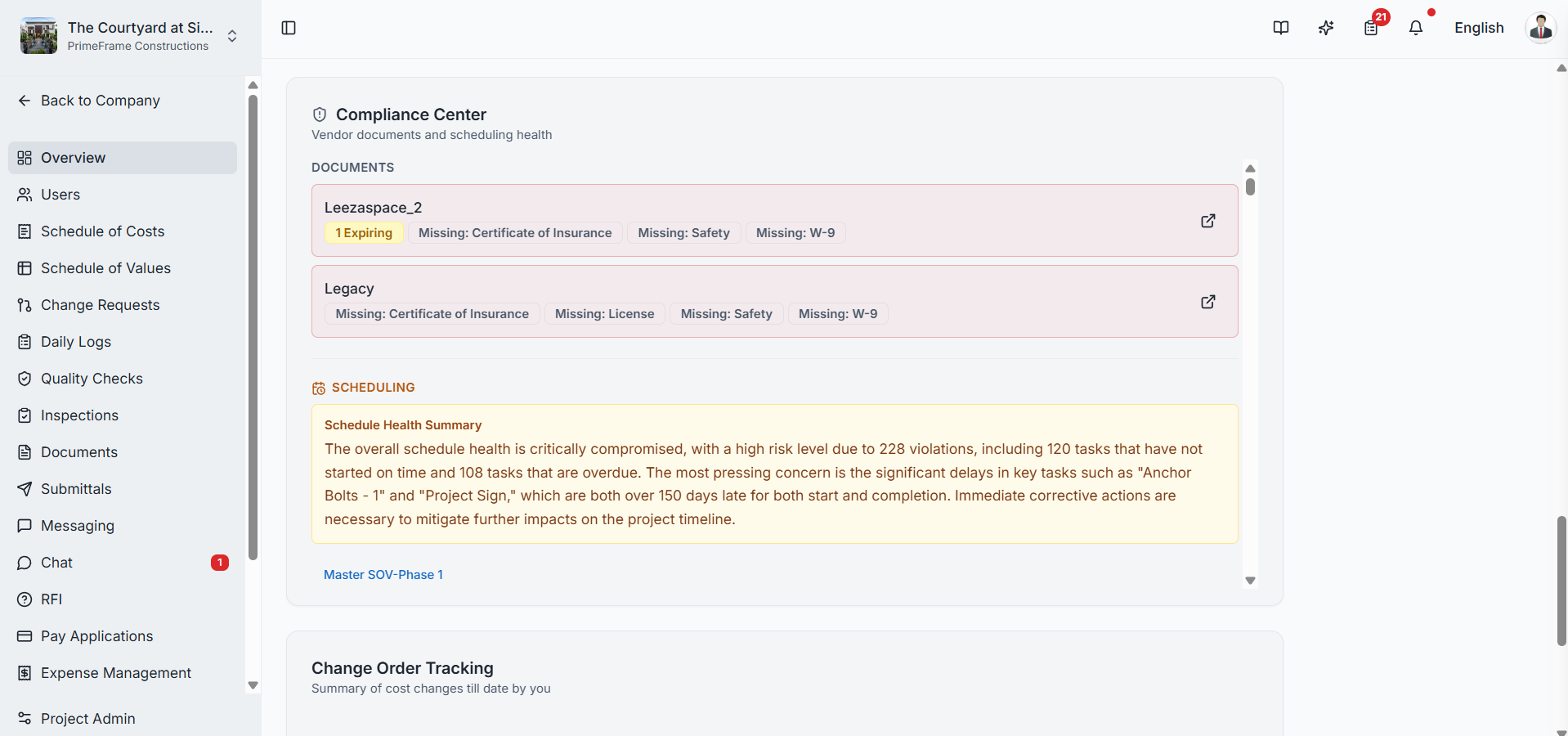
Compliance Center
A consolidated risk view combining vendor compliance and schedule health:
Documents — surfaces vendors on the project with missing or expired compliance documents (License, Safety, W-9, COI), so gaps can be closed before they become a liability.
Scheduling — a Schedule Health Summary that flags overall schedule risk, with a count of total violations, tasks that have not started on time, and tasks that are overdue. Individual late tasks are listed with a Late Start or Late Completion badge, how many days late they are, planned start/end dates, and a View → link to the task.
Change Order Tracking
A running summary of cost changes to date across the project's change requests. When no change requests exist yet, it shows "No change requests yet"; otherwise it summarizes the cumulative cost impact of approved and pending changes.
AI Insights & Risk
A floating AI Insights panel provides an at-a-glance, AI-generated assessment of project health:
- Risk badge — an overall risk level (e.g. Low, Medium, High)
- Summary — a concise weekly digest (daily logs filed, SOV % complete, open/overdue/high-priority RFIs, etc.)
- Risks — specific risk factors the AI has identified from live project data
Management Actions
Depending on your role:
- Edit Project Details — update project information (locked if the project is active)
- Publish Draft — make a draft project active
- Mark as Completed — close out the project
Role Access:
- All project members can view the overview
- Only users with PROJECT MANAGE permission can edit project details, publish, or mark as completed