
Project Admin
The governance center — manage roles, permissions, and project team accounts.
What Is Project Admin?
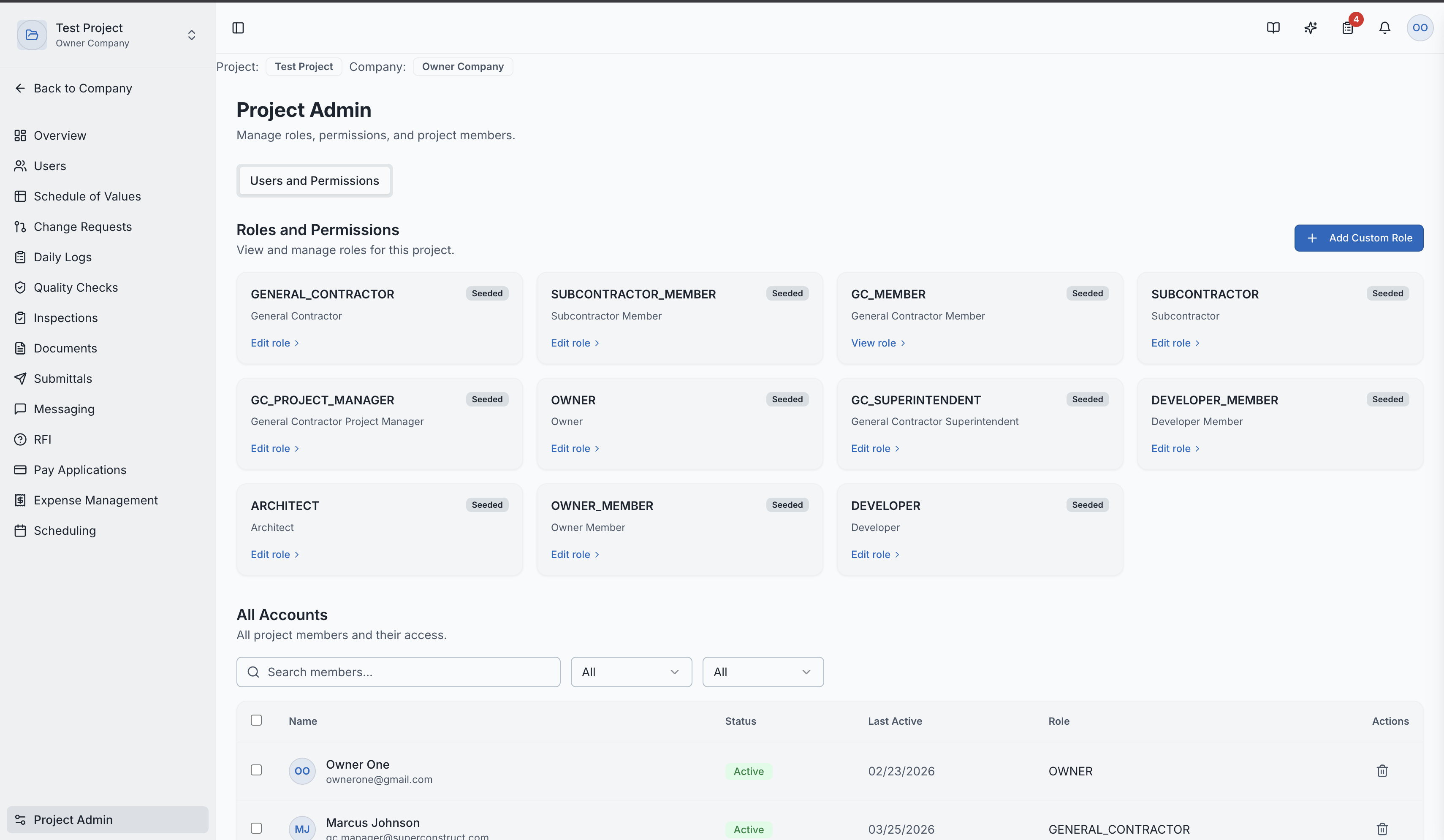
The Project Admin page is the governance center for managing who has access to the project and what they can do. It's where you configure roles, set permissions, and manage team accounts.
Why It's Important
- Security — control exactly who can access sensitive project data
- Accountability — ensure team members only have the permissions they need
- Compliance — maintain proper access controls for audit purposes
- Flexibility — create custom roles tailored to your project's needs
Accessing Project Admin
Project Admin is located at the bottom of the left sidebar when you're inside a project. Only users with appropriate administrative permissions can see and access this page.
Roles & Permissions
System Roles (Automatically Created)
Every new project comes with these pre-configured roles:
| Role | Group | Default Access |
|---|---|---|
| General Contractor | GC | Full VIEW and MANAGE access to all modules |
| Subcontractor | SC | VIEW and MANAGE for most modules (scoped to their work) |
| Owner | OWNER | VIEW and MANAGE across most project modules |
| GC Project Manager | GC | Full management permissions |
| GC Superintendent | GC | Full management permissions |
| GC Member | GC | VIEW-only access to most modules |
| Architect | DEVELOPER | MANAGE for Documents, RFIs, Submittals, Messaging |
| Developer | DEVELOPER | Full access within the developer group |
| Developer Member | DEVELOPER | Full access within the developer group |
System roles cannot be deleted — they are protected to ensure project stability.
Custom Roles
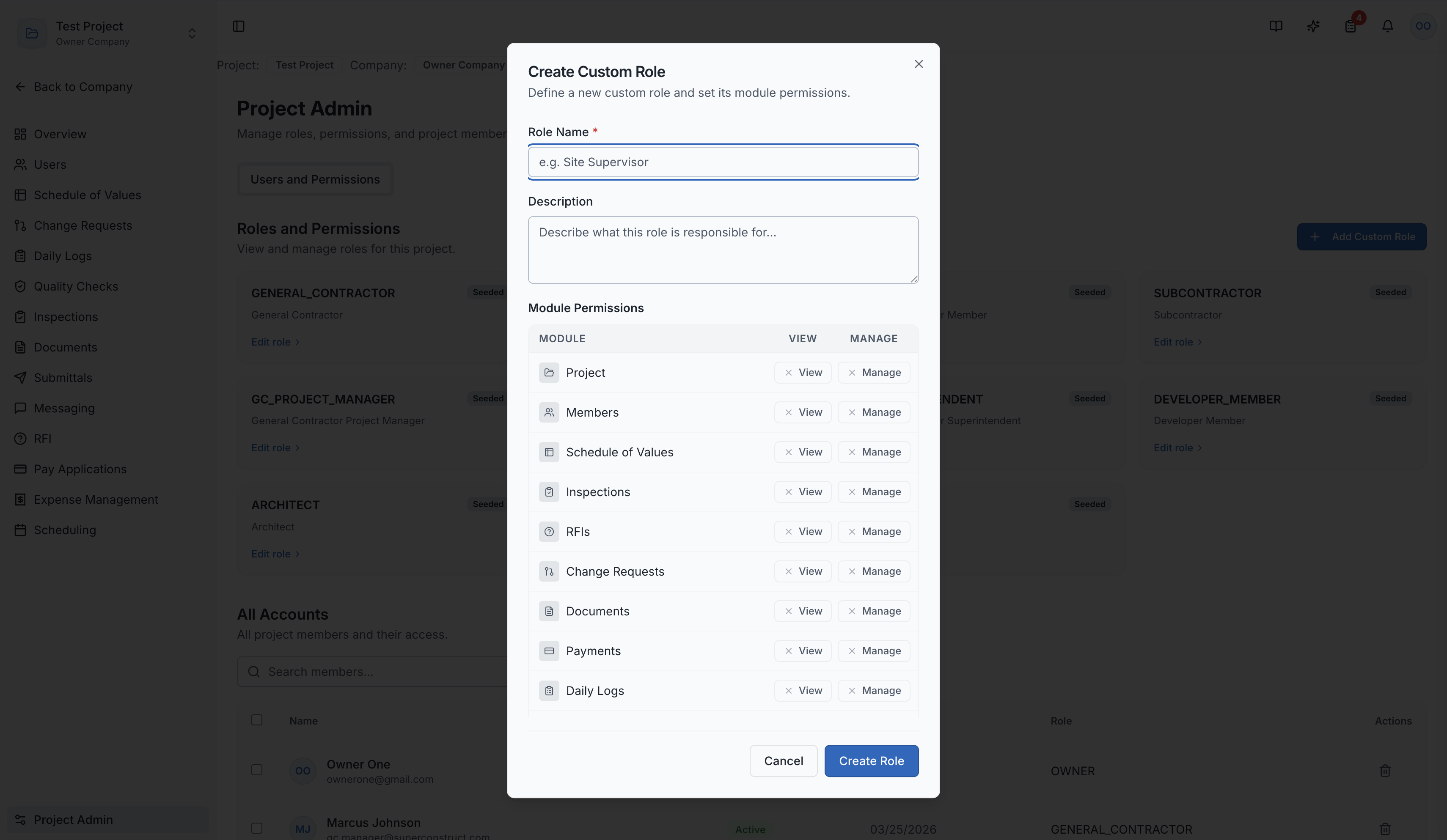
Create your own roles tailored to specific job functions:
- Click "Create Role"
- Enter a role name (e.g., "Site Supervisor", "Quality Manager")
- Add a description
- Set permissions per module
Module Permissions
For each role, you can toggle permissions at the module level:
| Module | Permission Options |
|---|---|
| Project Settings | VIEW, MANAGE |
| Members | VIEW, MANAGE |
| Schedule of Values (SOV) | VIEW, MANAGE |
| Inspections | VIEW, MANAGE |
| RFIs | VIEW, MANAGE |
| Daily Logs | VIEW, MANAGE |
| Quality Checks | VIEW, MANAGE |
| Documents | VIEW, MANAGE |
| Submittals | VIEW, MANAGE |
| Messaging | VIEW, MANAGE |
| Payments (Pay Applications) | VIEW, MANAGE |
| Expense Management | VIEW, MANAGE |
| Scheduling | VIEW, MANAGE |
| Change Requests | VIEW, MANAGE |
- VIEW — user can see data but not create or modify it
- MANAGE — user can create, edit, delete, and approve items in the module
Delete Custom Roles
Custom roles can be removed when no longer needed. System-seeded roles are protected and cannot be deleted.
All Accounts
A table-based view of everyone assigned to the project:
Member Information
- Name and Email
- Status — Active, Invited, Blocked/Deactivated
- Last Active — when they last accessed the project
- Assigned Role — their current project role
Member Management
- Change Roles — reassign a member's role from the table dropdown
- Search — find members by name or email
- Filter — filter the All Accounts table by Status (Active, Invited) or by Role
Compliance Settings
Project Admin includes a Compliance Settings area that configures compliance validation during Pay Application submission. Two levels are available:
Enable Compliance Check (Warn Mode)
Shows a compliance summary at submission time but still allows the invoice to be submitted. It checks:
- Daily log coverage — at least 50% of the billing period must have daily logs
- Vendor compliance certificates — COI, License, Safety, W-9 validity
- SOV inspections — required inspections on the billed line items
Enforce AI Compliance Check (Enforce Mode)
Blocks invoice submission entirely until all compliance checks pass. Enforce mode requires Enable Compliance Check to be turned on first.
Together these settings let a GC choose between warning the team about compliance gaps or hard-blocking non-compliant Pay Applications.
Role Access:
| Who Can Access | What They Can Do |
|---|---|
| GC role group members | Full access to roles, accounts, and compliance settings |
| Owner role group members | Full access to roles, accounts, and compliance settings |
| Other role groups | Cannot access Project Admin |