
Procurement
The central hub for materials, equipment, vendors, RFQs, purchase orders, and deliveries — manage the full procurement lifecycle, connected directly to your project.
What Is the Procurement Module?
Procurement is your central hub for managing materials, equipment, vendors, purchase orders, and deliveries — all connected directly to your project. Whether you're a general contractor managing your own procurement or overseeing subcontractor purchasing, SuperConstruct gives you visibility and control across the entire procurement lifecycle.
The module is organized into tabs:
| Tab | Purpose |
|---|---|
| Dashboard | A high-level view of what needs attention — approvals, ordering, and deliveries |
| Materials | Create and maintain the materials required for the project |
| Equipment | Track equipment needed for the project, with rental status |
| RFQs | Request quotations from vendors |
| Orders | Raise, issue, and track purchase orders and deliveries |
| Vendors | Link vendors to the project |
| Activity | A timestamped audit trail of procurement activity |
| Alerts | Configure email reminders for procurement deadlines and issues |
Opening Procurement
Navigate to your Project and select Procurement from the left sidebar under Financial Management. The first time you open it, the dashboard may show nothing to report yet — as procurement data is added, it becomes the central place to monitor what needs attention.
Vendors
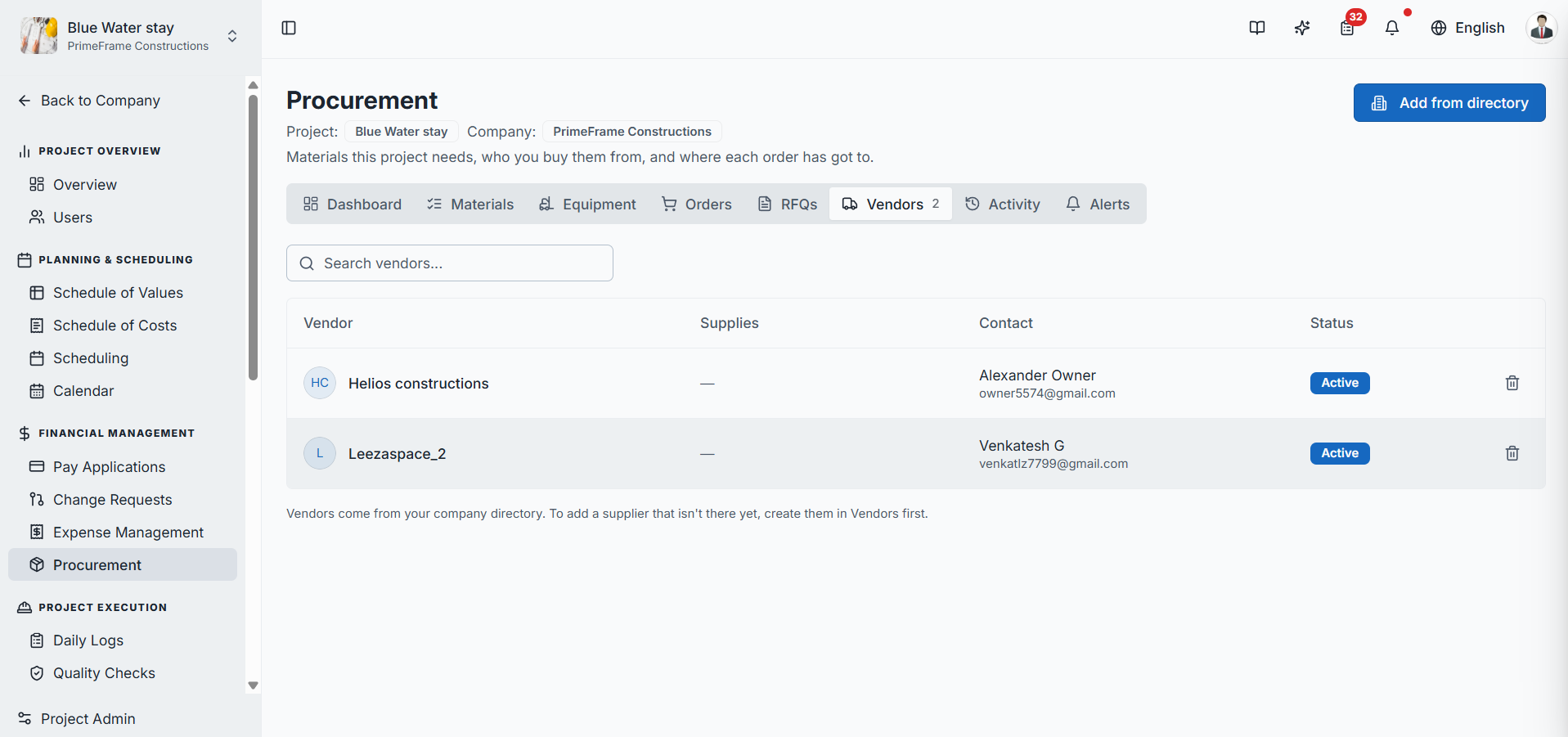
Before creating RFQs or purchase orders, vendors must be linked to the project.
- Open the Vendors tab and select Add Vendor
- Choose the vendor from your company directory
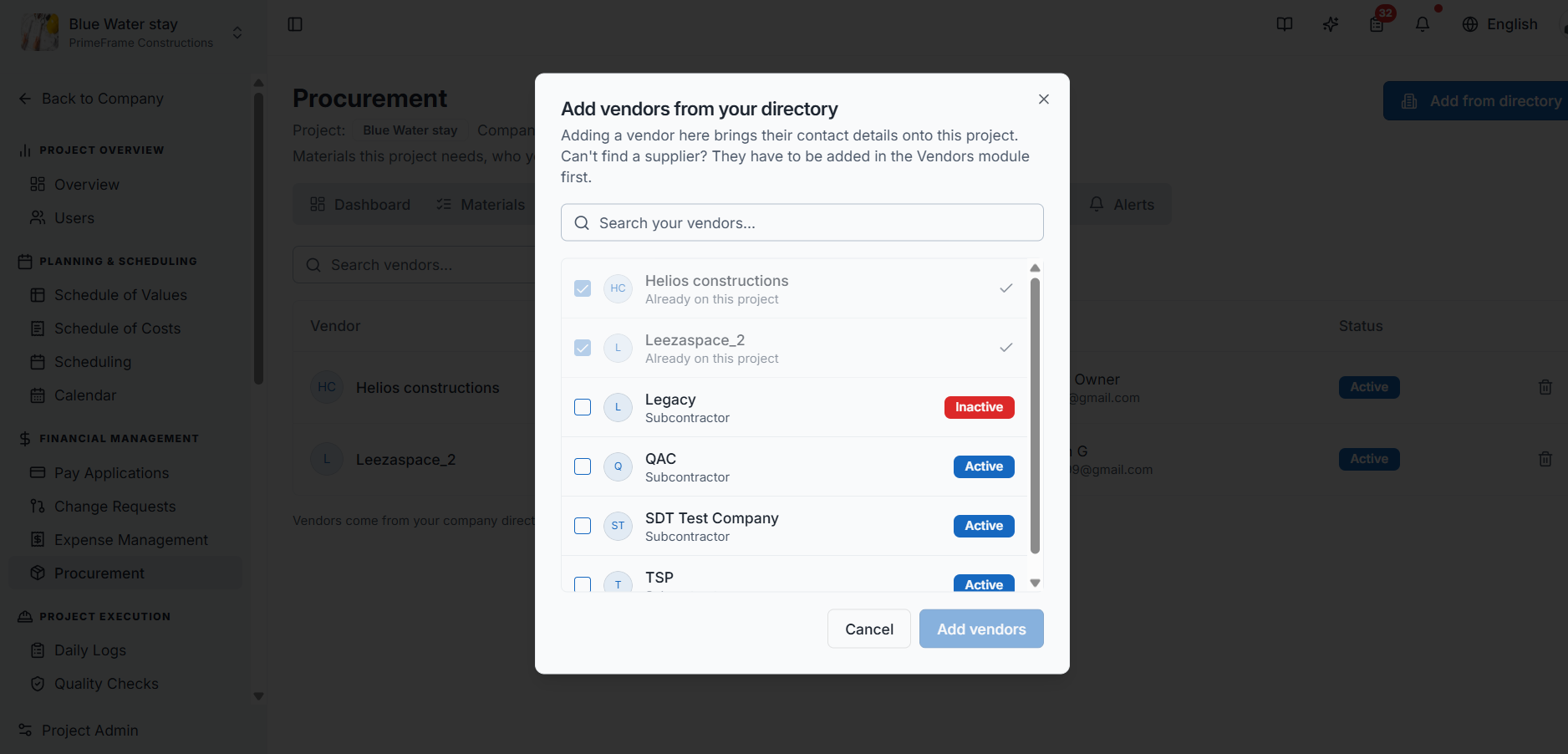
Once added, vendors become available throughout the procurement workflow (material assignment, RFQs, and purchase orders). Vendors must already exist in your company's Vendors module — if a supplier isn't there yet, create it there first.
Materials
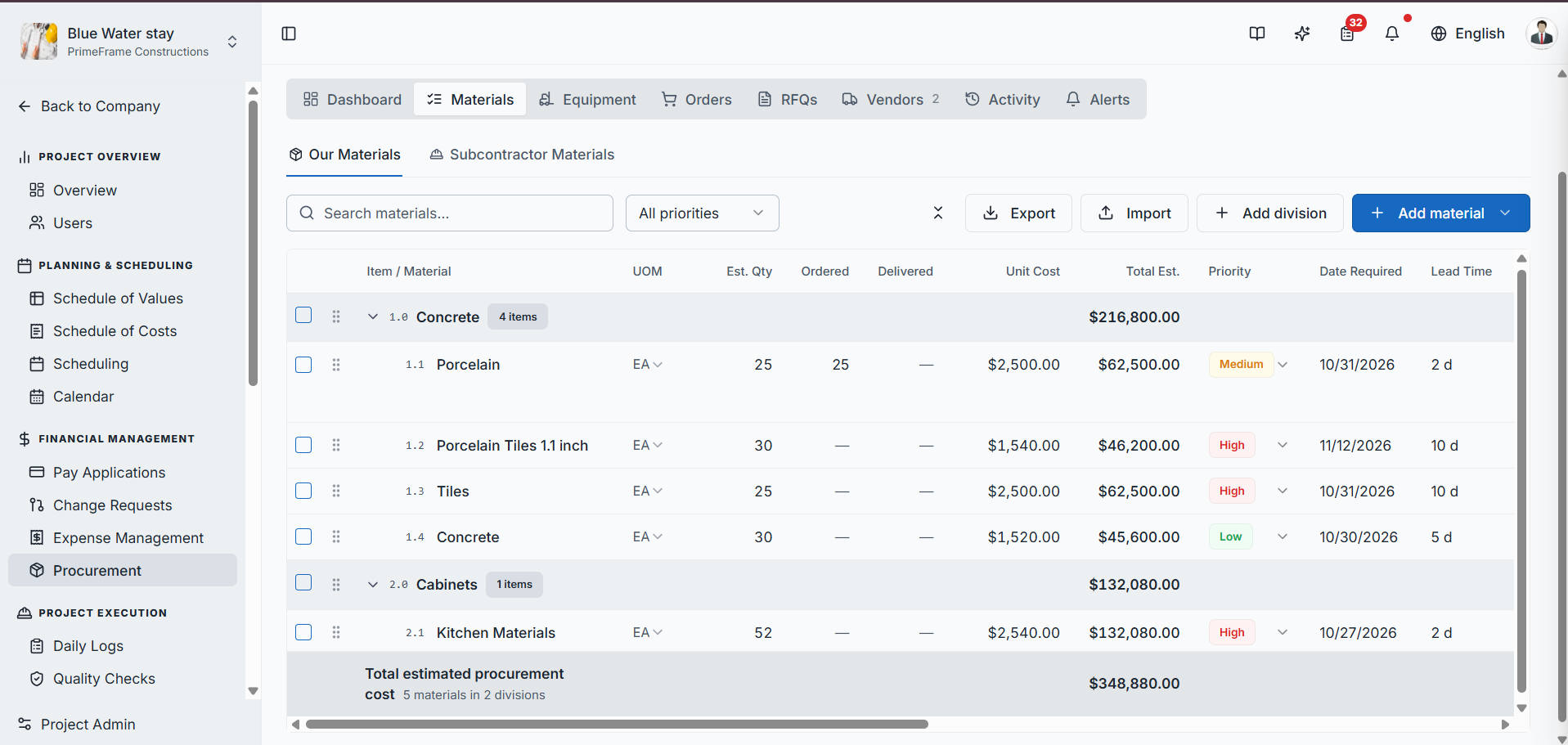
The Materials section is where you create and maintain the materials required for the project. There are separate areas for GC-managed materials and subcontractor materials.
Adding Materials
There are three ways to add materials:
- Using the form — select Add Material → Add using form. Division and Item / Material Name are required. You can also add specification, estimated quantity, unit cost, priority, required date, and lead time
- Directly in the table — select Add a Row, choose the division, enter the material name and required information, and save — no separate form needed
- Bulk import — select Import, download the Excel or CSV template, fill it in, and upload. Missing units of measure default to EA with a warning; a new unit of measure can be cancelled or added to the project to continue
Automatic calculations: When you enter estimated quantity and unit cost, SuperConstruct calculates the total estimated cost. From the required date and lead time, it calculates the Must Order By date — so the team knows when an order must be placed for the material to arrive on time. If no lead time is provided, the Must Order By date stays blank. Unit of measure defaults to EA (each) when left blank.
Assigning Vendors, Notes & Attachments
- Vendors — click the vendor cell to open the selection dialog; assign one or multiple vendors to a material and remove them as needed. This association is used later when generating RFQs and placing orders
- Notes & attachments — each material has a note section for text notes and file attachments. Attachment indicators make it easy to spot materials with supporting documentation
- Divisions — materials are organized by division, which you can expand or collapse to focus on what you need
Subcontractor Materials
This section lets the GC team track materials being procured by subcontractors. Materials can be added by form, table, or bulk import — the key difference is the Subcontractor field, which associates each material with a specific subcontractor company. A company filter displays materials for a selected subcontractor (divisions without materials for that company are hidden); choose All to return to the complete list.
Equipment
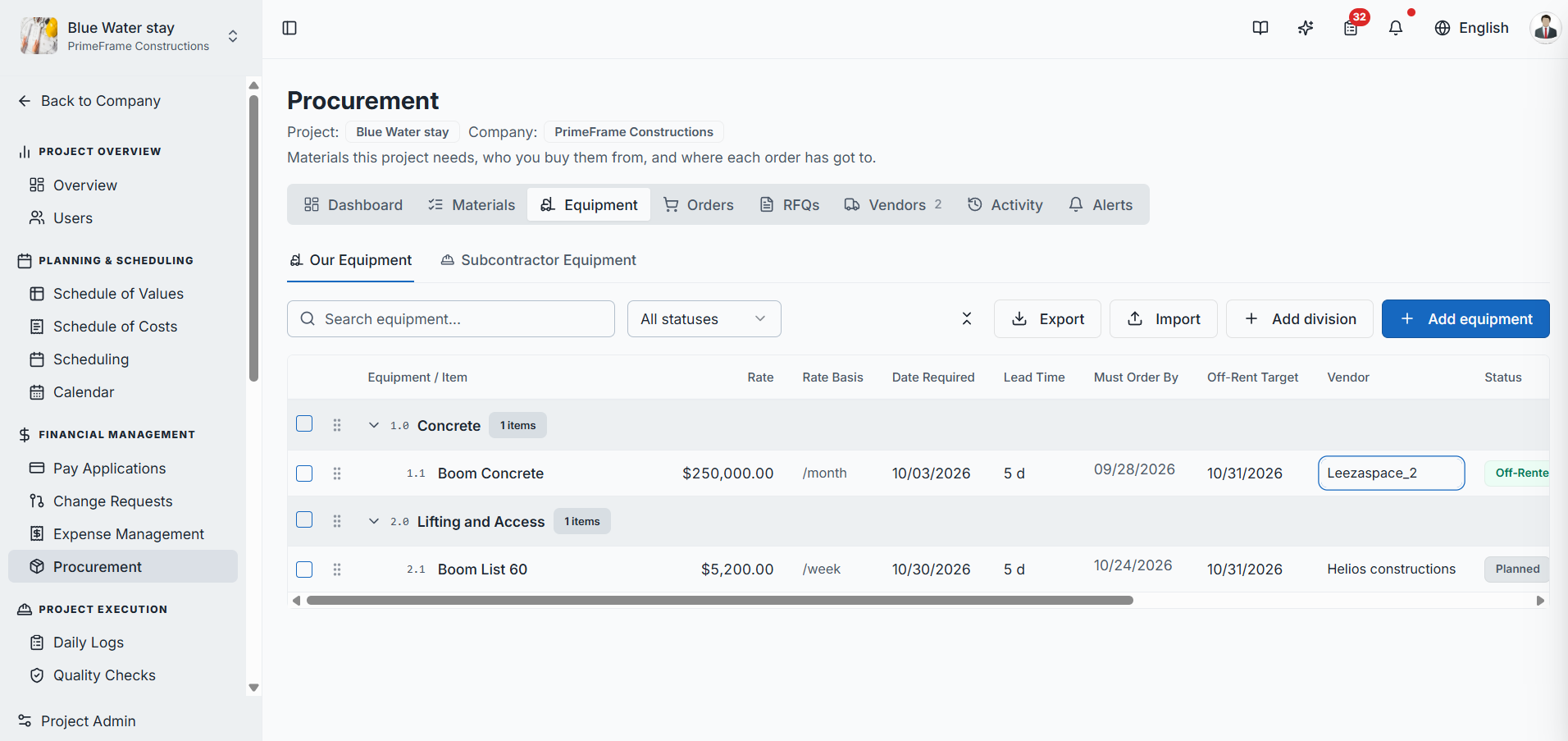
Equipment follows a workflow similar to materials, with separate areas for our equipment and subcontractor equipment. To get started, add a division, then add the equipment required.
Equipment information can include the rate, rate basis, required date, offering target, and lead time (lead time can automatically determine the Must Order By date). Equipment can also be given a status:
- Planned
- Delivered — the delivery date must be confirmed
- Off-Rented — SuperConstruct validates the off-rent date against the delivery date
RFQs (Request for Quotation)
Once materials are entered and vendors are linked, you can create an RFQ. Select the materials to include and choose Generate RFQ — confirm the finalized quantity you want priced on each line (lowering it leaves the rest on the tracker for a later RFQ), then generate the document. The price columns go out blank for the supplier to fill in.
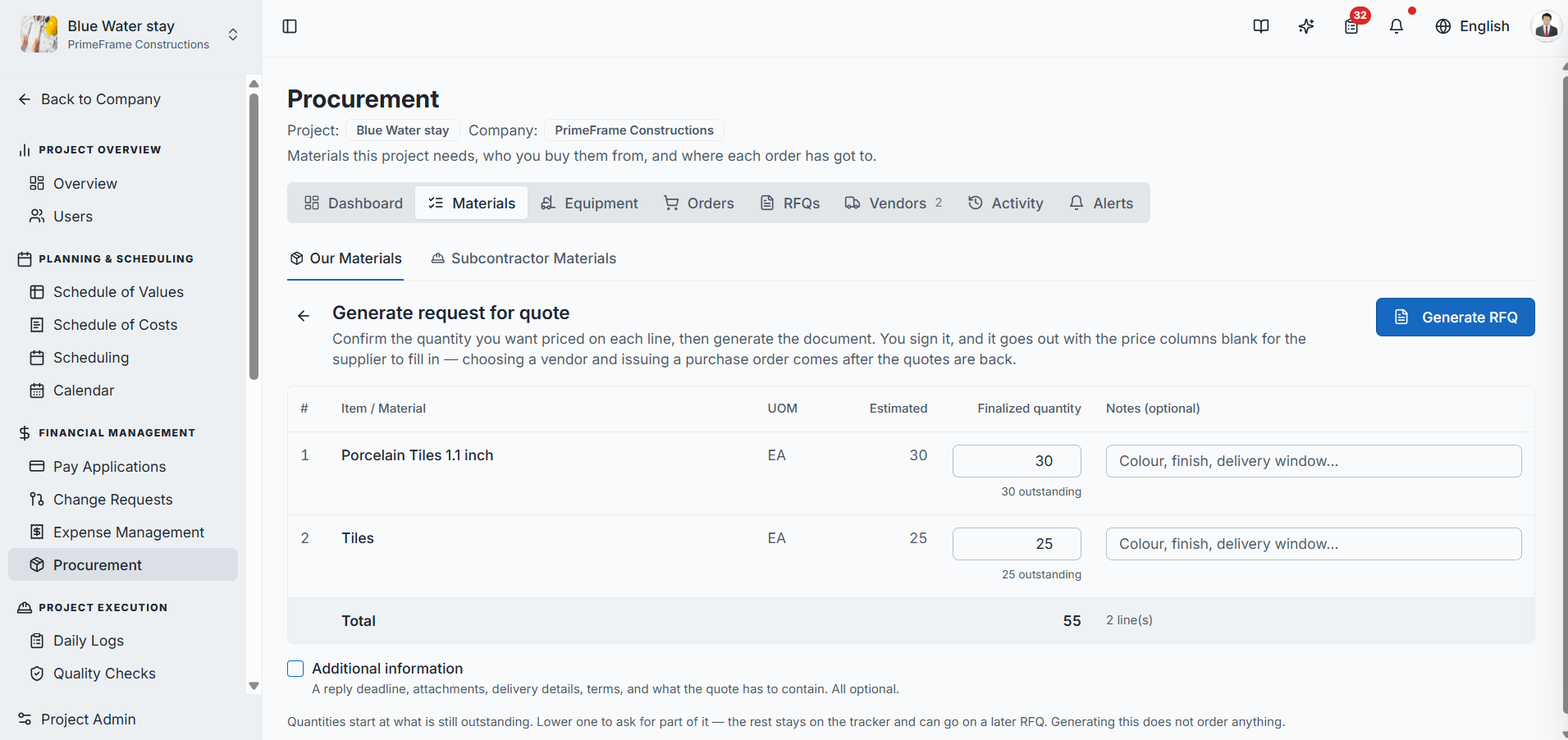
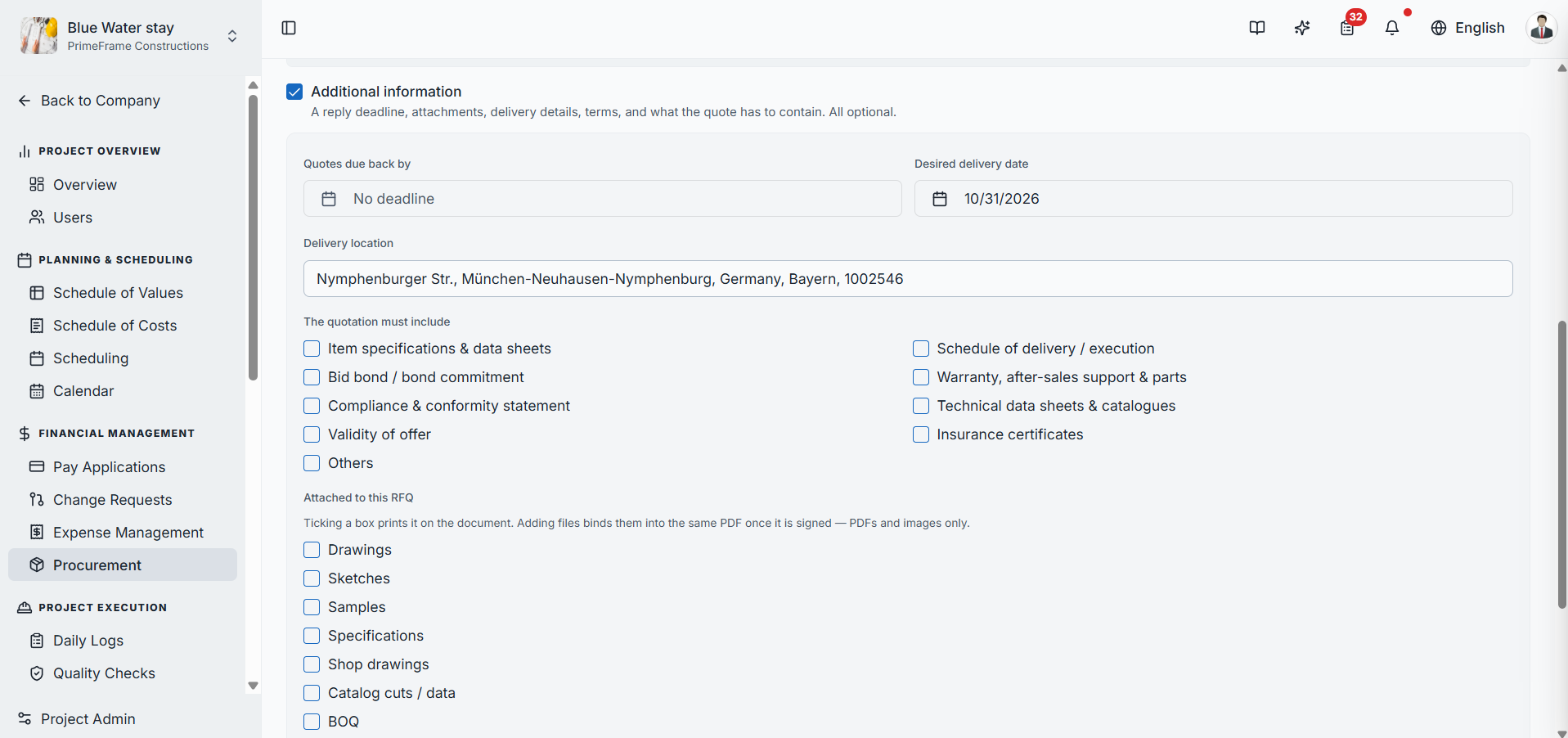
You can specify:
- Documents vendors must provide — drawings, sketches, samples, specifications, shop drawings, catalog cuts and data, and other customer requirements
- Quotation requirements — item specifications, delivery schedules, warranty information, compliance statements, technical data, and insurance certificates
- Delivery details — a reply deadline (quotes due back by), desired delivery date, and delivery location
- Attachments — upload supporting PDF and image files. Word or Excel files are requested as a PDF, since the RFQ is compiled into a single PDF
- Special terms — review and edit the terms that appear on the RFQ
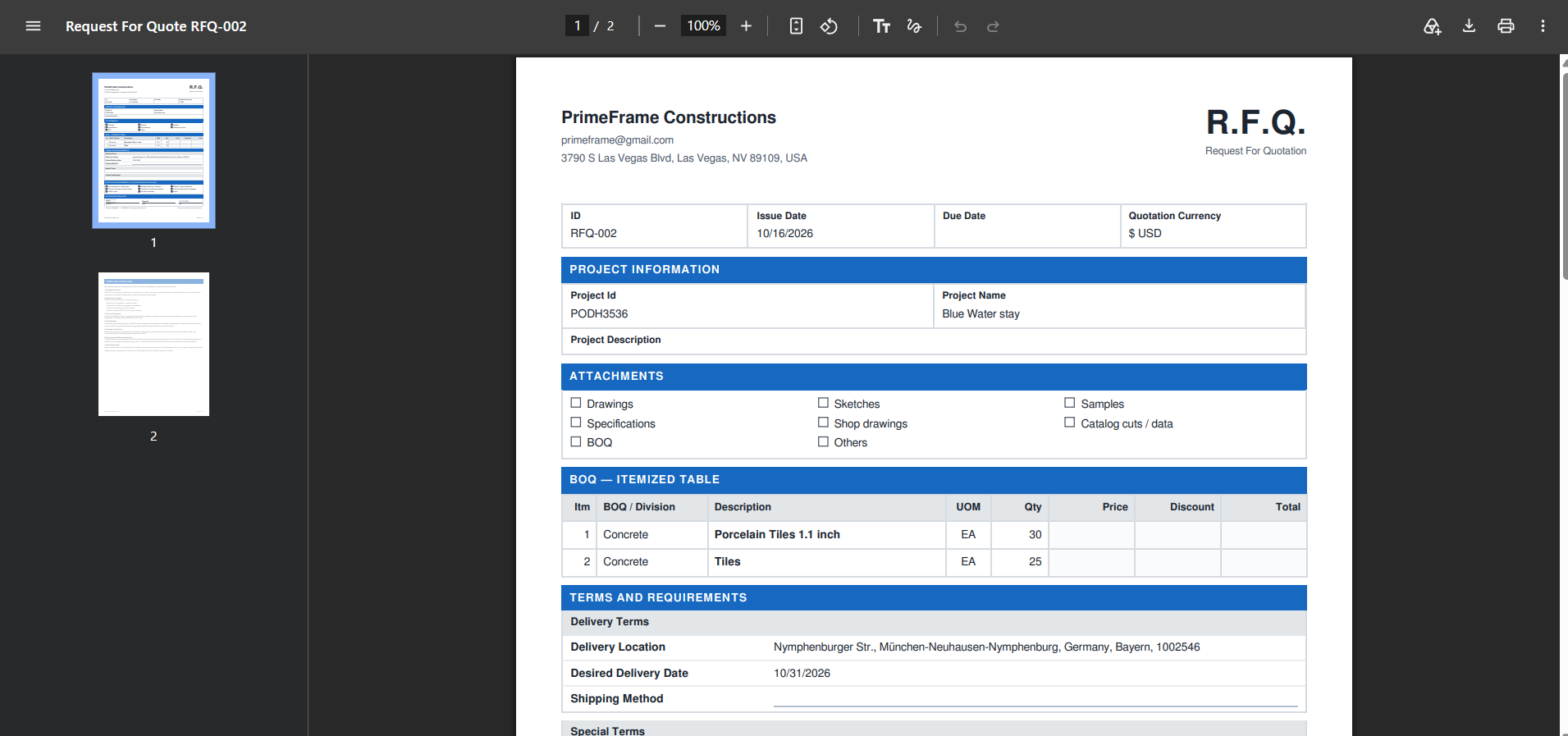
When the RFQ is ready, select Sign and add your signature. SuperConstruct generates a combined PDF (requirements, attachments, and special terms). Select Send to email the signed RFQ directly to the selected vendors — the sent activity is recorded in the procurement history.
Purchase Orders
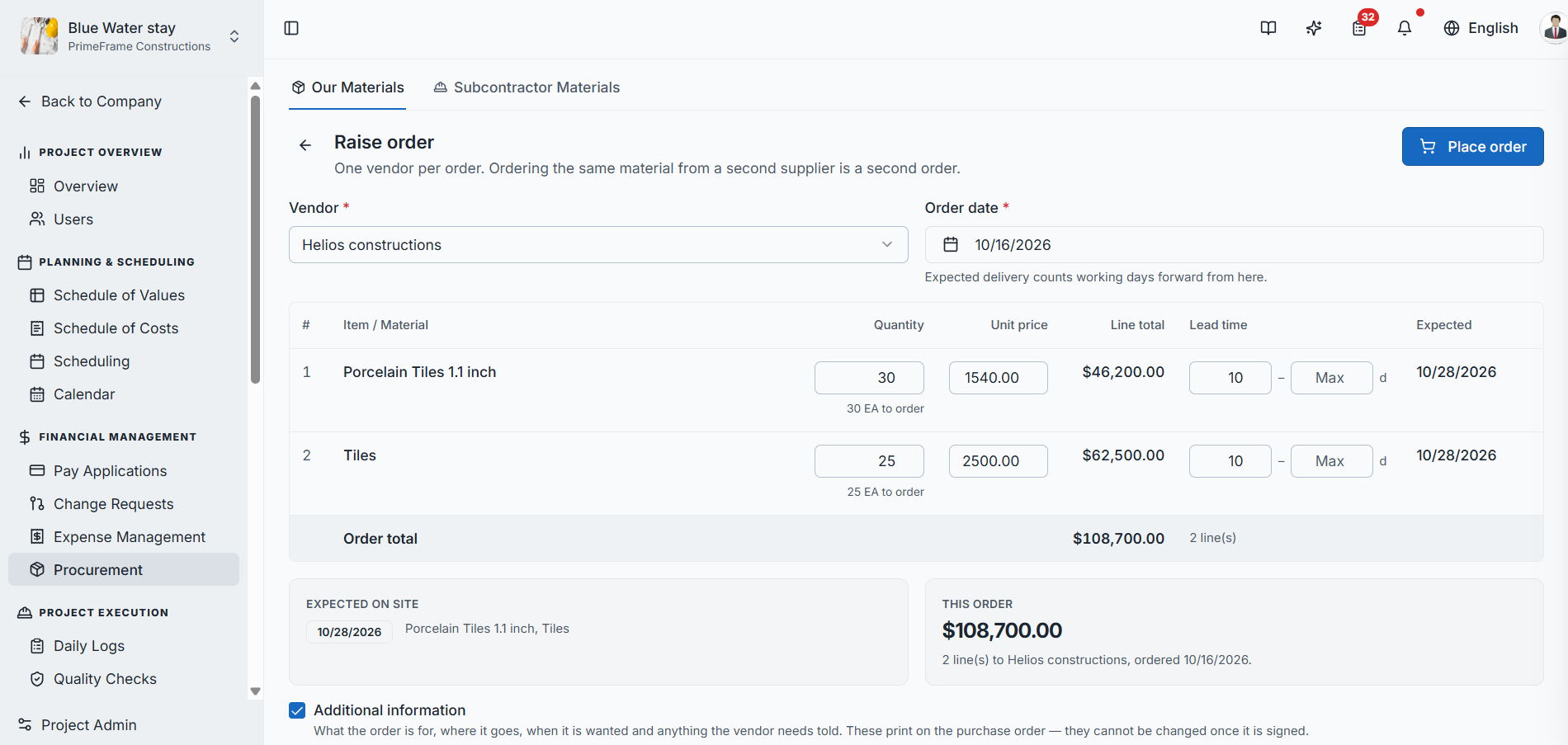
When you're ready to place an order, select the required materials and choose Raise PO.
- Select the vendor and enter the unit price and quantity for each line (a quantity of 0 can be used when the final quantity isn't confirmed yet)
- In Additional Information, specify the purchase type, delivery address, expected delivery date, and special instructions — these appear in the final purchase order PDF
- If it isn't ready to issue, Save as Draft and return later
- When finalized, select Sign and Issue
After the PO is issued, the related materials table is automatically updated with the order quantity, PO number, and vendor.
Order Status Filters
| Filter | Shows |
|---|---|
| All | Every purchase order |
| Needs Approval | Orders waiting for approval |
| Draft | Orders that haven't been issued |
| In Progress | Signed and placed orders with outstanding deliveries |
Recording Deliveries
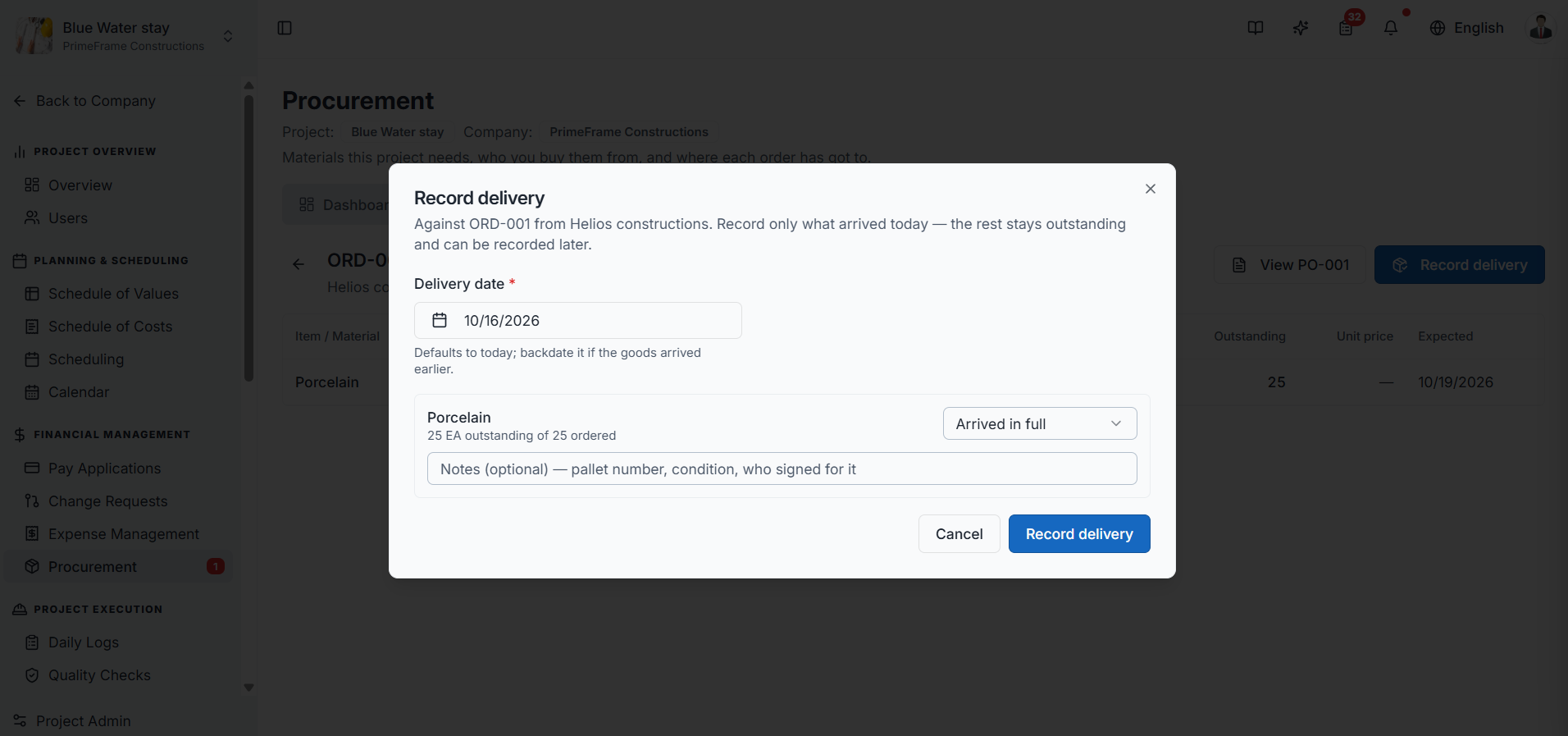
When materials arrive on site, open the signed order and select Record Delivery. For each line item, enter the quantity received and select the delivery outcome:
| Outcome | Meaning |
|---|---|
| Received | Goods were accepted in full |
| Short | Fewer items arrived than ordered — the received quantity is updated while the remainder stays outstanding |
| Damaged | Goods arrived but aren't acceptable — the delivered quantity is not increased |
| Wrong | Incorrect items were received — the delivered quantity is not increased |
SuperConstruct validates delivery dates and prevents recording more than the outstanding quantity. Once the full delivery is recorded, the delivered quantity matches the order quantity, giving a clear view of what has arrived and what is still outstanding.
The Procurement Dashboard
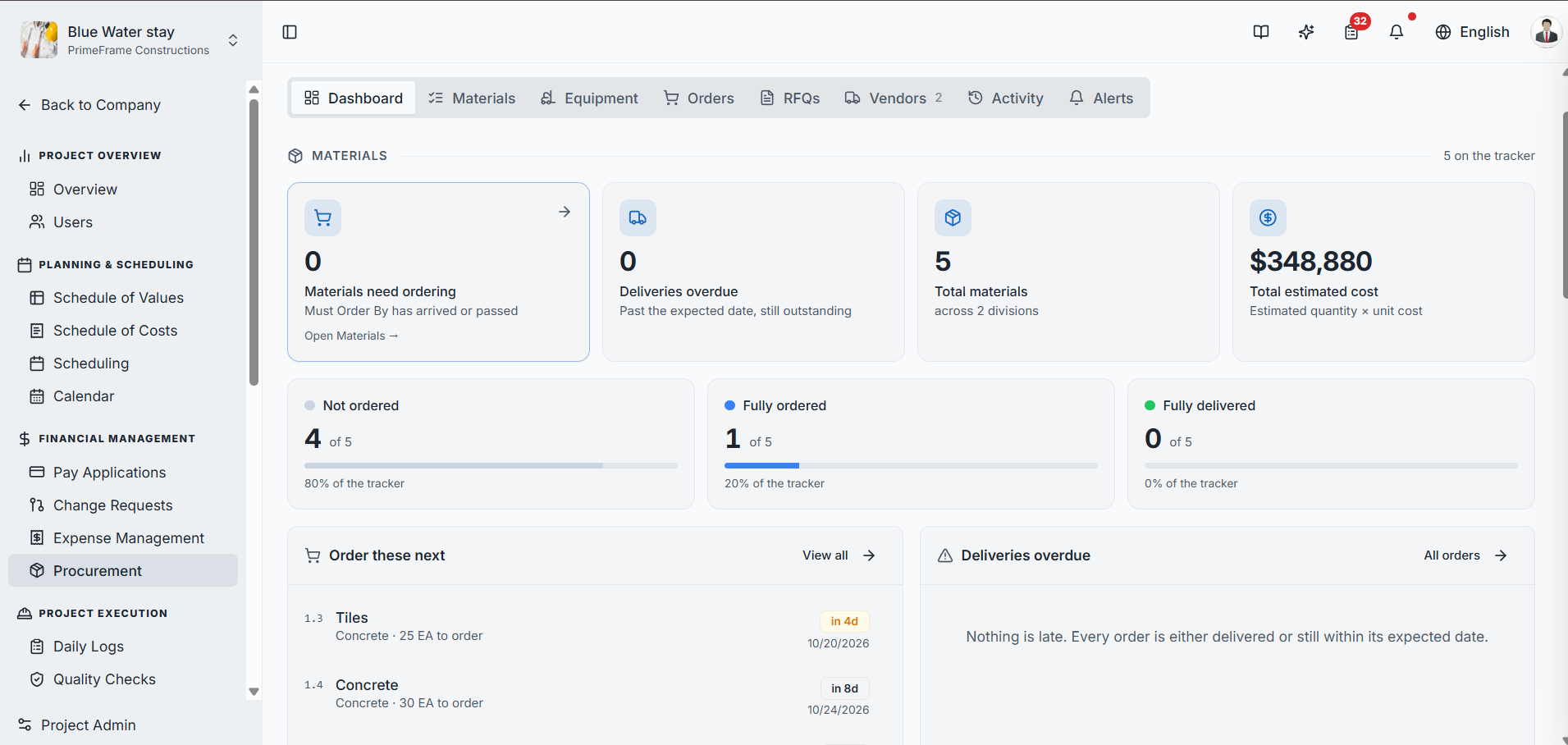
Once data has been added, the dashboard provides a high-level view of procurement health, with each card linking directly to the relevant information:
- POs Need Your Approval — purchase orders waiting for your approval
- Materials Need Ordering — materials whose Must Order By date has arrived or passed
- Deliveries Overdue — orders where the expected delivery hasn't been recorded
Activity
The Activity section is a timestamped audit trail of procurement activity — vendors linked, materials created or updated, bulk imports, RFQs issued, purchase orders prepared or placed, and deliveries recorded. Each entry identifies who performed the action and when, providing accountability and traceability.
Alerts
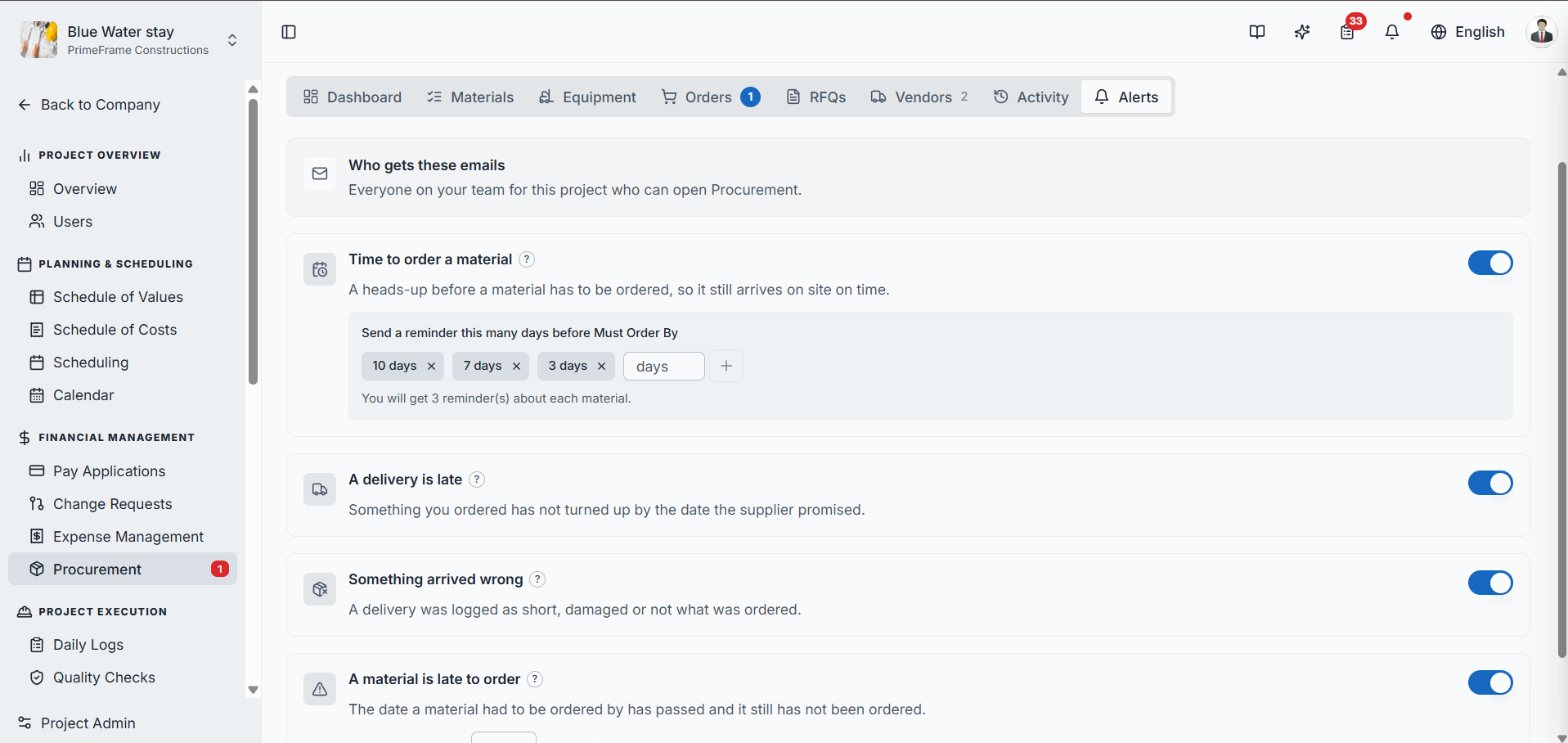
The Alerts section keeps the project team informed about procurement deadlines and issues. At the top, you can see who receives procurement email notifications. Each alert can be enabled or disabled, and — where applicable — you can configure how often reminders are sent until the required action is completed:
- Time to Order a Material — reminders before a material reaches its Must Order By date (configure multiple intervals, e.g. 7 days and 3 days before)
- A Delivery Is Late — when an ordered item hasn't arrived by the date the supplier promised
- Something Arrived Wrong — deliveries recorded as short, damaged, or different from what was ordered
- A Material Is Late to Order — materials whose required ordering date has passed but still haven't been ordered
The Subcontractor Experience
Subcontractor procurement is isolated from the GC's data and from other subcontractors — a subcontractor sees only their own team's procurement information. They can manage their own materials and equipment, generate and sign RFQs, create and sign purchase orders, and record deliveries. This lets the GC and subcontractors manage procurement independently while keeping each team's information separate.
Video Tutorial
SuperConstruct Procurement — Materials, RFQs, Purchase Orders & Deliveries
Role Access: Available to General Contractors for their own procurement and to oversee subcontractor purchasing, and to subcontractors for their own isolated procurement. Actions follow project role permissions.