
Pay Applications
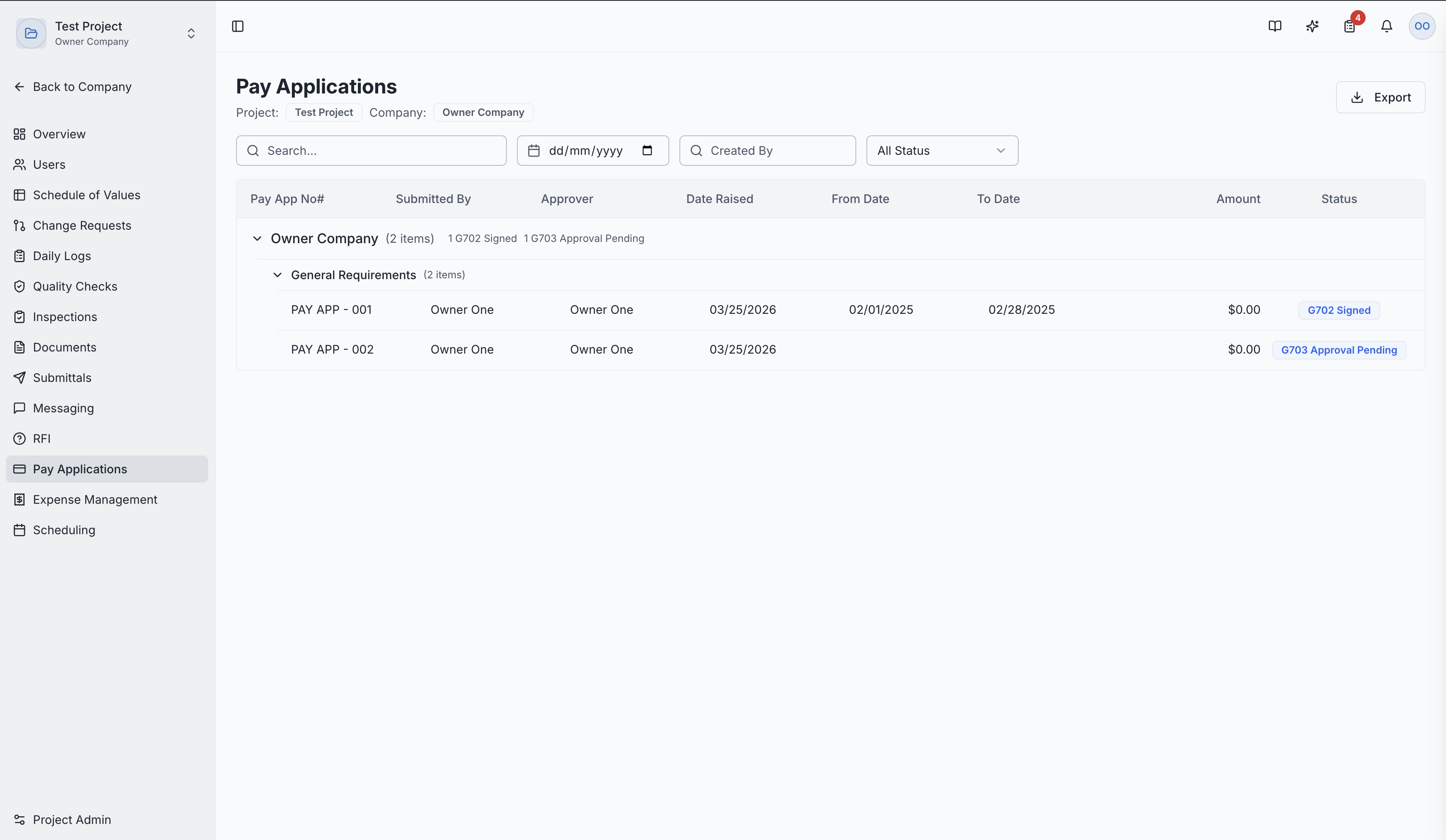
Monthly billing using AIA G702/G703 format — request payment for completed work.
What Are Pay Applications?
Pay Applications are monthly billing documents used to request payment for work completed during a billing period. SuperConstruct follows the industry-standard AIA G702/G703 format, which is universally accepted in the construction industry.
Pay Applications are the primary cash flow mechanism in construction — they're how contractors get paid for work performed.
Key Concepts
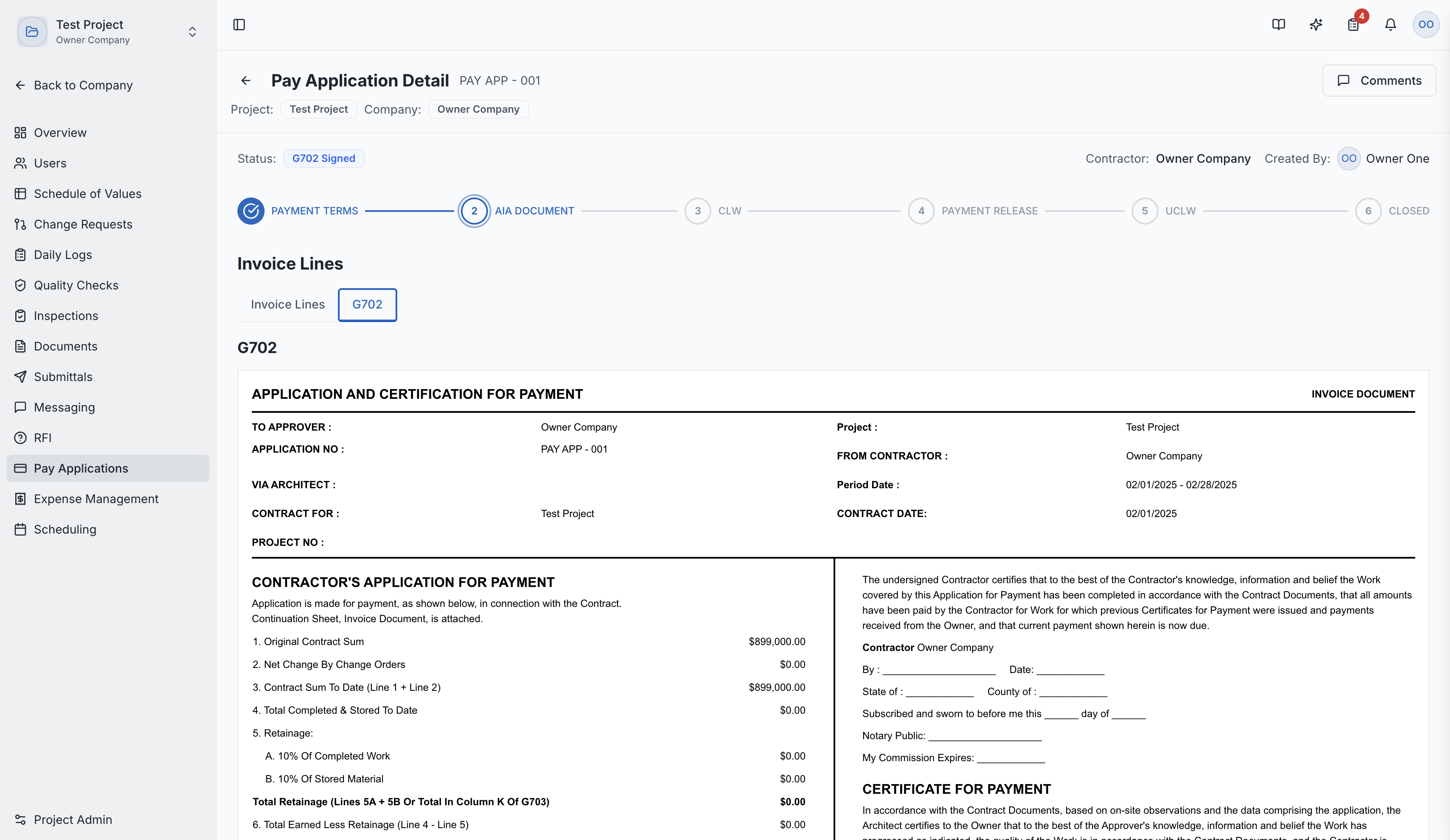
G702 — Application and Certificate for Payment
The summary document showing:
- Total contract value (original + changes)
- Total completed and stored to date
- Current retainage
- Total earned less retainage
- Less previous certificates for payment
- Current payment due
G703 — Continuation Sheet
The detailed line-by-line breakdown showing for each SOV item:
- Description of work
- Scheduled value
- Work completed in previous periods
- Work completed this period
- Materials presently stored
- Total completed and stored to date
- Percentage complete
- Balance to finish
- Retainage
Retainage
A percentage (typically 5-10%) withheld from each payment as security that the work will be completed satisfactorily. Retainage is released at project completion.
Stored Materials
Materials that have been purchased and delivered to the site (or stored off-site) but not yet installed. These are included in the billing.
Creating a Pay Application
- Navigate to Pay Applications in the project sidebar
- Click "New Pay Application"
- Select Billing Period — the month/dates this application covers
- Update Line Items — for each SOV item, enter:
- Percentage complete or dollar amount of work completed this period
- Materials presently stored (if applicable)
- The system auto-calculates all amounts: current payment due, retainage, balance to finish
Pay Application Flow
| Status | Description |
|---|---|
| Draft | Being prepared — contractor enters progress data |
| Submitted | Sent to the owner/developer for review |
| Under Review | Owner/developer is reviewing the application |
| Approved | Accepted — payment is authorized |
| Closed | Payment has been processed |
| Rejected | Returned with feedback for corrections |
Electronic Signatures
SuperConstruct integrates with Anvil for electronic signatures:
- Once a pay application is ready, a signature packet is generated
- All required parties can sign electronically
- Signed documents are stored automatically
Flexible Signing — Anyone with Permission Can Sign
SuperConstruct uses a flexible signing model so that projects don't get held up waiting for a single named signer.
How it works:
- Any team member who holds the Signer permission for the project can initiate signing — there's no need to pre-assign a specific person
- Click "Sign" on the pay application to open your personal signature session
- The system generates your signature packet on demand using your profile details
Race-condition protection:
- Only one active signing session can exist at a time for each document type (G702, CLW, UCLW)
- If another team member is currently signing, you'll see the message: "Another team member is currently signing this document" — wait for them to complete or cancel
- Once a document is signed, the Sign button is no longer shown to others
Signing Progress Tracker:
The detail page shows a signing progress section listing all potential signers and their current status:
| Status | Meaning |
|---|---|
| Pending | Has not started signing yet |
| Viewed | Opened the signature document |
| Signed | Signature complete |
Conditional Lien Waivers (CLW)
When a pay application is submitted, SuperConstruct can automatically generate Conditional Lien Waivers. These protect the project owner from mechanics' liens by documenting that the contractor waives lien rights upon receiving payment.
Payment Terms
Configure payment terms for the project:
- Contract dates
- Retainage percentage
- Payment duration (e.g., Net 30)
Pay App Detail Page
Clicking a pay application shows:
- G702 Summary — the Application and Certificate for Payment
- G703 Breakdown — detailed continuation sheet with all line items
- Signature Status — who has signed and who hasn't
- Lien Waivers — attached conditional and unconditional waivers
- Approval History — complete audit trail
Role Access:
| Role | Access Level |
|---|---|
| General Contractor | Create, manage, and submit pay applications |
| GC Project Manager | Full management access |
| Subcontractor | Create and submit pay apps for their scope |
| Owner / Developer | Review, approve, or reject pay applications |
| GC Member | VIEW only |
| Finance/Accounting | Process and verify pay applications |
Video Tutorials
How to Create Pay Applications
How to Create G702 and G703 — Complete Pay Application Workflow
How to Reset Pay Applications (Fix Billing Errors Easily)
How to Reset Pay Applications (Fix Errors Even After Signing)