
Meeting Minutes
Record, analyze, and act on meeting content using AI — from audio capture to automatic task creation.
What Is the Meeting Minutes Module?
The Meeting Minutes module lets project teams record, organize, and manage meeting discussions in one place. It combines flexible content capture (live recording, audio upload, or manual transcript) with AI-powered analysis that turns raw meeting content into structured summaries, decisions, and assignable tasks — automatically.
Accessing the Module
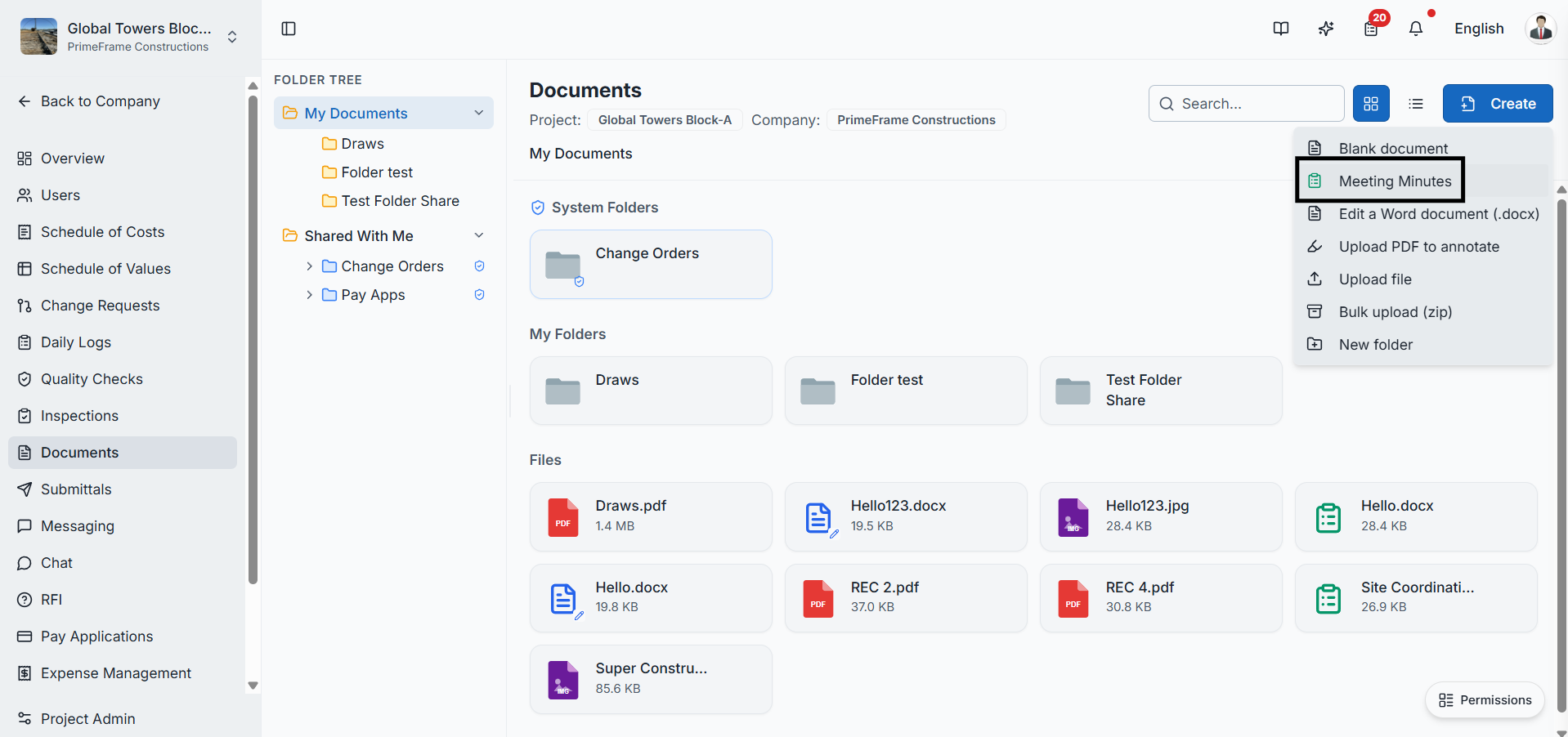
- Log in to SuperConstruct and navigate to your Company → Project
- Click Documents in the left navigation
- Click Create and select Meeting Minutes
- Enter a meeting title in the pop-up and click Create and Open
Setting Up Meeting Information
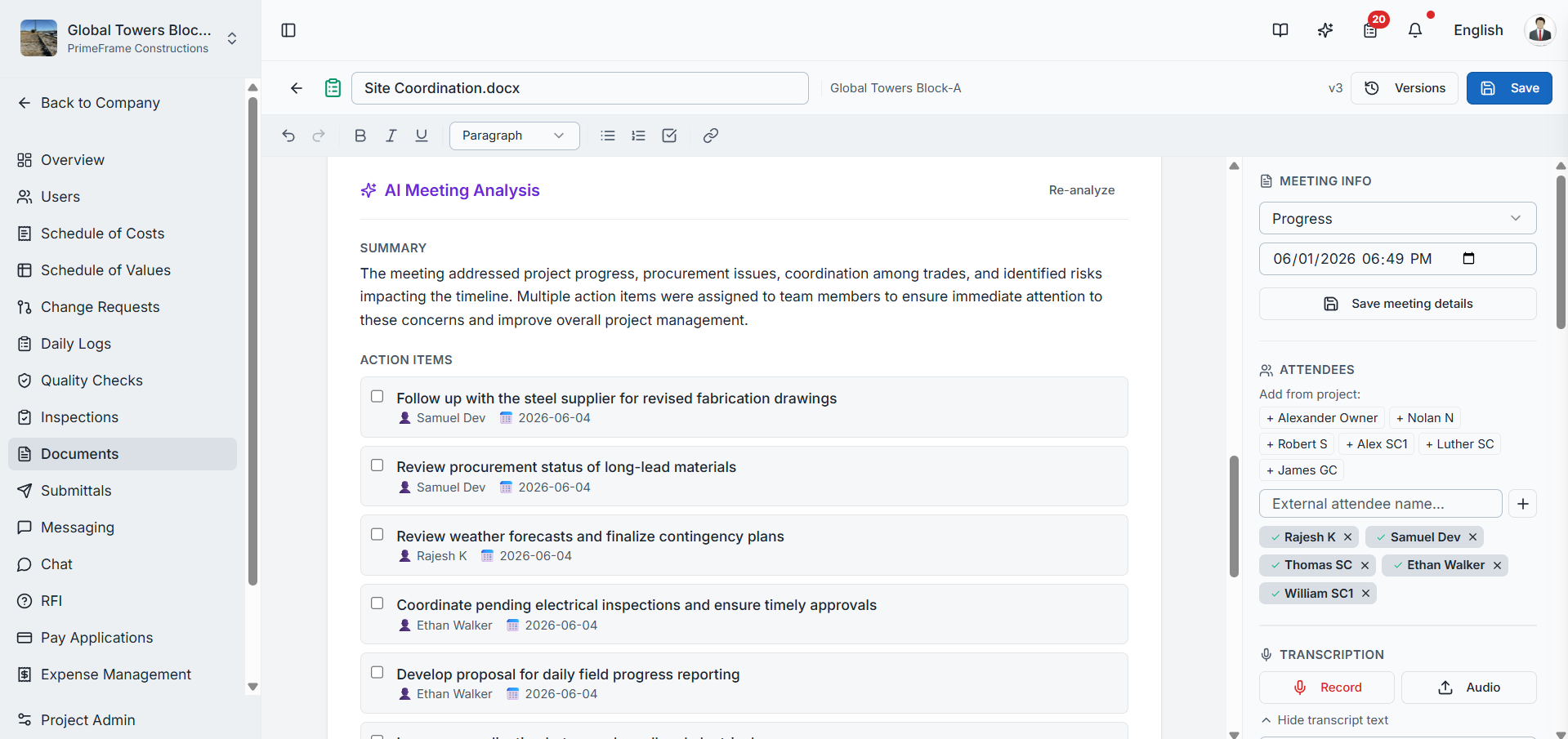
On the meeting page, fill in the Meeting Info section:
| Field | Description |
|---|---|
| Meeting Type | Define the purpose of the meeting (e.g. Site Meeting, Design Review) |
| Date & Time | Select the scheduled meeting date and time |
| Attendees | Add project members or external attendees |
Capturing Meeting Content
Three methods are available depending on when you're documenting:
| Method | When to Use |
|---|---|
| Record | Meeting is in progress — record directly via microphone |
| Upload Audio | Meeting is completed — upload an existing audio file |
| Transcript | Manually type notes or paste an existing transcript |
AI Analysis
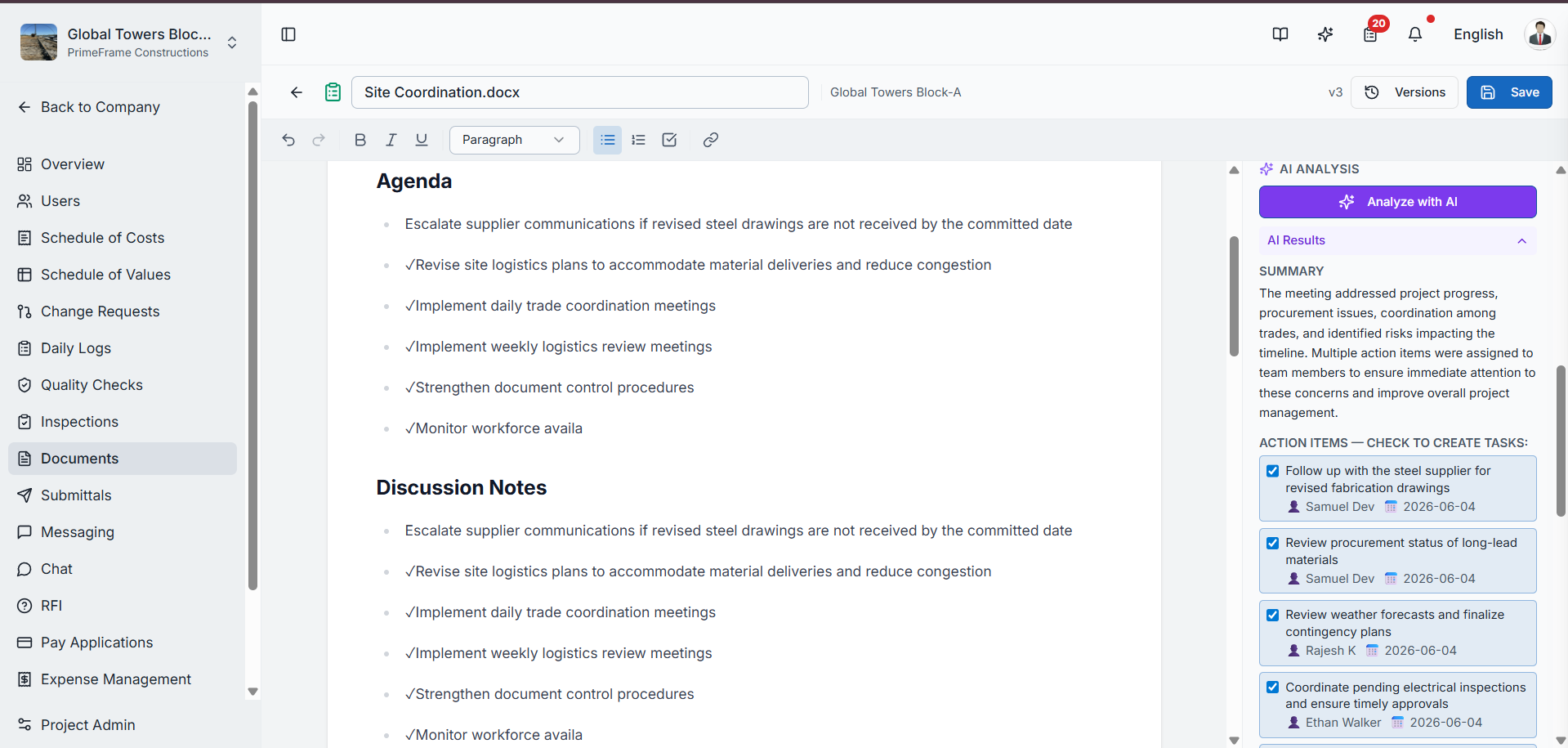
Once content is added, click Analyze with AI. The AI generates a comprehensive meeting summary that includes:
- Key discussion points — main topics covered
- Meeting highlights — significant moments or announcements
- Action items and responsibilities — who needs to do what
- Decisions made — outcomes agreed upon during the meeting
- Risks and concerns — flagged issues requiring attention
- Other important information — anything else worth tracking
Creating Tasks from Action Items
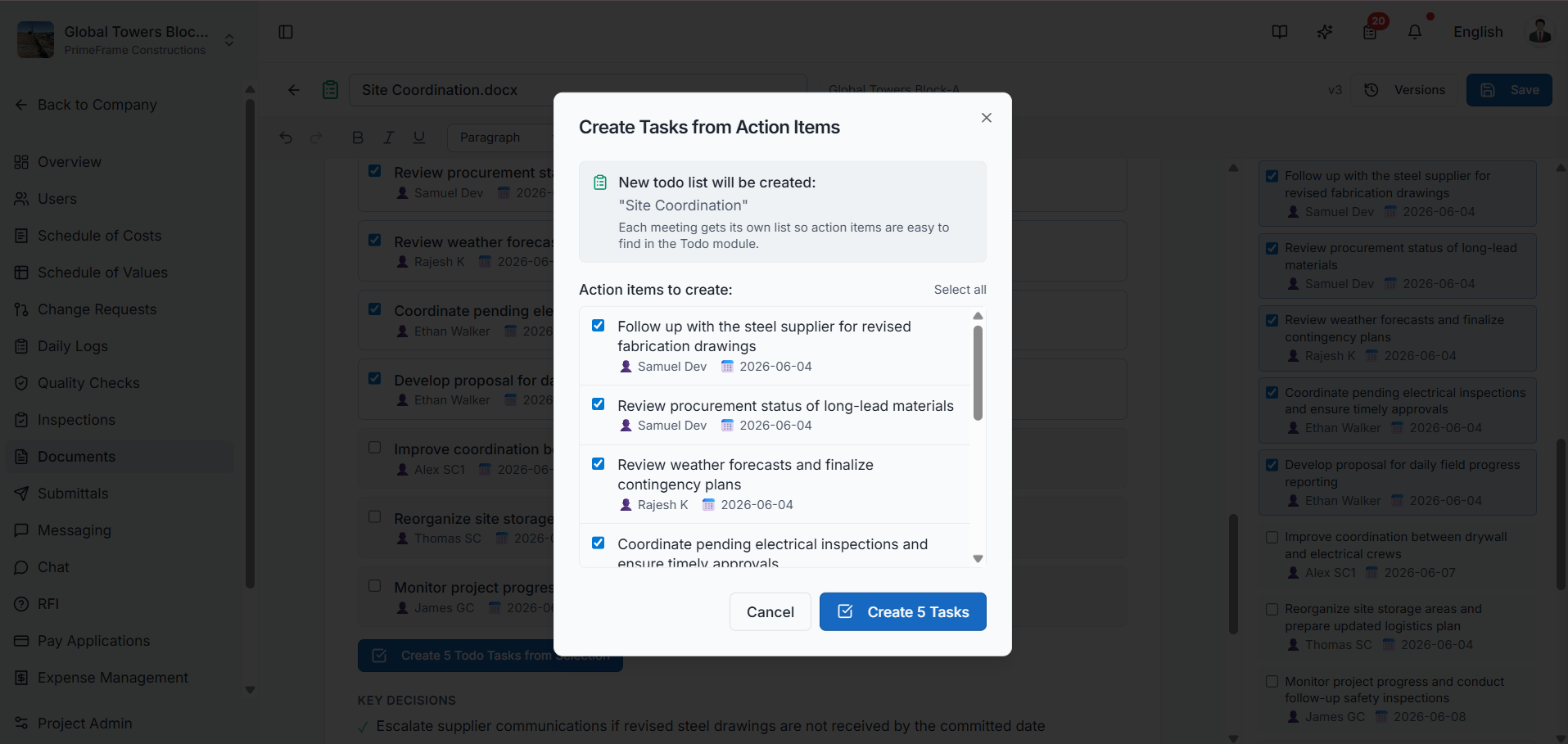
The most powerful feature of Meeting Minutes is converting AI-identified action items directly into project To-Do tasks:
- Review the generated action items in the AI summary
- Select the desired items using the checkboxes
- Click Create Selected Tasks
- Confirm in the pop-up and click Create Tasks
The selected items are automatically converted into To-Do tasks and assigned to the relevant users — eliminating manual task creation and ensuring clear accountability.
Navigate to the To Do module from the left navigation to view all tasks generated from the meeting. Each task will already be assigned to the respective user.
Left Panel — Quick Access
The left side of the meeting page provides quick navigation to:
- Meeting Agenda
- Decisions Made
- Action Items
- AI Meeting Analysis
Saving and Version History
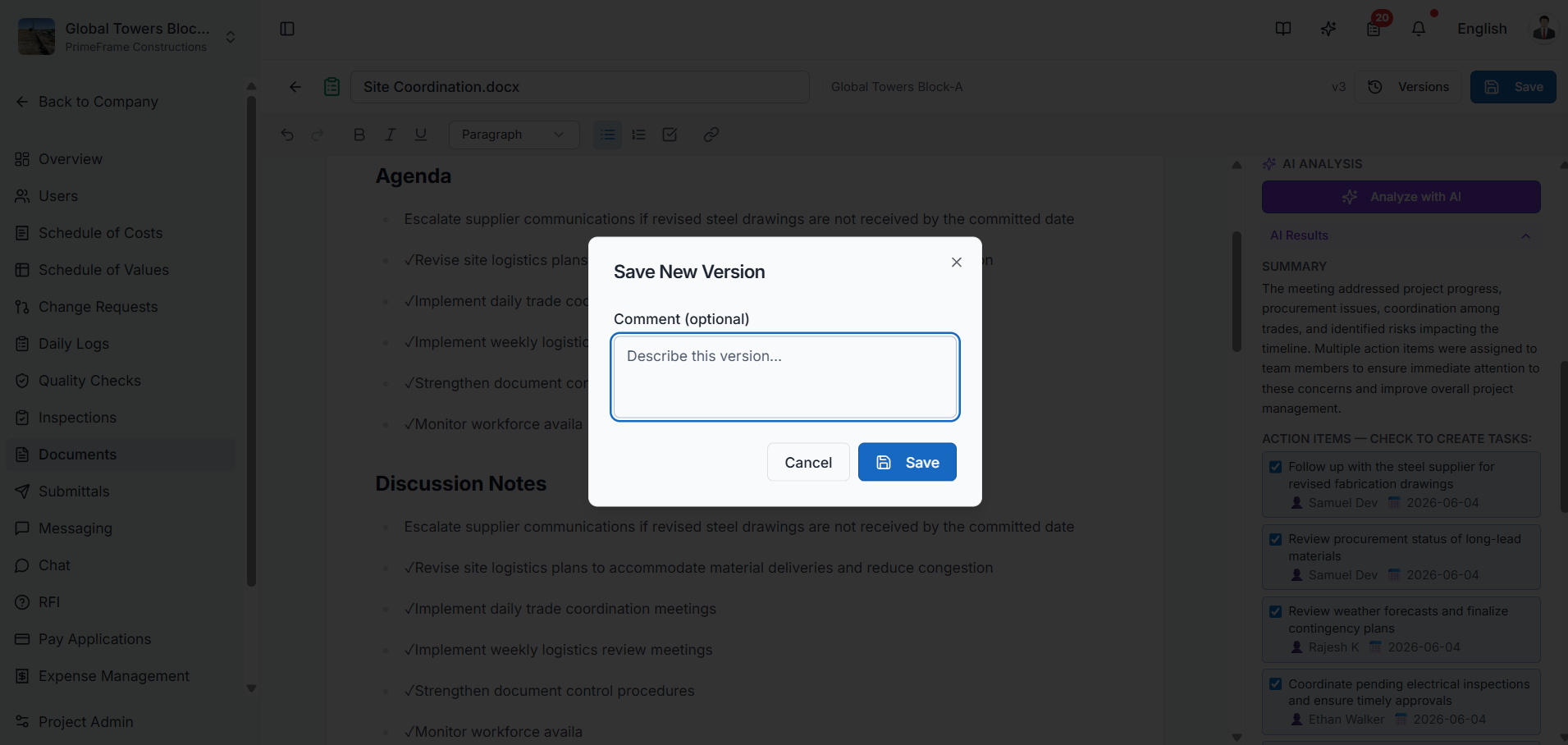
- Click Save to save the meeting record — optionally add a version comment before saving
- SuperConstruct maintains a full version history — click Versions to view past records
- Use Back to Latest to return to the most recent version from an older one
Accessing Saved Meeting Minutes
Return to the Documents module at any time to find all saved meeting minutes, available for future reference, review, and team collaboration.

Video Walkthrough
Meeting Minutes — AI-Powered Meeting Documentation
Role Access: Available to all project members. Attendees and task assignments follow project role permissions.