
Header Navigation
Understanding the icons and buttons in the top header bar.
Header Bar
The header bar appears at the top of every page and provides quick access to key features.
Sidebar Toggle (Left Side)
A hamburger menu icon that expands or collapses the main navigation sidebar. Useful on smaller screens or when you need more workspace.
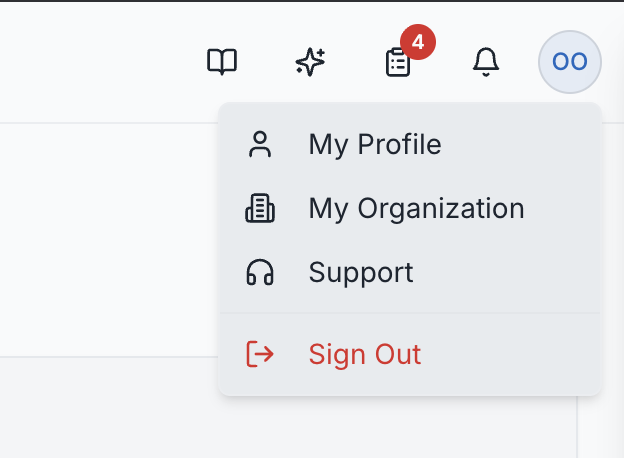
Right Side Icons
From left to right, the header contains:
Documentation (Book Icon)
Opens the documentation center (this page) where you can learn about every feature of SuperConstruct.
AI Assistant (Sparkle Icon)
Opens the AI chat panel — a slide-out sidebar from the right where you can ask questions about your project, get insights, and receive automated assistance. The AI is context-aware and can help with project-specific queries.
Roles: Available to all authenticated users.
Pending Tasks (Clipboard Icon)
Shows a red badge with your pending task count. Click to open a dropdown with your task list. Tasks include items like pending approvals, RFIs needing response, inspections to review, and more. The count refreshes automatically every 60 seconds.
Roles: All users see tasks relevant to their role and permissions.
Notifications (Bell Icon)
Shows an unread notification count badge. Click to open a panel showing recent notifications — approvals needed, status changes, new assignments, comments, and more. Includes a "Mark all read" option. Clicking a notification navigates to the relevant item.
Roles: All users receive notifications relevant to their role.
Profile Menu (Avatar)
Click your avatar to open a dropdown menu with:
- My Profile — edit your personal information, photo, preferences
- My Organization — manage your company settings and team
- Support — access the support ticket system
- Sign Out — log out of your account