
Expense Management
Track and manage project expenses — including one-time costs, refunds, and recurring charges — with dashboard analytics and audit trails.
What Is Expense Management?
The Expense Management module tracks project-related expenses that fall outside the standard Pay Application process. This includes daily operational costs, materials, equipment rentals, recurring charges, and any refunds received. Every record is audit-trailed and tied to a specific division, subdivision, and line item.
Two Tabs
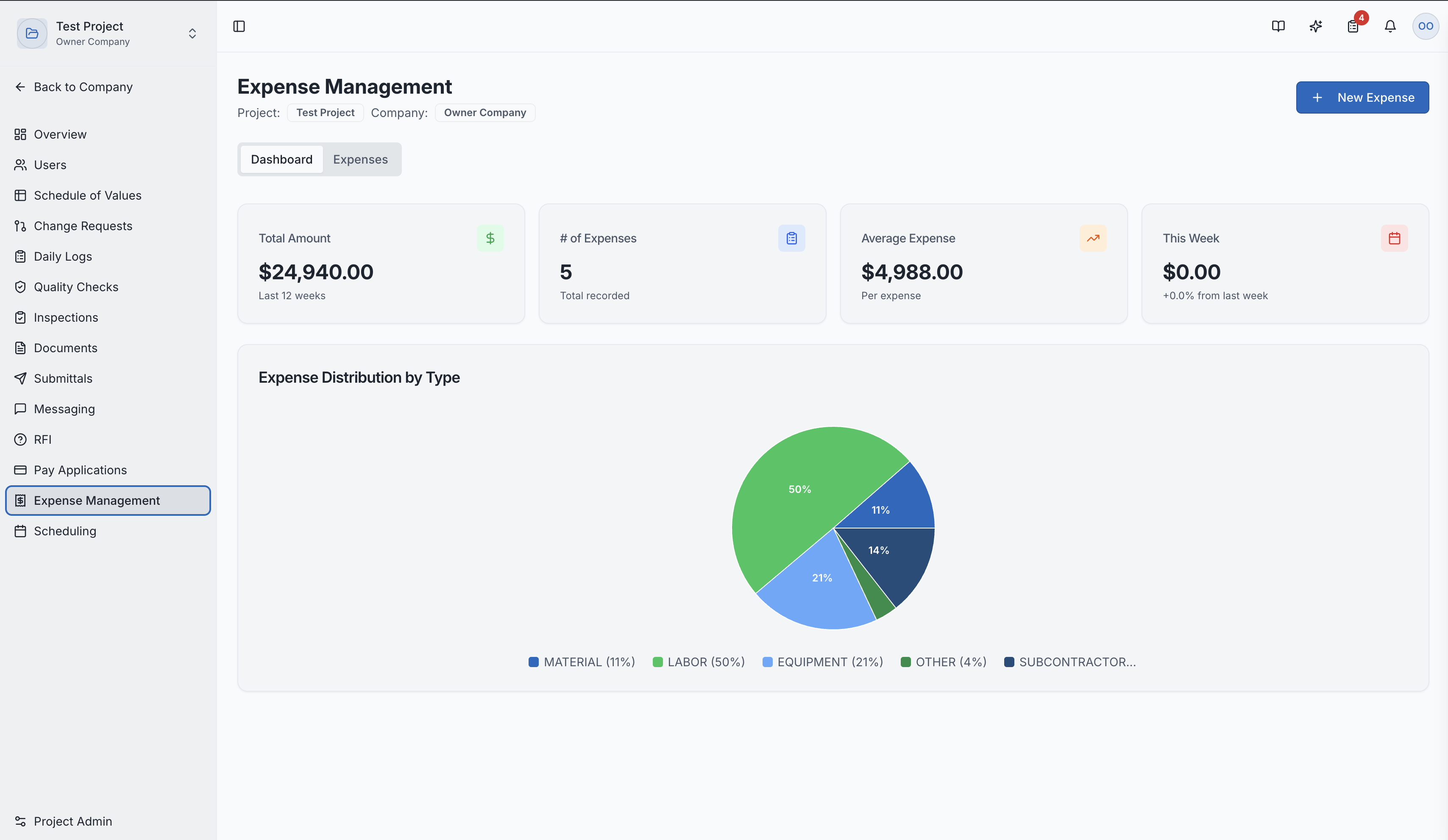
Dashboard
A financial overview providing:
- Total Amount — all-time expense total for the project
- # of Expenses — total number of records
- Average Expense — per-expense average
- This Week — current week spend vs. last week
- Expense Distribution by Type — horizontal bar chart showing spend per category, sorted by amount
Expenses
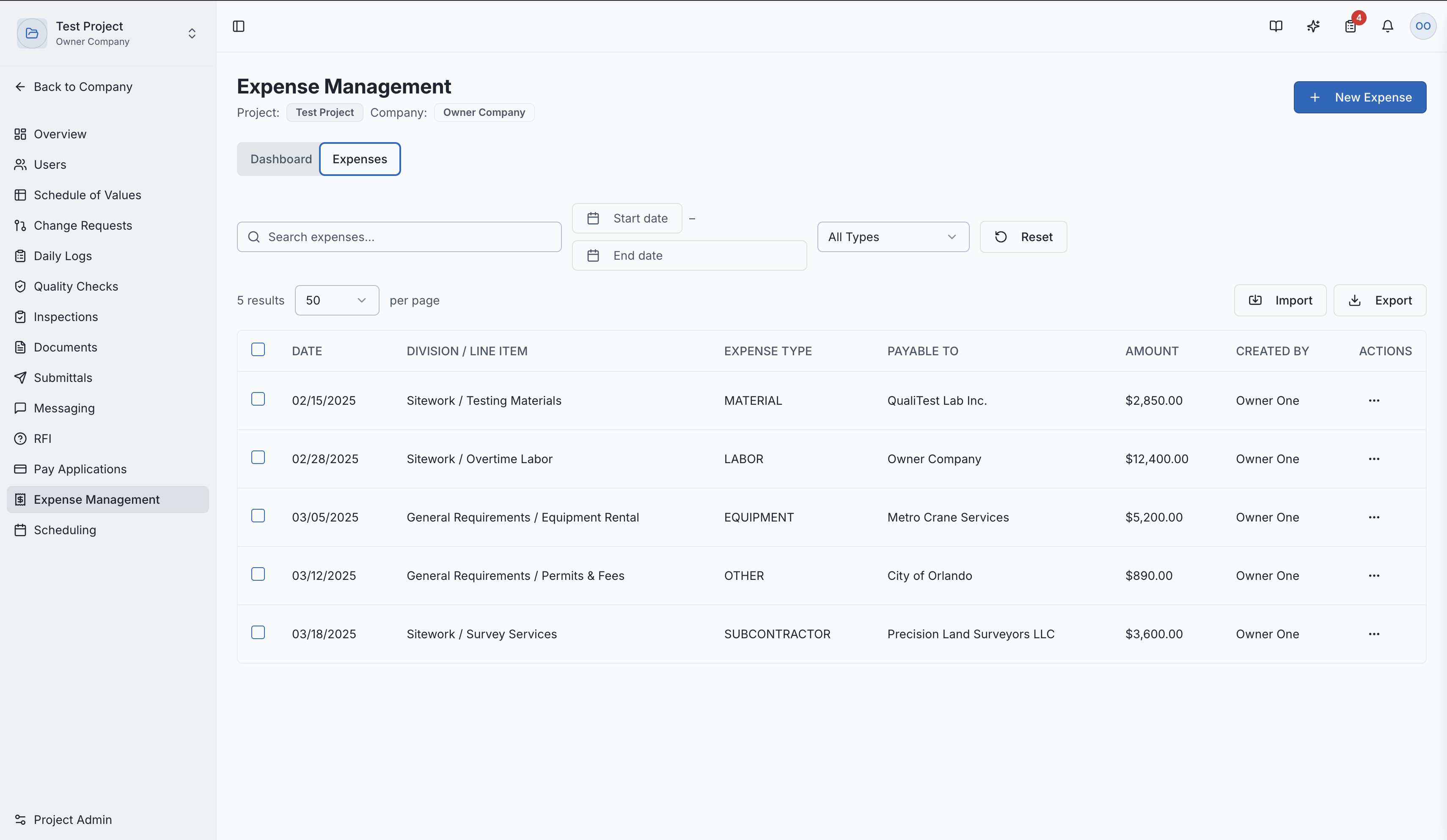
A detailed list of all expense records with:
- Search by keyword
- Date range filter (Start Date – End Date)
- All Types filter — filter by expense category (Materials, Utility fee, etc.)
- All Categories filter
- Import / Export — bulk import via CSV or export to spreadsheet
- Columns: Date, Category badge, Division / Line Item, Expense Type, Payable To, Amount, Created By, Actions (⋯)
Three Types of Expenses
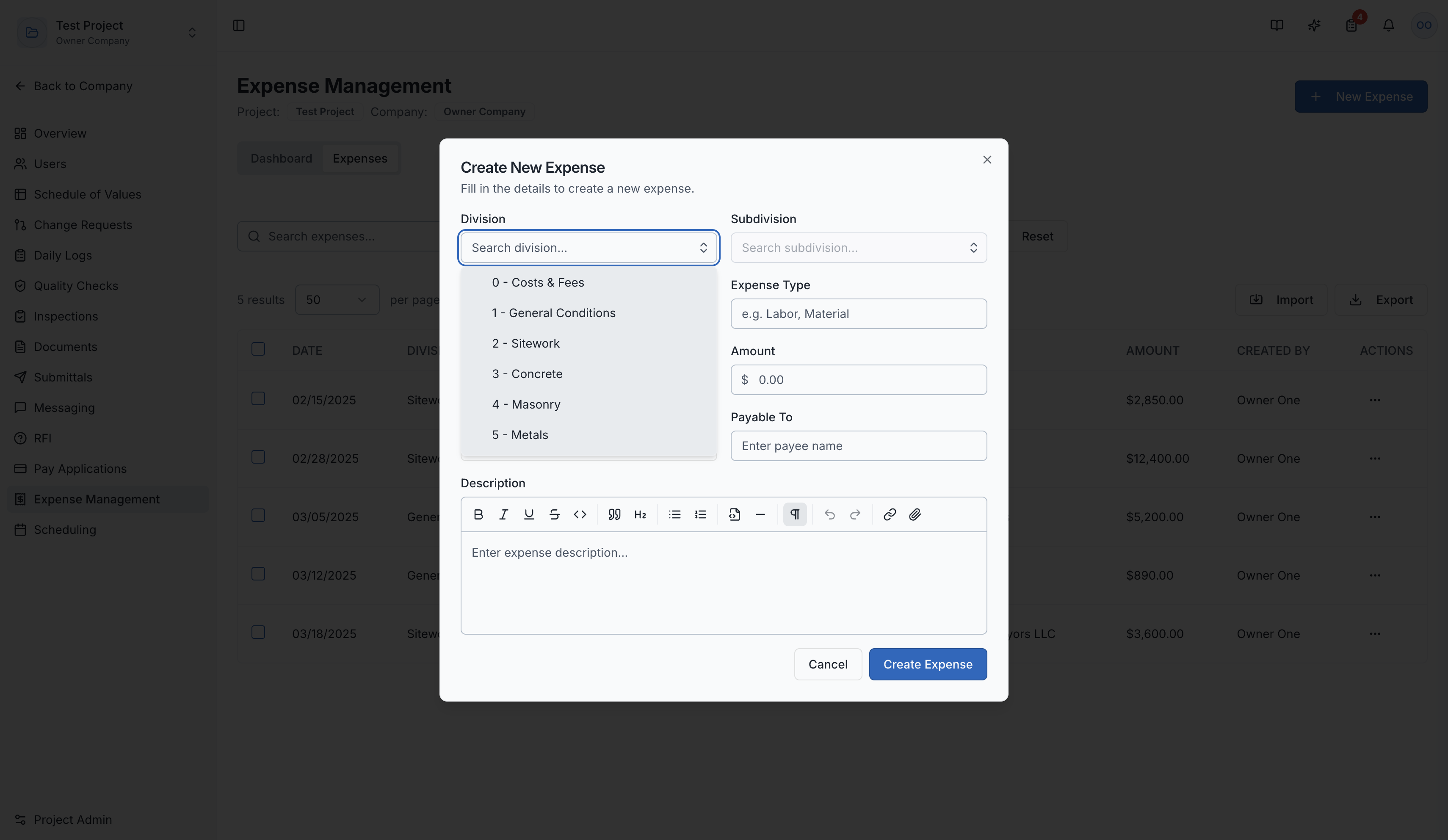
When you click "+ New Expense", you choose one of three Expense Categories:
1. Expense (Standard)
A one-time project cost paid to a vendor or payee.
Fields:
| Field | Description |
|---|---|
| Auto-fill from receipt | Take Photo or Attach File — AI parses the receipt and pre-fills fields |
| Division / Subdivision | Links the cost to the SOV structure |
| Line Item | Specific line item within the subdivision |
| Expense Type | Free-text label (e.g. Labor, Material) |
| Currency | USD (default) |
| Amount | Dollar value of the expense |
| Expense Date | When the cost was incurred |
| Payable To | Vendor or payee name |
| Mode of Payment | Payment method (cash, check, card, etc.) |
| Description | Rich-text notes with formatting support |
2. Refund
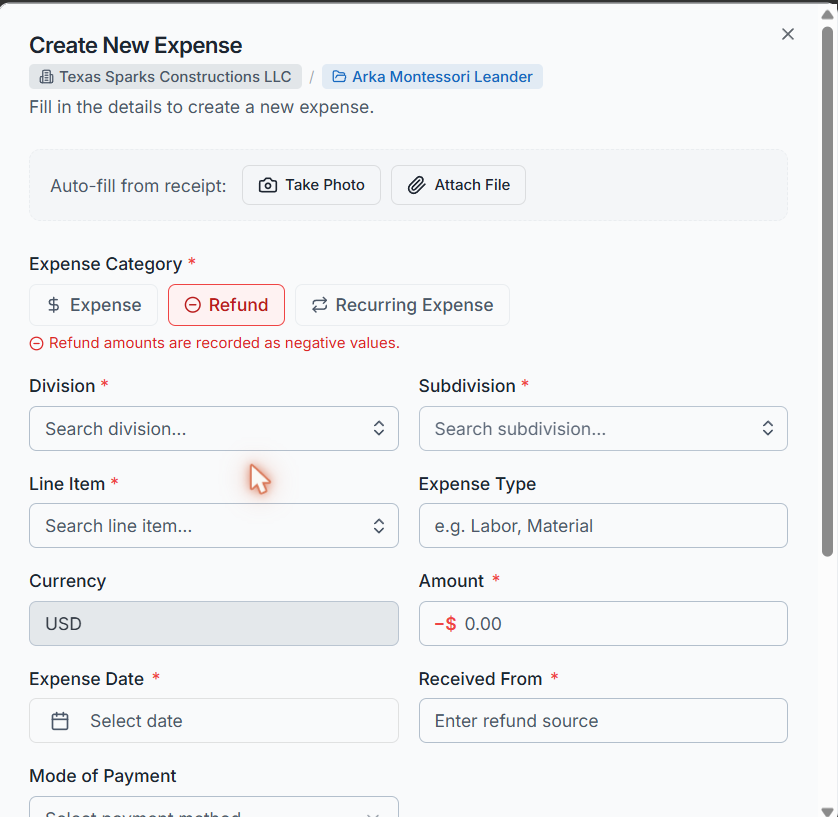
A reimbursement or credit received — recorded as a negative amount to offset project costs.
⚠ Refund amounts are recorded as negative values and will reduce the project's total expense balance.
Differences from a standard Expense:
- Amount field displays as −$ (automatically negative)
- "Payable To" is replaced by "Received From" — enter the source of the refund (e.g. vendor name, insurance company)
- All other fields (Division, Line Item, Date, Mode of Payment, Description) are identical
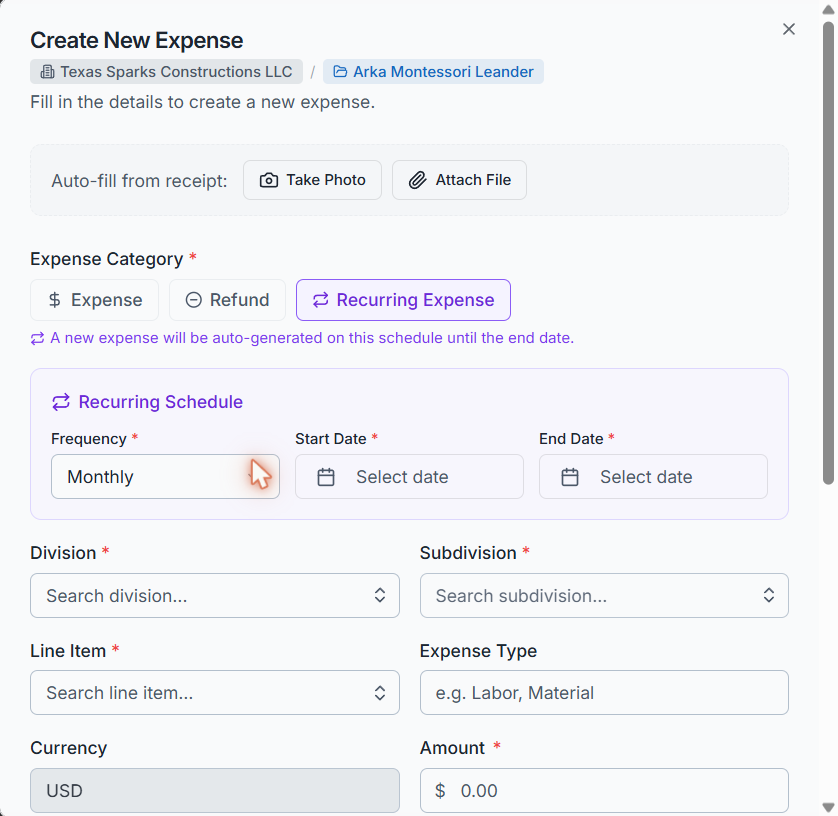
3. Recurring Expense
An expense that repeats automatically on a set schedule. Once saved, SuperConstruct auto-generates a new expense record at each interval until the end date — no manual re-entry needed.
↻ A new expense will be auto-generated on this schedule until the end date.
Additional fields (Recurring Schedule section):
| Field | Description |
|---|---|
| Frequency | How often the expense recurs: Daily, Weekly, Monthly, Quarterly, Yearly |
| Start Date | Date the first expense is generated |
| End Date | Date after which no more expenses are generated |
All standard expense fields (Division, Line Item, Amount, Payable To, etc.) are also required.
Common use cases:
- Monthly equipment rental fees
- Weekly portable toilet service
- Recurring utility or site service charges
- Annual permit or licensing fees
Worklogs (Audit Trail)
Every change made to an expense record is tracked in a worklog:
- Who made the change
- What was changed
- When the change occurred
This creates a complete audit trail for financial accountability.
Exporting
Export your expense data for reporting:
- CSV Export — spreadsheet format for further analysis
- HTML/PDF Reports — formatted reports for stakeholders
Expense Detail Page
Clicking any expense record shows:
- Full expense information
- Attached receipts and invoices
- Complete worklog / audit trail
Role Access:
Important: Expense Management has restricted access. Only the following roles can access this module:
| Role | Access Level |
|---|---|
| Owner (Company Level) | Full access |
| Project Manager | Full access |
| Superintendent | Full access |
| All other roles | No access to expense management |
Video Tutorials
Track Every Project Expense in SC — Expense Management Module (Avoid Cost Leakage)
Advanced Expense Management — AI Bill Processing, Refunds & Recurring Expenses