
Dashboard
Your home screen after logging in — see your tasks, companies, and project overview at a glance.
Overview
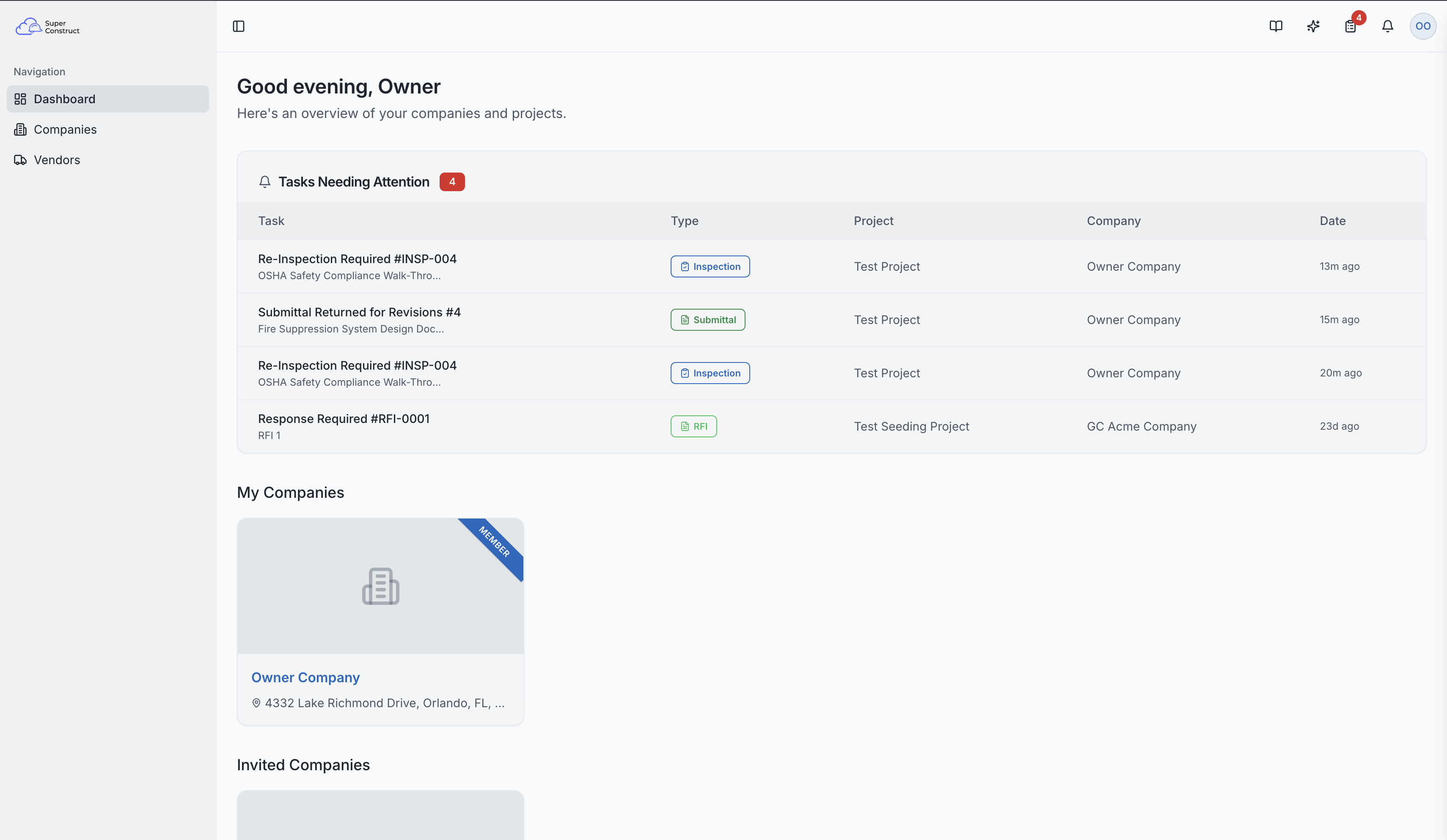
The Dashboard is the first page you see after signing in. It provides a personalized overview of your responsibilities and company affiliations.
Greeting
At the top, you'll see a time-based greeting (e.g., "Good morning, John") followed by a summary message: "Here's an overview of your companies and projects."
Tasks Needing Attention
A prominent section at the top displays a table of tasks requiring your action. Each task shows:
- Task Name/Title — what needs to be done
- Type — color-coded badge (e.g., RFI, Change Request, Inspection, Pay Application)
- Project Name — which project the task belongs to
- Company Name — the associated company
- Time — how long ago the task was created
Clicking a task row navigates you directly to the relevant item — for example, clicking a pending Change Request takes you straight to that change request's detail page.
My Companies
This section shows companies where you are a direct member (you joined or created the company). Each company card displays the company logo, name, and address. A "Member" ribbon indicates your membership. Click any card to navigate to that company's projects.
Invited Companies
This section shows companies where you've been invited to collaborate on specific projects. These are organizations where you have project-level access without being a direct company member. This is common for subcontractors, architects, and consultants who work across multiple organizations.
Company Dashboard Widgets
At the bottom of the dashboard, if you belong to any companies, you'll see high-level, real-time portfolio widgets. If you're part of multiple companies, a dropdown selector lets you switch which company's data is displayed. The widgets are:
Active Project Overview
Real-time project status across the portfolio — Total Active Projects, how many are On Track, and how many are Delayed (with percentages).
Financial Overview
Contract values, payments, and key financial metrics across all active projects:
- Total Contract Value — sum across all active projects
- Total Paid to Date — with overall % complete and remaining balance
- Open Pay Apps — total open Pay Application value and count
- Change Orders — outstanding change order value and count
Portfolio Profit and Loss
Realized and unrealized net across active projects (in USD), with a Realized Net breakdown: Received from Owner, Paid to Subcontractors, Expenses, and Net Profit. Toggle between Realized (actual cash) and Unrealized (projected) views.
Compliance & Risk
A portfolio-wide risk snapshot covering RFI status and inspections:
- Unresolved RFIs — open RFIs across all projects
- Pending Inspections — inspections awaiting completion across all projects
Workforce
A subcontractor activity overview, including Active Subcontractors (average per project). More workforce metrics are coming soon.
Pending Tasks Button (Header)
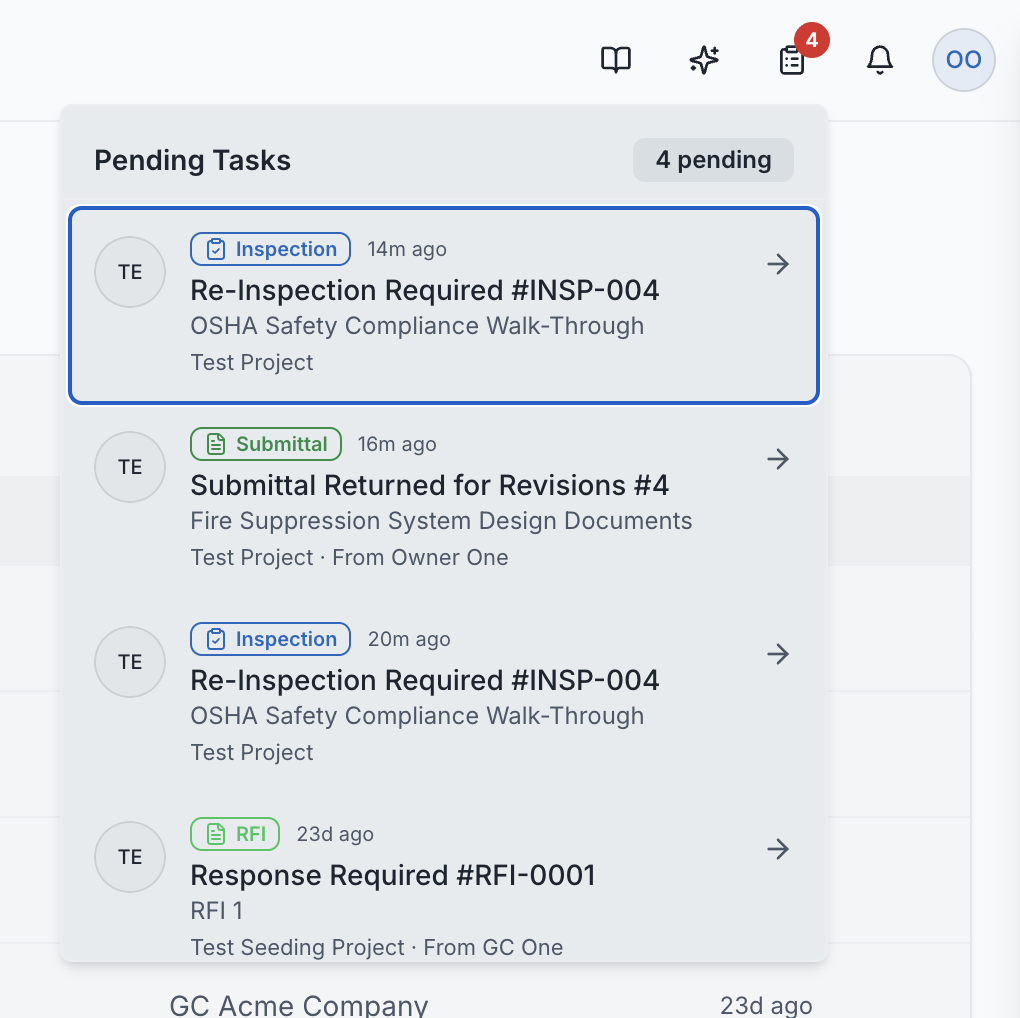
In the top header bar, there's a clipboard icon with a red badge showing your pending task count. This is accessible from any page in the app, not just the dashboard.
- The count auto-refreshes every 60 seconds
- Clicking it opens a popover dropdown with your task list
- Each task shows the project avatar, task type badge with icon, task title, requester name, and time
- Clicking any task closes the popover and navigates you directly to that item
Roles: All authenticated users see the dashboard. Task visibility depends on your project role and permissions — you only see tasks assigned to you or relevant to your role.