Chat
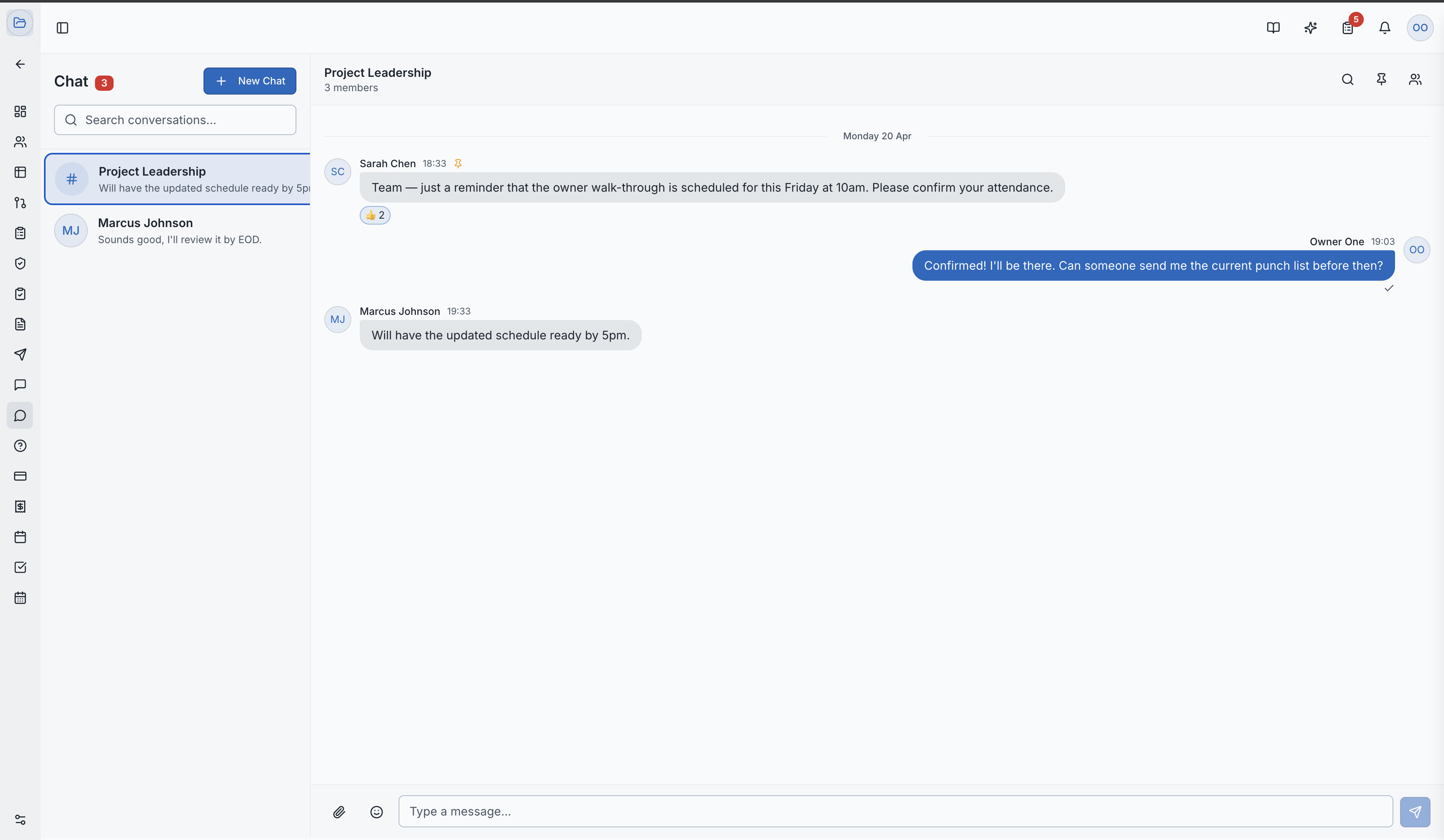
Real-time direct and group messaging for project teams — with file sharing, reactions, and message pinning.
What Is the Chat Module?
The Chat module provides real-time messaging for your project team. Unlike the Message Center (which is for structured, formal project communication), Chat is for quick, informal collaboration — the kind of conversations that happen in the field or between team members throughout the day.
Chat vs. Message Center
| Feature | Chat | Message Center |
|---|---|---|
| Delivery | Real-time, instant | Asynchronous |
| Format | Conversational | Structured posts |
| Organization | Conversations (DMs + Groups) | Categories and privacy levels |
| Best For | Quick questions, coordination | Formal project records |
| Read Receipts | Check/double-check icons | Full per-recipient tracking |
Starting a Conversation
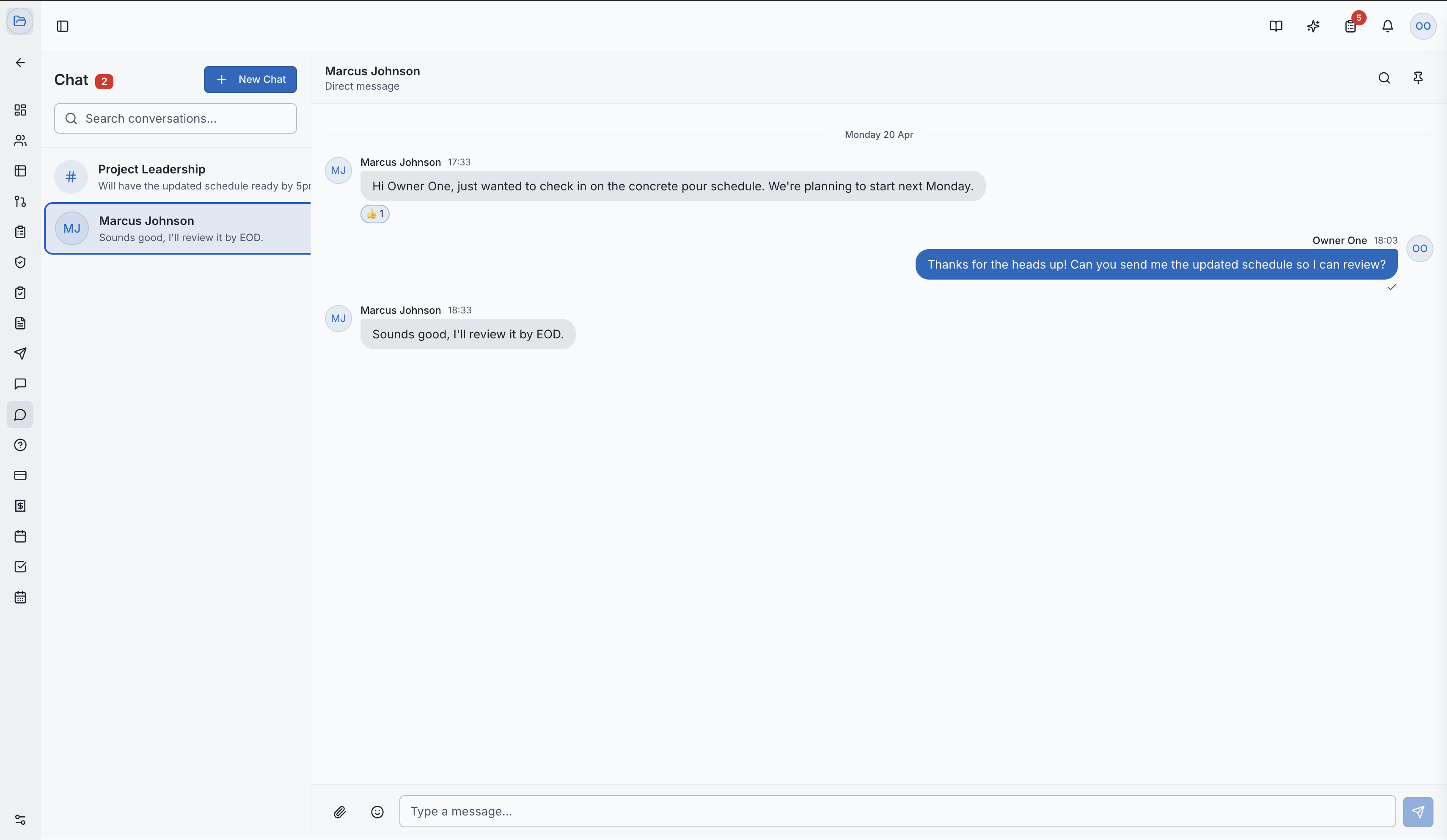
Direct Message (DM)
Send a private message to a single team member:
- Click the "+" or "New Chat" button
- Search for a team member by name
- Select them to open a direct conversation
Group Chat
Create a group conversation for multiple people:
- Click "New Group"
- Give the group a name and optional description
- Add members from the project team
- Start chatting
Sending Messages
Type your message in the input bar at the bottom of the chat window and press Enter (or click Send). You can also:
- Attach files — click the paperclip icon to upload images, documents, or other files. Images are previewed inline in the chat.
- Reply to a specific message — hover over any message and click the reply icon to thread your response. The original message is quoted in your reply.
- React with emojis — hover over any message and click the emoji icon to add a reaction from the emoji picker. Multiple people can react to the same message.
Message Management
Pinning Messages
Pin important messages so they're easy to find later:
- Hover over the message and click the pin icon (or use the message menu)
- Pinned messages appear in the Pinned Messages view, accessible from the group header
Useful for pinning addresses, decisions, or instructions that the team needs to reference often.
Forwarding Messages
Forward a message to another conversation:
- Hover over the message and open the message menu
- Click "Forward" and select the destination conversation
Deleting Messages
You can delete your own messages. The message is replaced with "This message was deleted" in the conversation.
Read Receipts
Message delivery and read status is shown with icons next to each message:
- Single check — message sent
- Double check — message read by the recipient(s)
In group chats, the double check appears once all participants have seen the message.
Typing Indicators
When someone is composing a message in a conversation you have open, you'll see a "..." typing indicator in real time.
Group Management
Group chat creators and admins can:
- Add members — invite additional project team members to the group
- Remove members — remove someone from the group
- Update group name/description — edit the group's details from the group header
Who Can Chat With Whom
Chat access follows project role rules:
| Role | Can chat with |
|---|---|
| General Contractor (GC) | Anyone on the project |
| Owner / Developer | GC team members and other Owners/Developers |
| Subcontractor (SC) | GC team members and members of their own company |
Owners and Subcontractors cannot start direct conversations with each other. This reflects standard construction communication hierarchies.
Unread Counts
The Chat icon in the sidebar shows a badge with the number of unread messages across all conversations. Each conversation also shows its individual unread count.
Role Access:
| Role | Access Level |
|---|---|
| General Contractor | Full access — DMs and groups with all eligible members |
| Owner / Developer | Chat with GC and other Owners/Developers |
| Subcontractor | Chat with GC and own company members |
| GC Member | Full access within GC team |
Video Tutorials
How to Create a Group Chat
How to Use Chat