
Calendar
Project event scheduling with recurring events, attendee management, reminders, and file attachments.
What Is the Calendar?
The Calendar module is a project-wide event scheduling tool. Use it to schedule meetings, site visits, milestones, inspections, deadlines, and any other time-sensitive events for your project team.
Accessing the Calendar
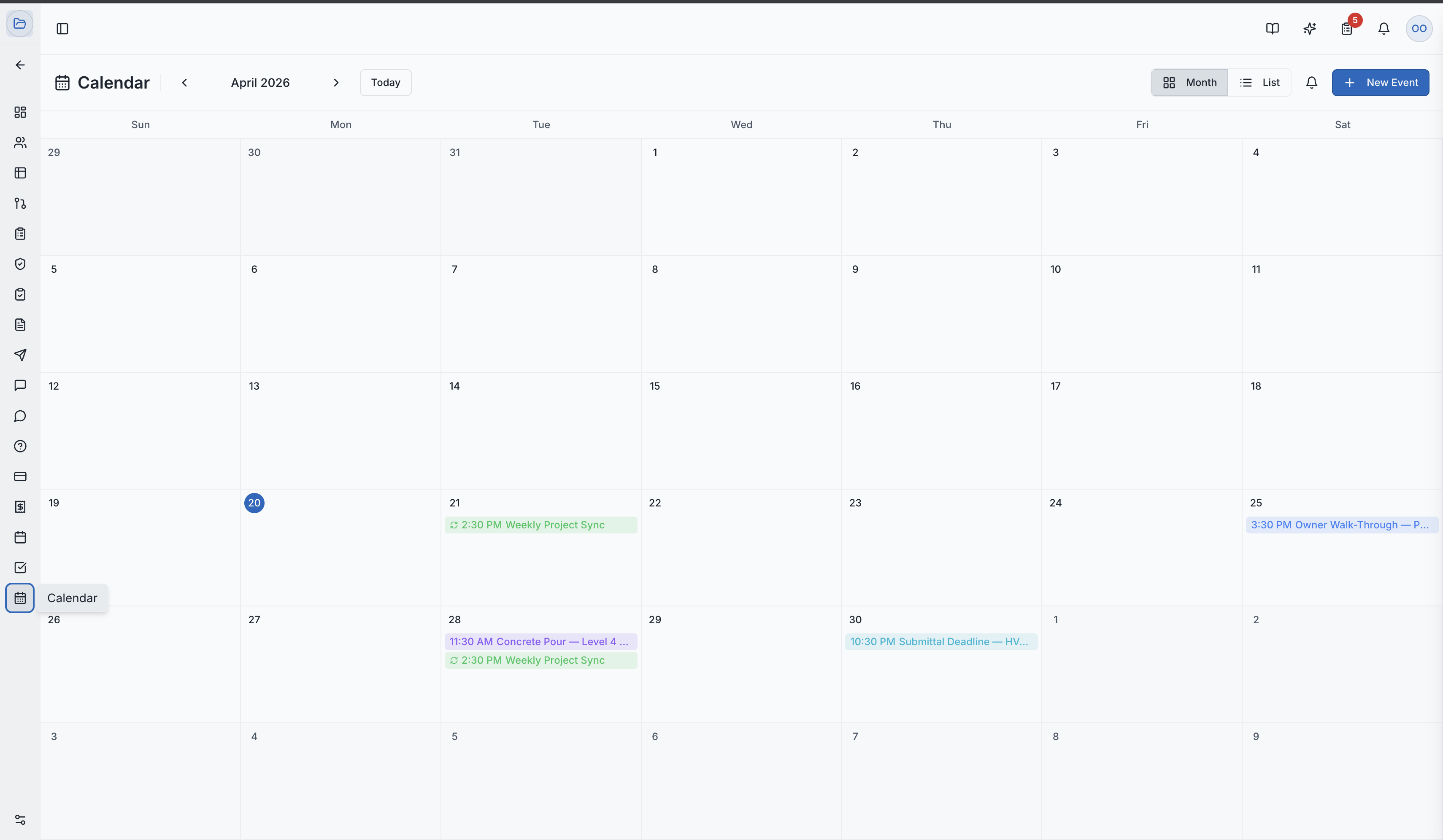
Select Calendar from the project sidebar. You can toggle between two views:
- Month View — a standard monthly calendar grid showing all events at a glance
- List View — a chronological list of upcoming events, easier to scan for dense schedules
Creating an Event
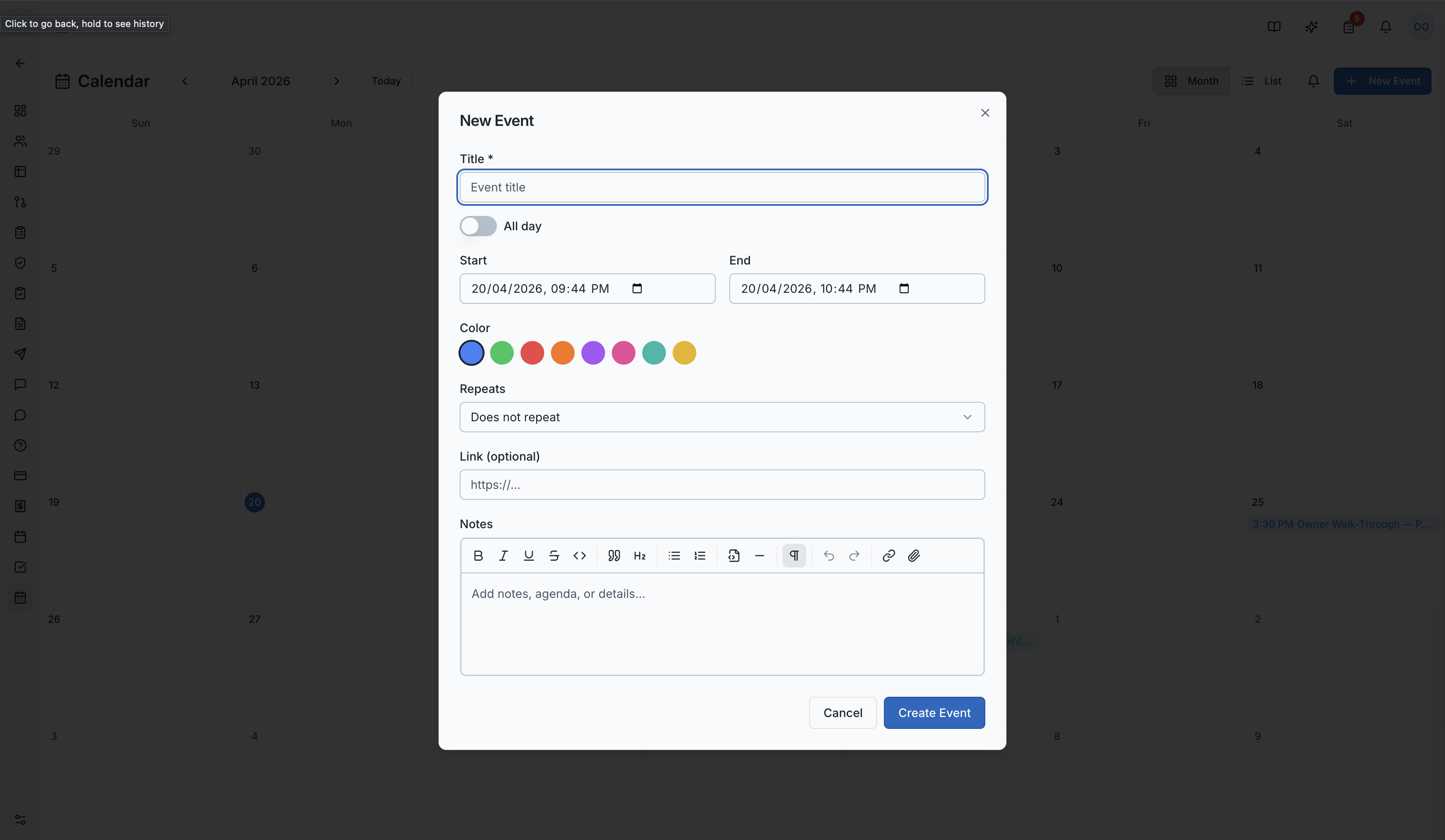
Click any date on the calendar (or the "New Event" button) to open the event creation form:
| Field | Description |
|---|---|
| Title | Name of the event |
| Date & Time | Start and end date/time |
| All Day | Toggle for events without a specific time |
| Color | Choose a color to visually categorize the event |
| Description | Details about the event (supports rich text) |
| Meeting Link | URL for video calls or virtual meetings |
Recurring Events
Set up events that repeat on a regular schedule instead of creating them one by one:
| Frequency | Options |
|---|---|
| Daily | Repeats every day |
| Weekly | Repeats on selected day(s) of the week |
| Bi-weekly | Repeats every two weeks |
| Monthly (by date) | Same date each month (e.g., the 15th) |
| Monthly (by weekday) | Same weekday each month (e.g., second Tuesday) |
| Yearly | Same date every year |
You can also set when the recurrence ends:
- After N occurrences — ends after a set number of repetitions
- On a specific date — ends on a chosen date
Attendees
Invite project members to events so they're notified and can prepare:
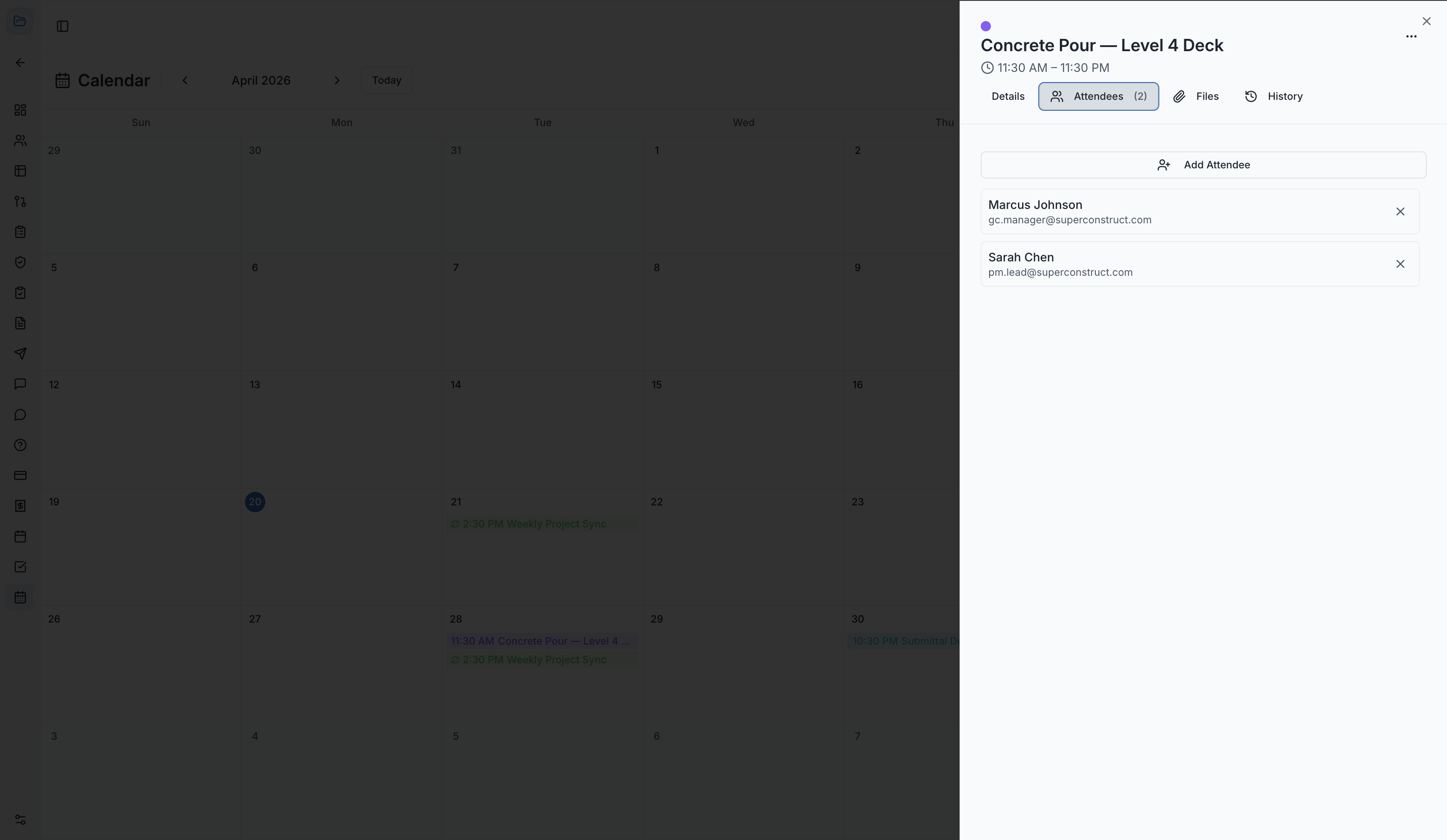
- Open the event detail (click an event to open its side panel)
- Go to the Attendees tab
- Search for and add project members
- Attendees receive an in-app notification and email when added
Attendees can be removed from the event at any time from the same tab.
Reminders & Notifications
Configure automatic reminders so attendees are notified before the event:
- Event-level reminders — set a reminder interval (e.g., 15 minutes before, 1 hour before, 1 day before) when creating or editing the event
- Personal preferences — each user can set their own default reminder preferences for the project via their Notification Settings
Reminders are sent as both in-app notifications and emails, so attendees are informed even when they're not logged in.
Attachments
Attach relevant files to events — agendas, drawings, reports, or any documents the team needs:
- Open the event detail panel
- Go to the Attachments tab
- Upload files directly (stored securely in the cloud)
Attachments are accessible to all attendees and any user with access to the calendar.
Event History
Every event maintains a complete audit trail. Open the History tab on the event detail panel to see:
- When the event was created and by whom
- All changes (title, dates, description, attendees) with old and new values
- Who made each change and when
Role-Based Visibility
| Role | What they see |
|---|---|
| General Contractor | All events on the project |
| Owner / Developer | Events created by GC, Owner, or Developer users |
| Subcontractor | Only events they created themselves |
Role Access:
| Role | Access Level |
|---|---|
| General Contractor | Full access — create, edit, and manage all events |
| GC Project Manager | Full management access |
| Owner / Developer | Create and manage their own events; view GC events |
| Subcontractor | Create and manage their own events only |
| GC Member | VIEW only |
Video Tutorial
How to Use the Project Calendar in SuperConstruct