
AI Scheduled Tasks
Set up recurring AI automations that monitor your projects on a schedule and deliver findings automatically.
What Are AI Scheduled Tasks?
AI Scheduled Tasks are automated, recurring instructions you give the SuperConstruct AI. Instead of asking a question manually every day, you describe what to check and when — and the AI runs the task automatically, delivering a report to your conversation at the scheduled time.
Think of it as a smart project monitor that watches your construction portfolio around the clock, flags issues, and sends you a summary exactly when you need it.
How It Works
- Describe the task in plain English — tell the AI what to check across your projects, what to report, and when to run it
- The AI creates the automation — it saves your instruction as a live scheduled task
- The task runs automatically — at the scheduled time, the AI queries your live project data
- You receive the findings — results are delivered directly to your AI conversation
Creating a Scheduled Task
Open the AI Assistant and describe your automation. Be specific about three things:
- What to check — which module, which projects, which conditions
- What to report — what information to include in the summary
- When to run — time of day, specific days, or recurrence
Example Prompts
"Every day at 6pm, check all active projects for daily logs. List any projects not updated today and show the last log date. Group the results by superintendent name."
"Every weekday at 9am, return a list of all vendors across my accessible projects that have any compliance documents — COI, License, Safety, or W-9 — that are missing, expired, or expiring."
"Every Monday at 9am, review all Schedules of Values across accessible projects. Check that SOVs between Owner-GC and GC-Subcontractors are present and complete. If any GC-to-Subcontractor SOV is missing, notify the project team immediately."
"Every Wednesday evening, check these specific projects for a weekly drone video of more than 30 seconds in their daily logs. Report the date of the last qualifying upload, or flag that it is missing."
"Each day at 6pm, review expense records across all active projects. For each project, check if any expense was added in the past 5 days. Report the findings in a concise summary."
Managing Your Scheduled Tasks
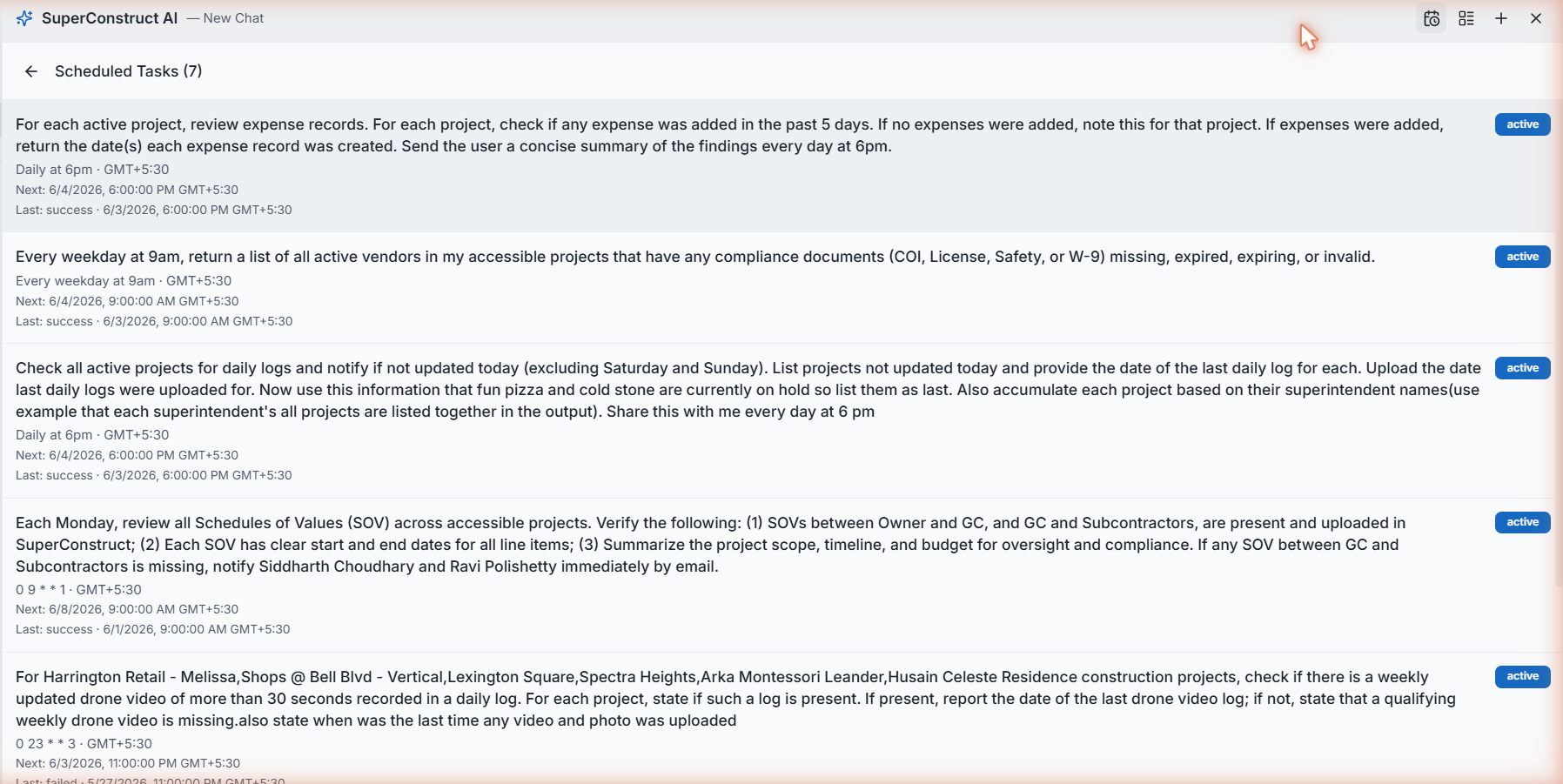
Click the schedule icon (top-right of the AI panel) to open the Scheduled Tasks list.
Each task card shows:
| Field | Description |
|---|---|
| Instruction | The full task description you wrote |
| Schedule | When it runs — plain English or cron notation |
| Timezone | The timezone the schedule operates in |
| Next Run | Exact date and time of the next execution |
| Last Run | When it last ran and whether it succeeded or failed |
| Status | Active badge confirms the task is live |
Schedule Formats
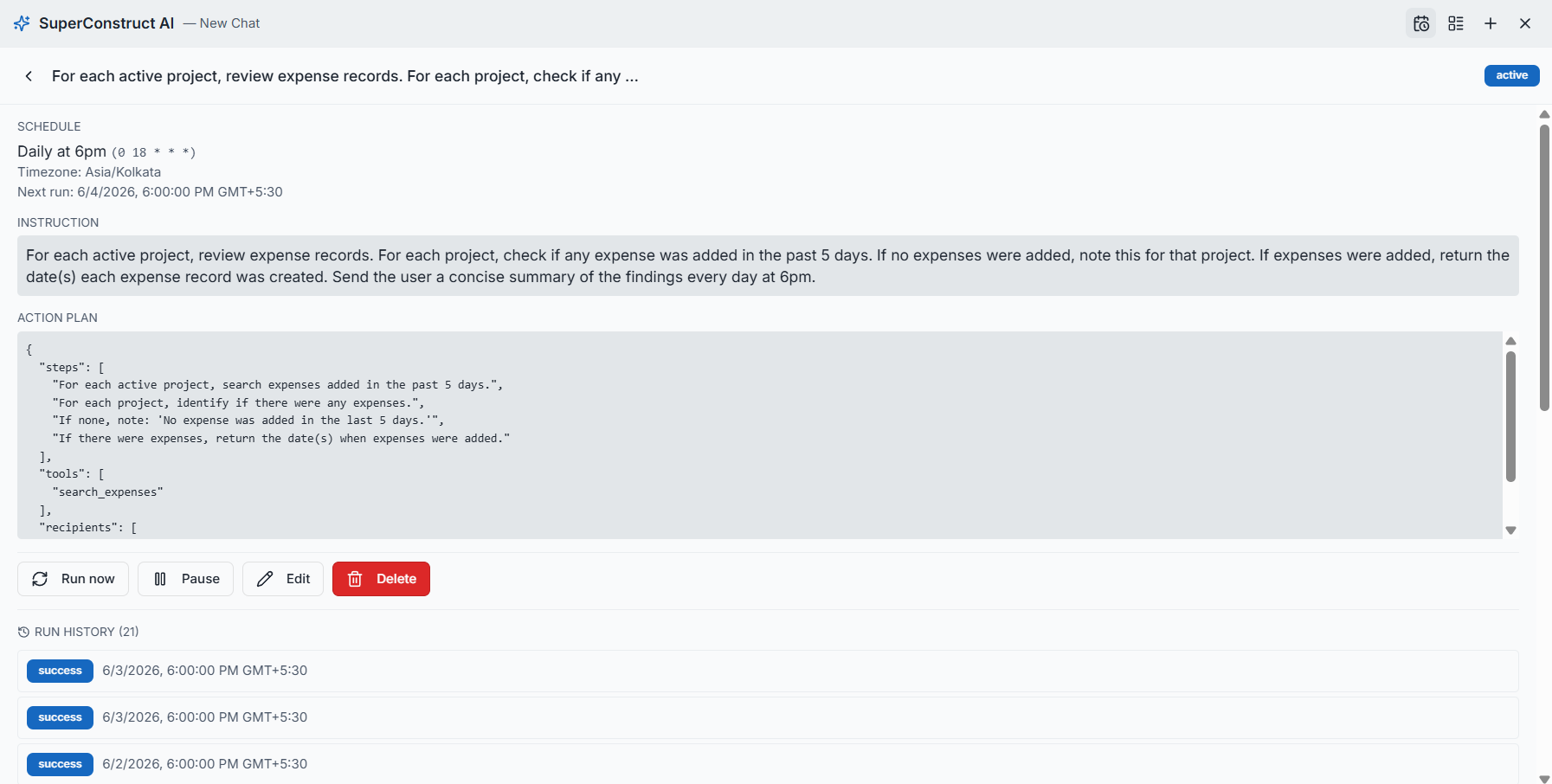
You can specify schedules in plain English or use cron notation for precision:
| Plain English | Cron | Meaning |
|---|---|---|
| Every day at 6pm | 0 18 * | Daily at 6:00 PM |
| Every weekday at 9am | 0 9 1-5 | Monday – Friday at 9:00 AM |
| Every Monday at 9am | 0 9 1 | Weekly on Mondays |
| Every Wednesday at 11pm | 0 23 3 | Weekly on Wednesdays |
Task Status
| Status | Meaning |
|---|---|
| Active | The task is live and will run at the next scheduled time |
| Success | Last run completed and delivered a report to your AI conversation |
| Failed | Last run encountered an error — review the task instruction and reschedule |
Real-World Use Cases
Daily Log Status by Superintendent
Monitor whether all site teams are keeping their daily logs current. The AI groups projects by superintendent, lists any that weren't updated today, and skips weekends automatically — so nothing slips through unnoticed.
Vendor Compliance Watchdog
Get a morning report every weekday of all vendors with compliance gaps. The report includes vendor names, contact emails, the specific missing or expired documents, and the projects they are working on.
Weekly SOV Audit
Every Monday, verify that all required Schedules of Values are present across every accessible project. If a GC-to-Subcontractor SOV is missing, the AI can flag it and notify designated team members immediately.
Ground-Up Drone Video Tracking
For construction projects that require weekly drone documentation, automatically check if a qualifying video was uploaded to a daily log. The report flags each project as compliant or missing — no manual review needed.
Expense Activity Monitoring
Daily financial oversight without manual checking. The AI scans all active projects for recent expenses and delivers a clear summary of what was recorded and when.
Pro tip: Tasks run under your account and respect your role permissions — the AI will only access and report on data you are authorized to view.
Role Access: All authenticated users can create and manage their own scheduled tasks. Tasks are personal to your account and are not visible to other team members unless your instruction explicitly mentions notifying them.
Video Walkthrough
AI Assistant — Platform Walkthrough